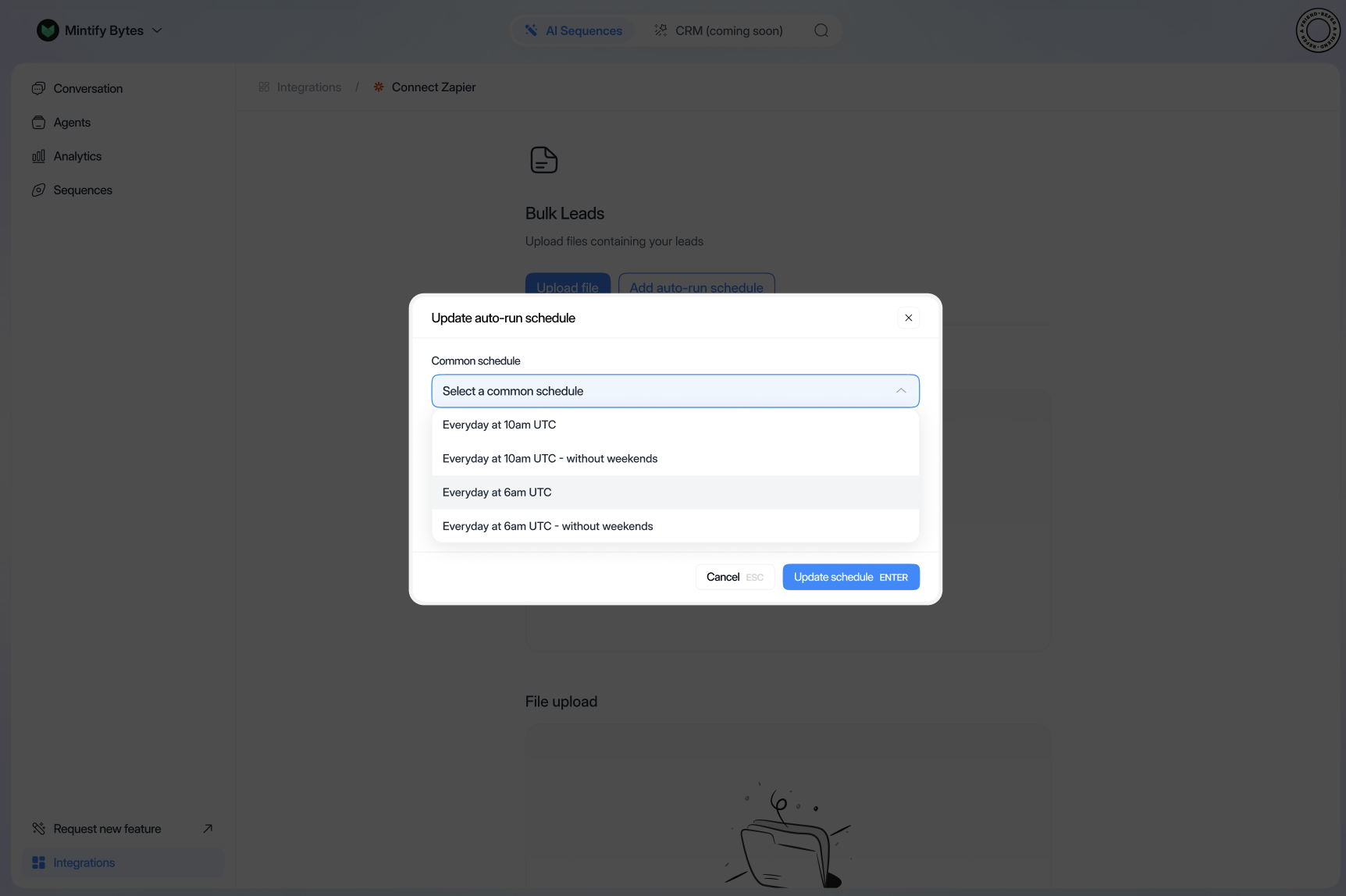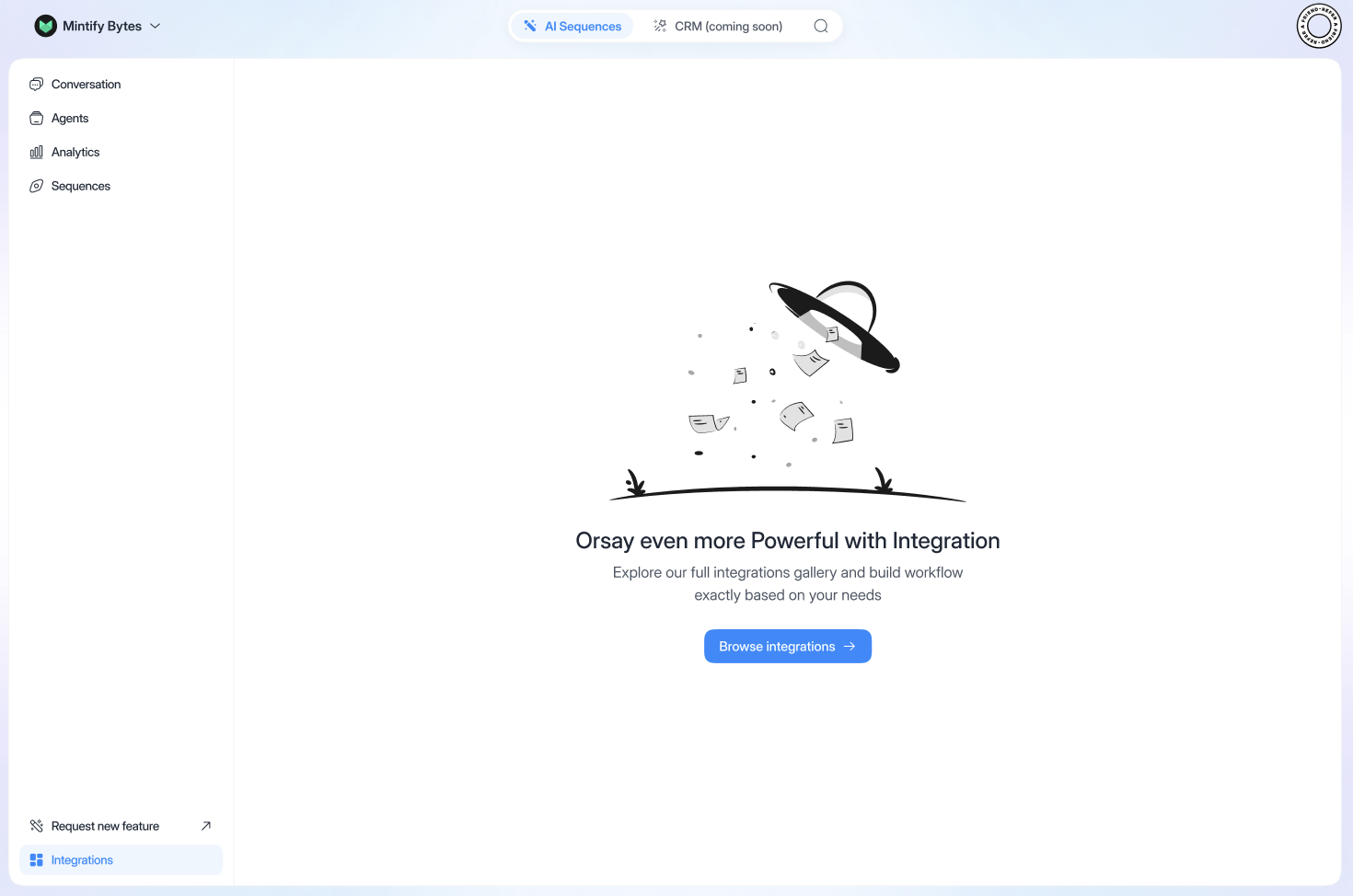
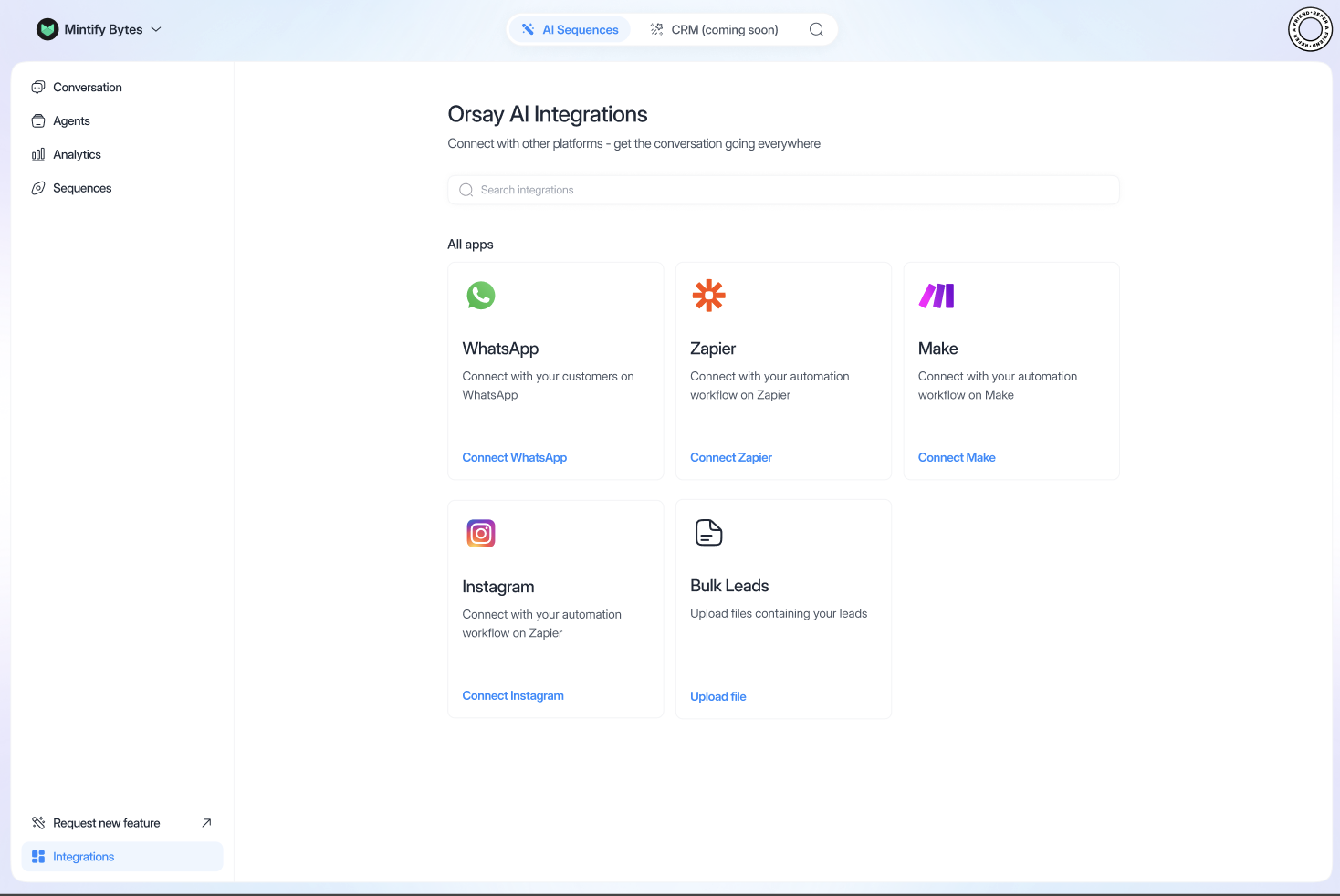
To connect “WhatsApp”:
Connect WhatsApp
Connect WhatsApp
- Click on “WhatsApp”, “Connect WhatsApp”
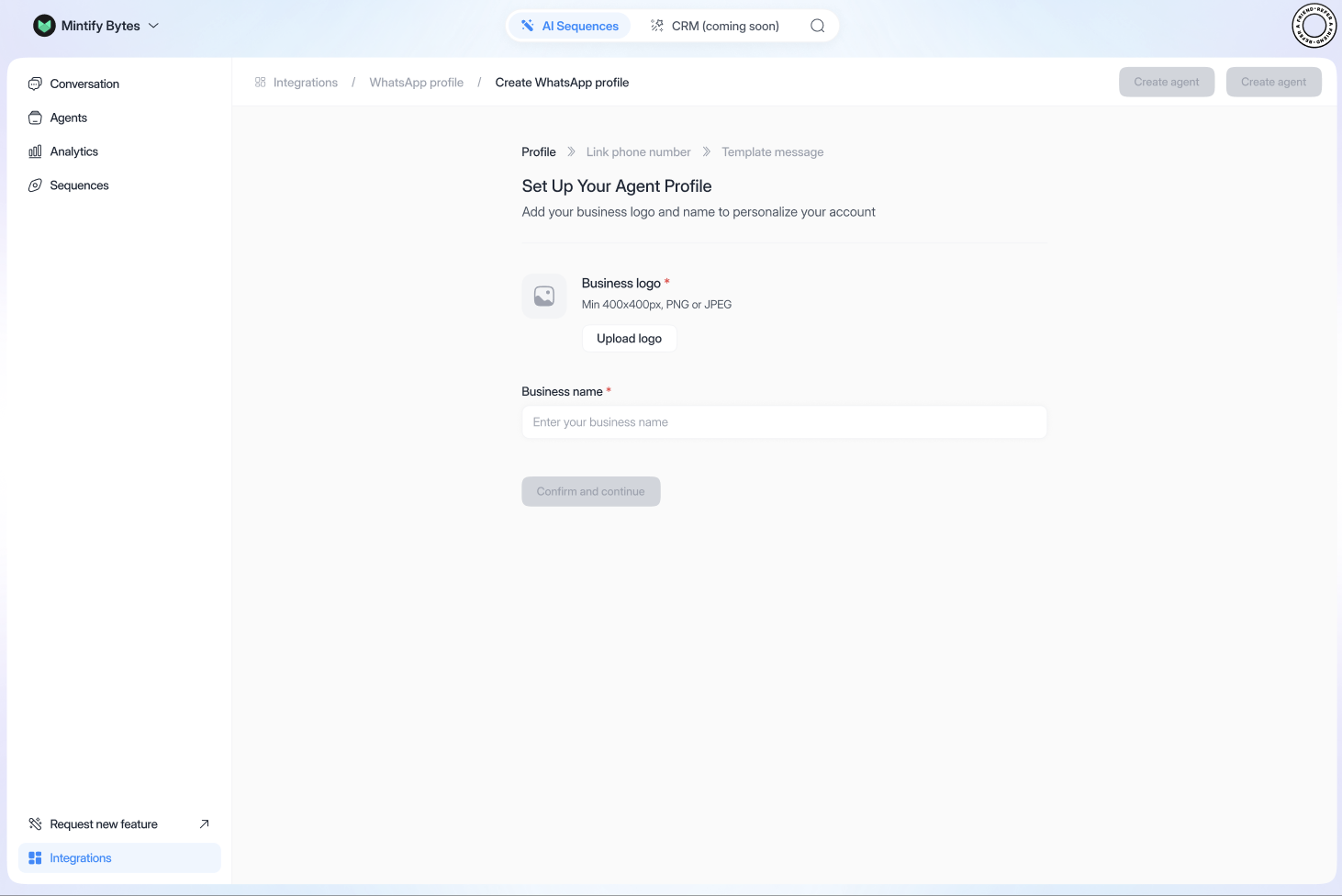
- Then on “Create WhatsApp profile”
- Fill in your details, click on “Confirm and continue”
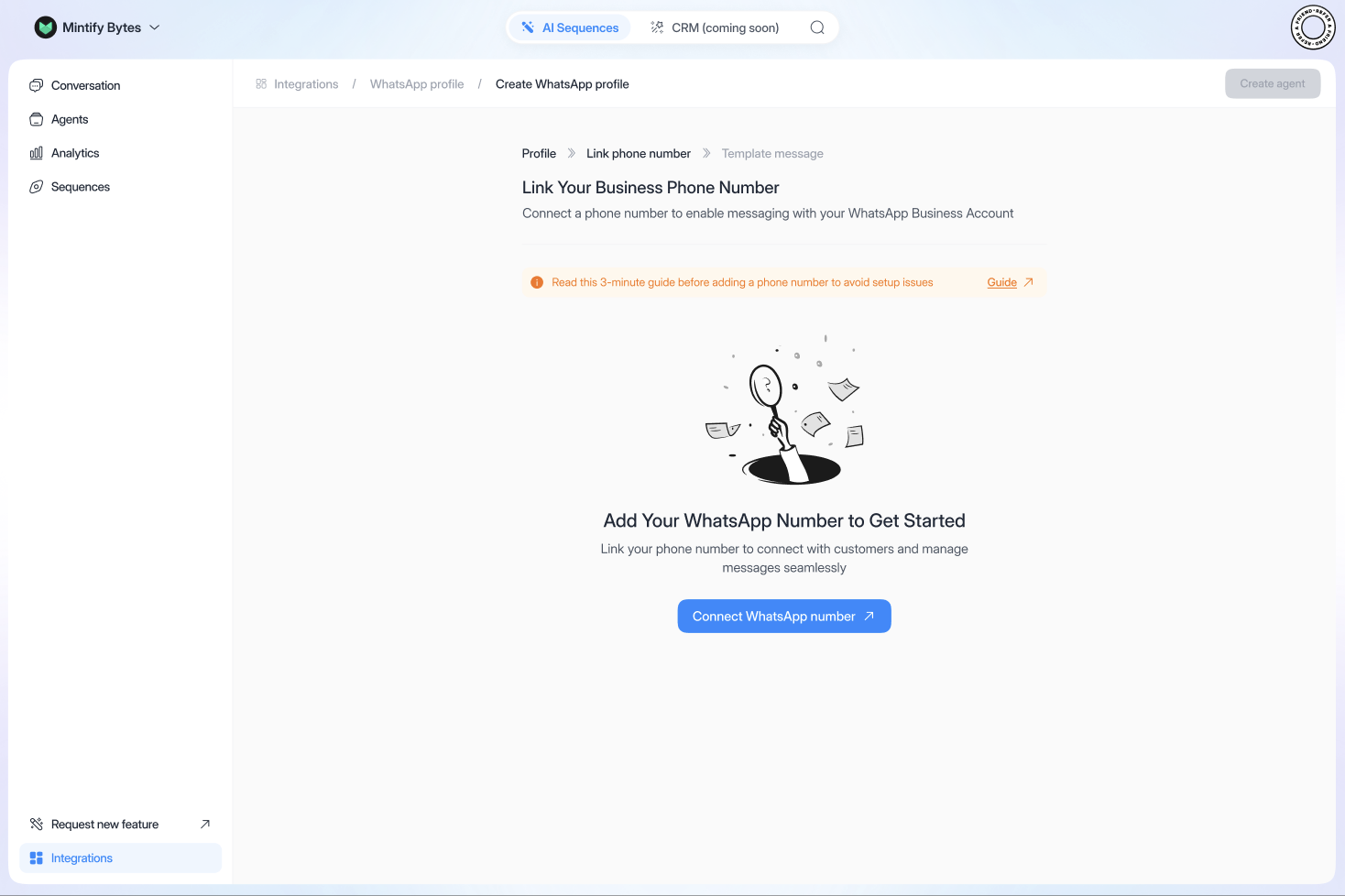
- Click on “Connect WhatsApp number”
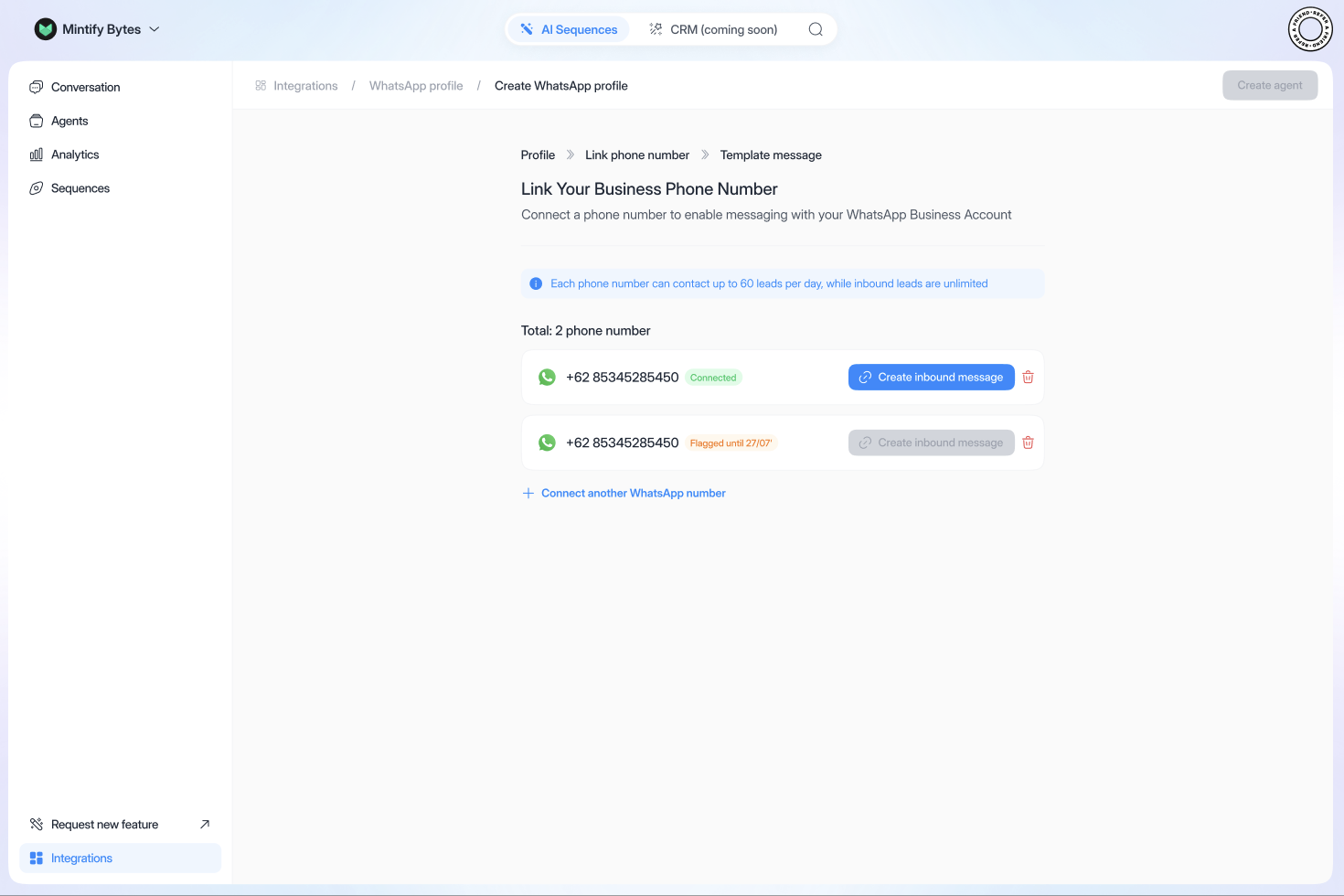
- Once back in app.orsay.ai, click on “Create inbound message”
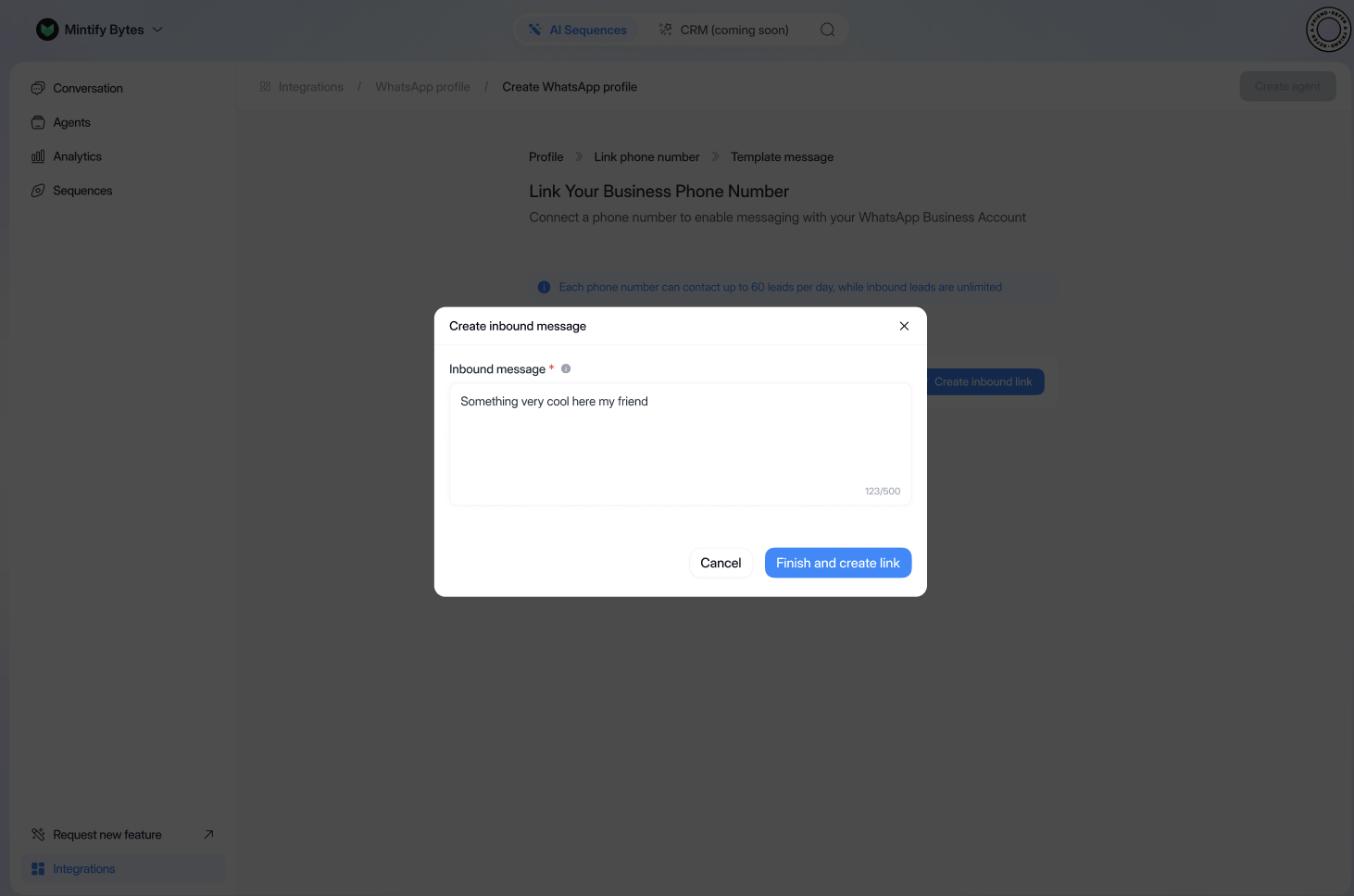
- Enter the message you want and click on “Finish and create link”
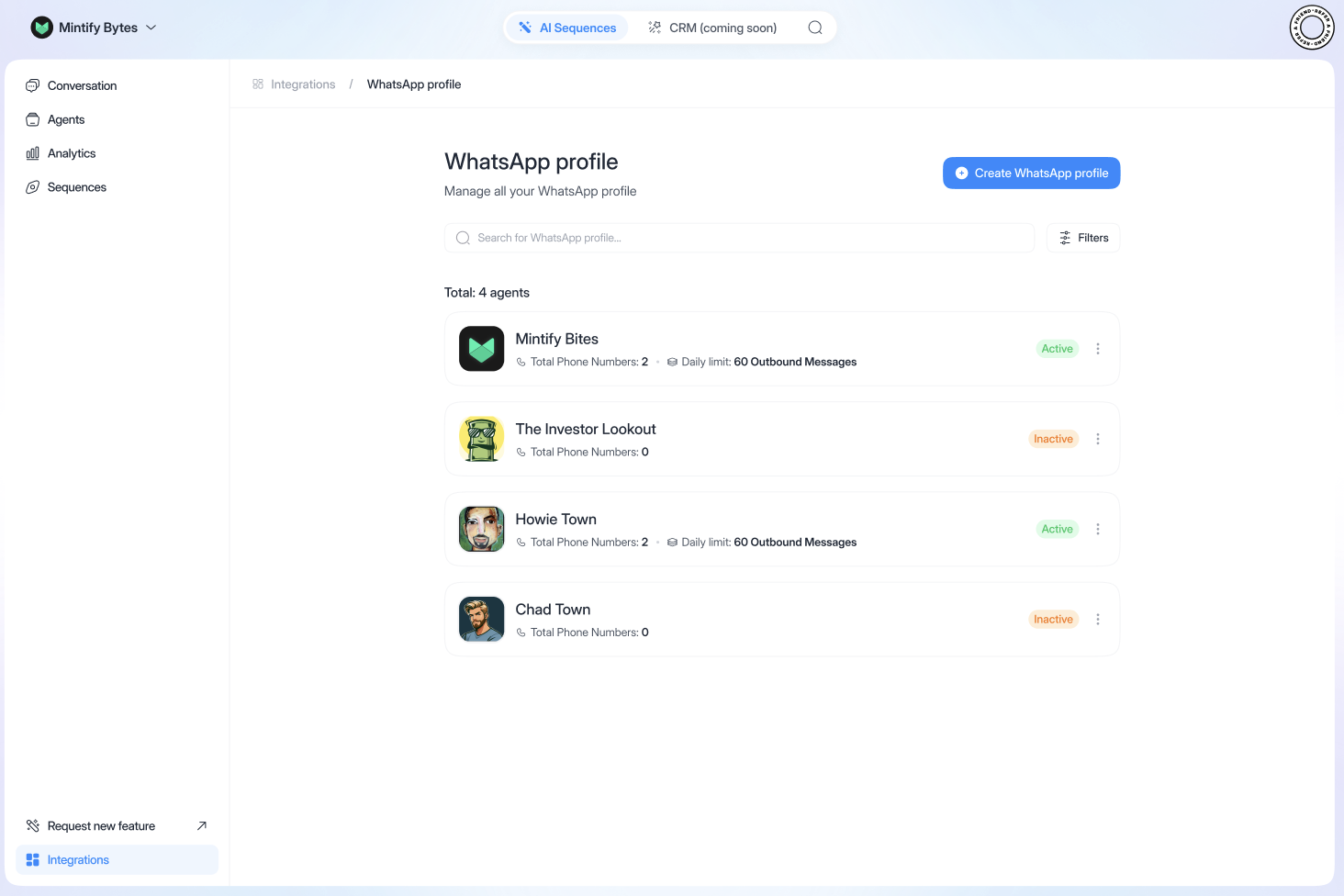
If you wish to modify:
Modify
Modify
- Click on the “…” next to the organization in question
- Then click on “Edit”
- Modify or delete as required
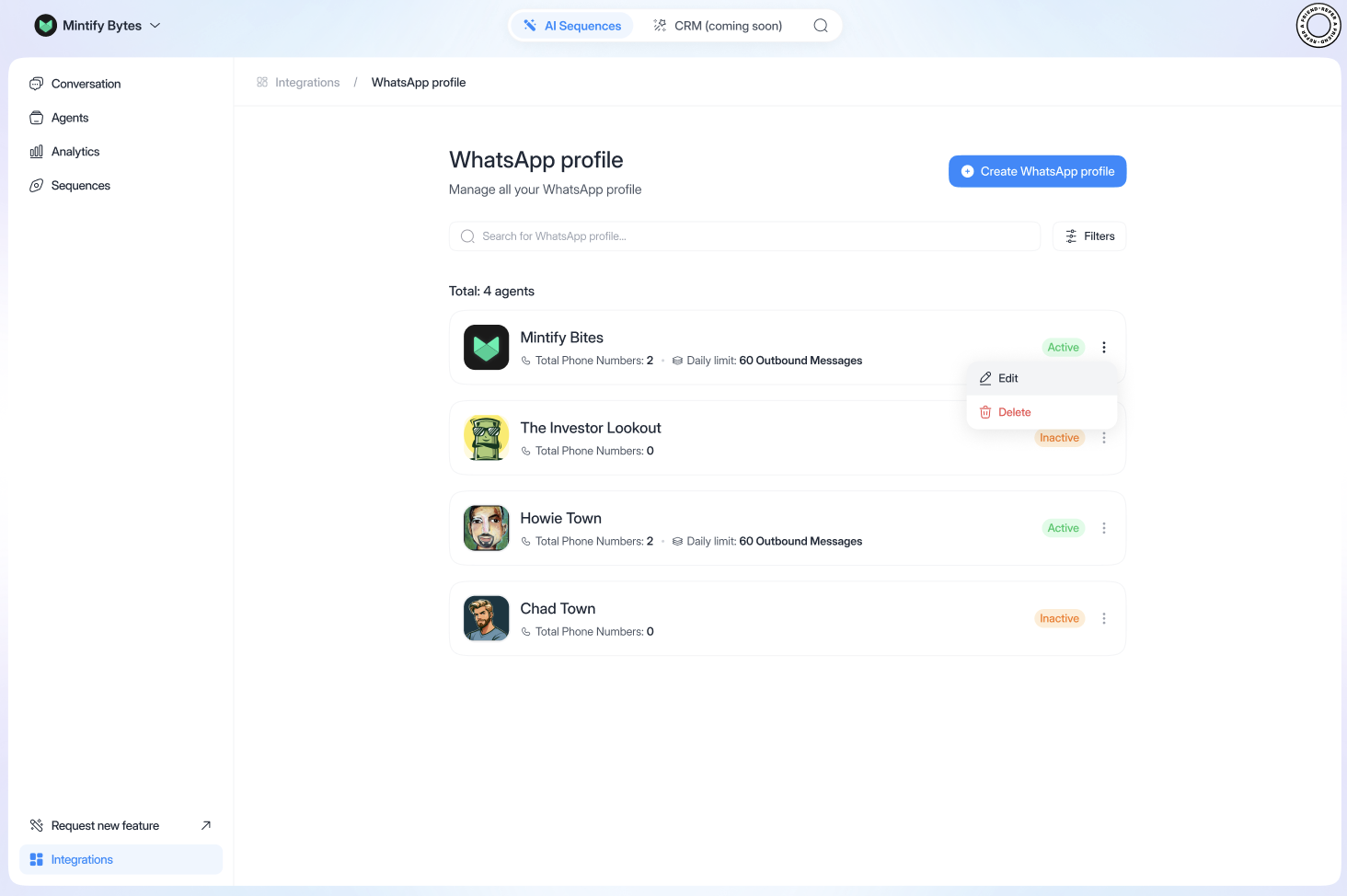
To delete something:
Delete something
Delete something
- This is to delete your most recent followers
If you need to delete a number:
Delete a number
Delete a number
In the organization: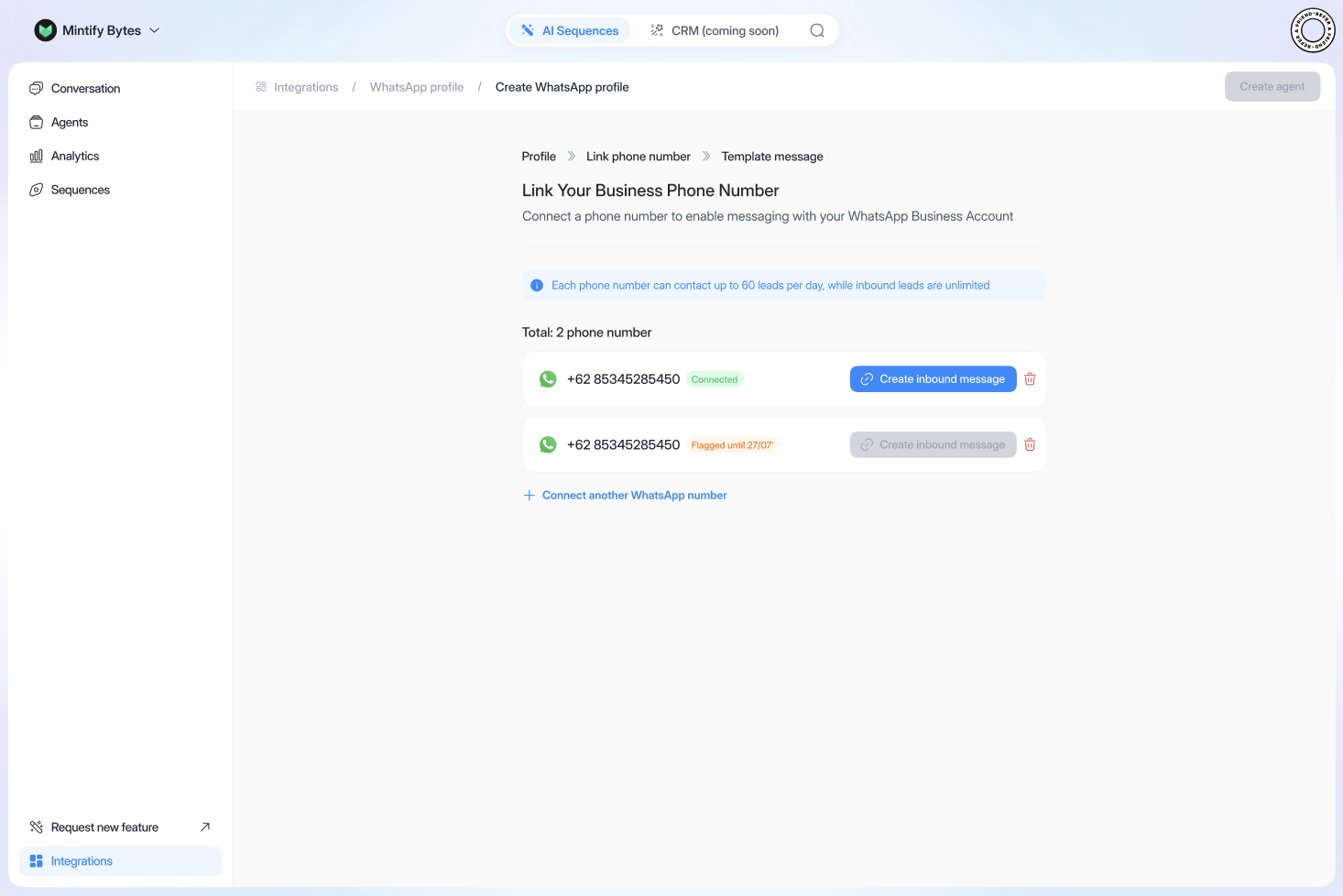
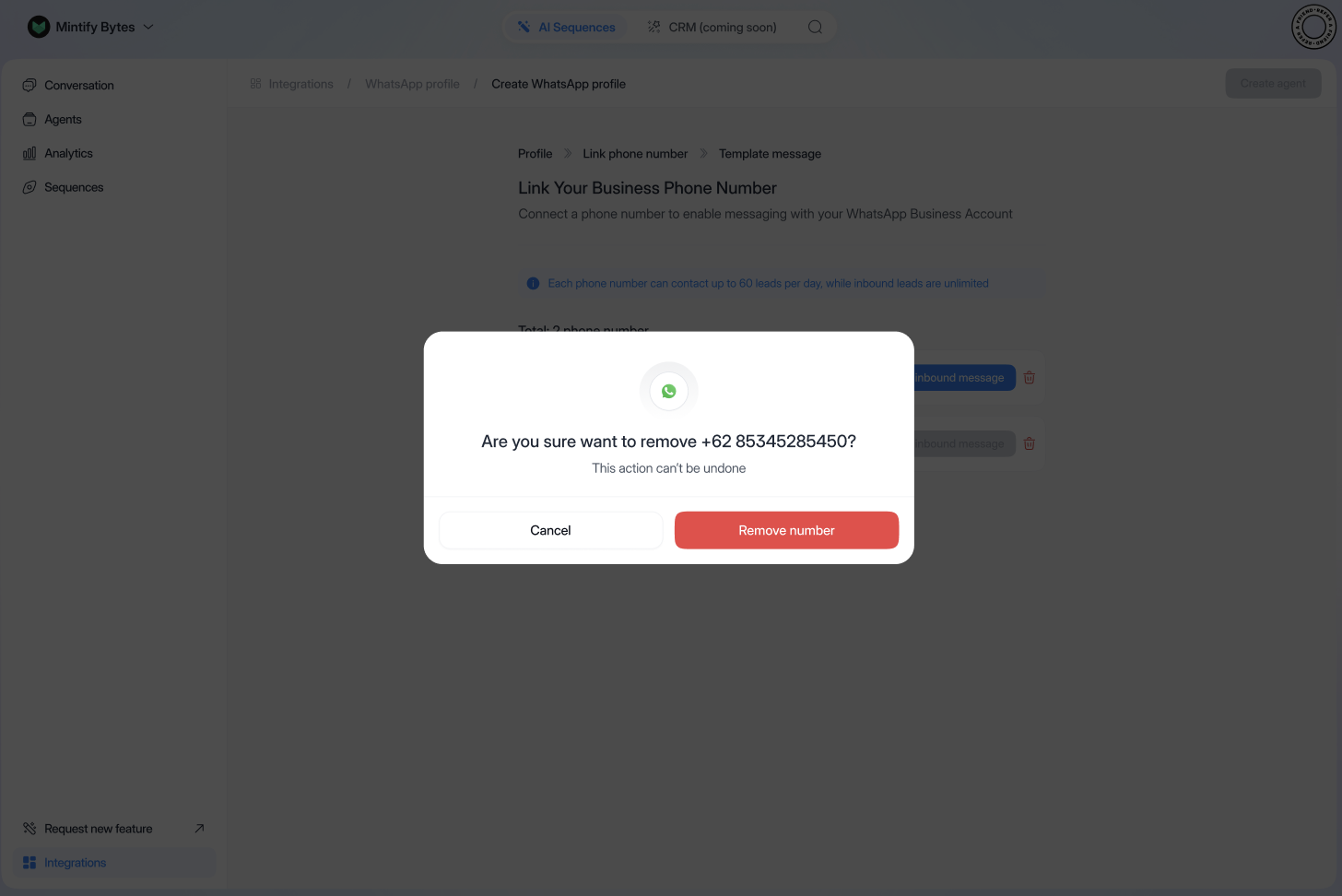
- Go to “Link phone number”
- Click on the red garbage can
- Then on “Remove number”
The integration steps work in the same way for each platform.
Integration for each platform
Integration for each platform
To upload a file to the dashboard: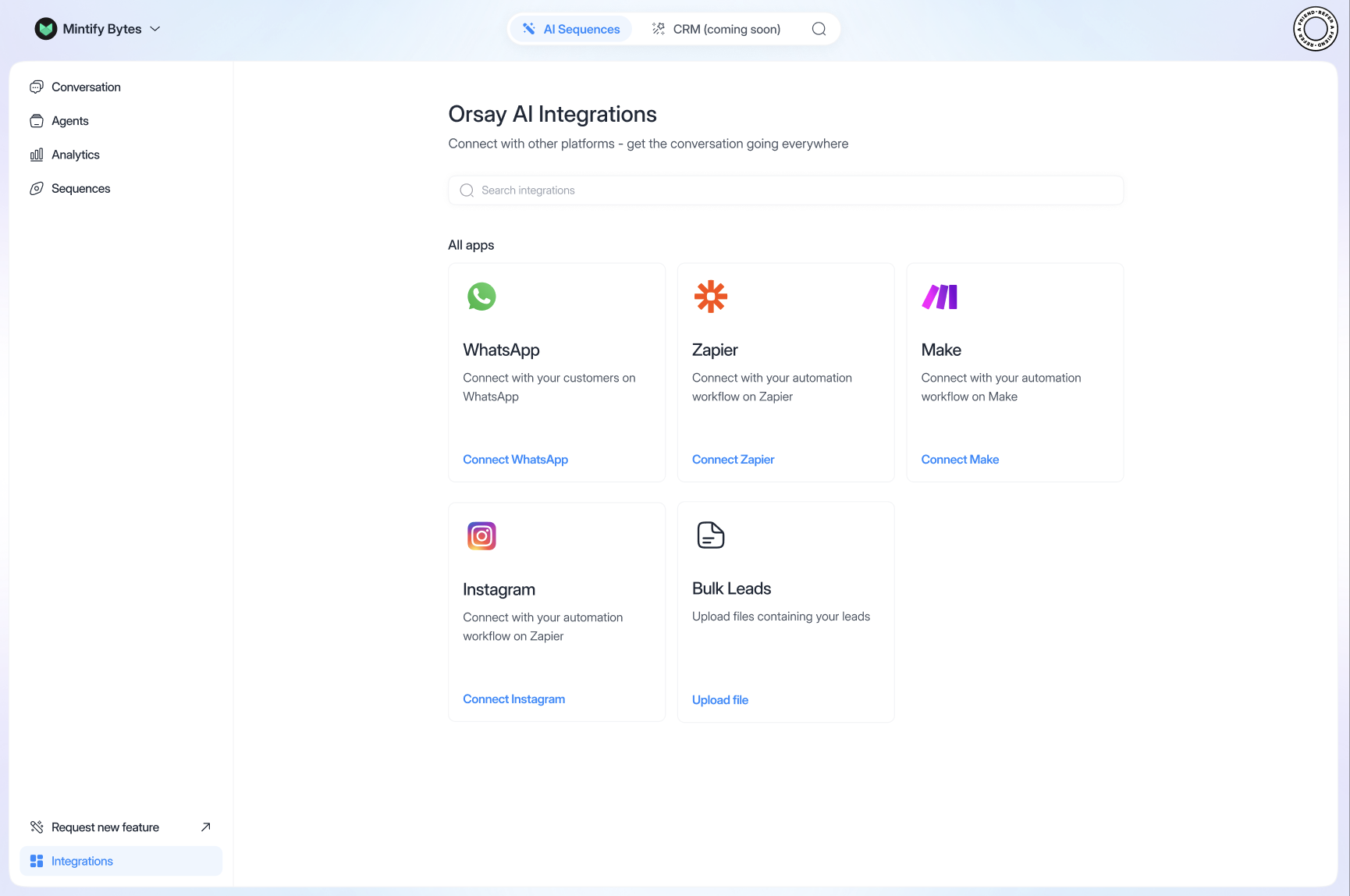
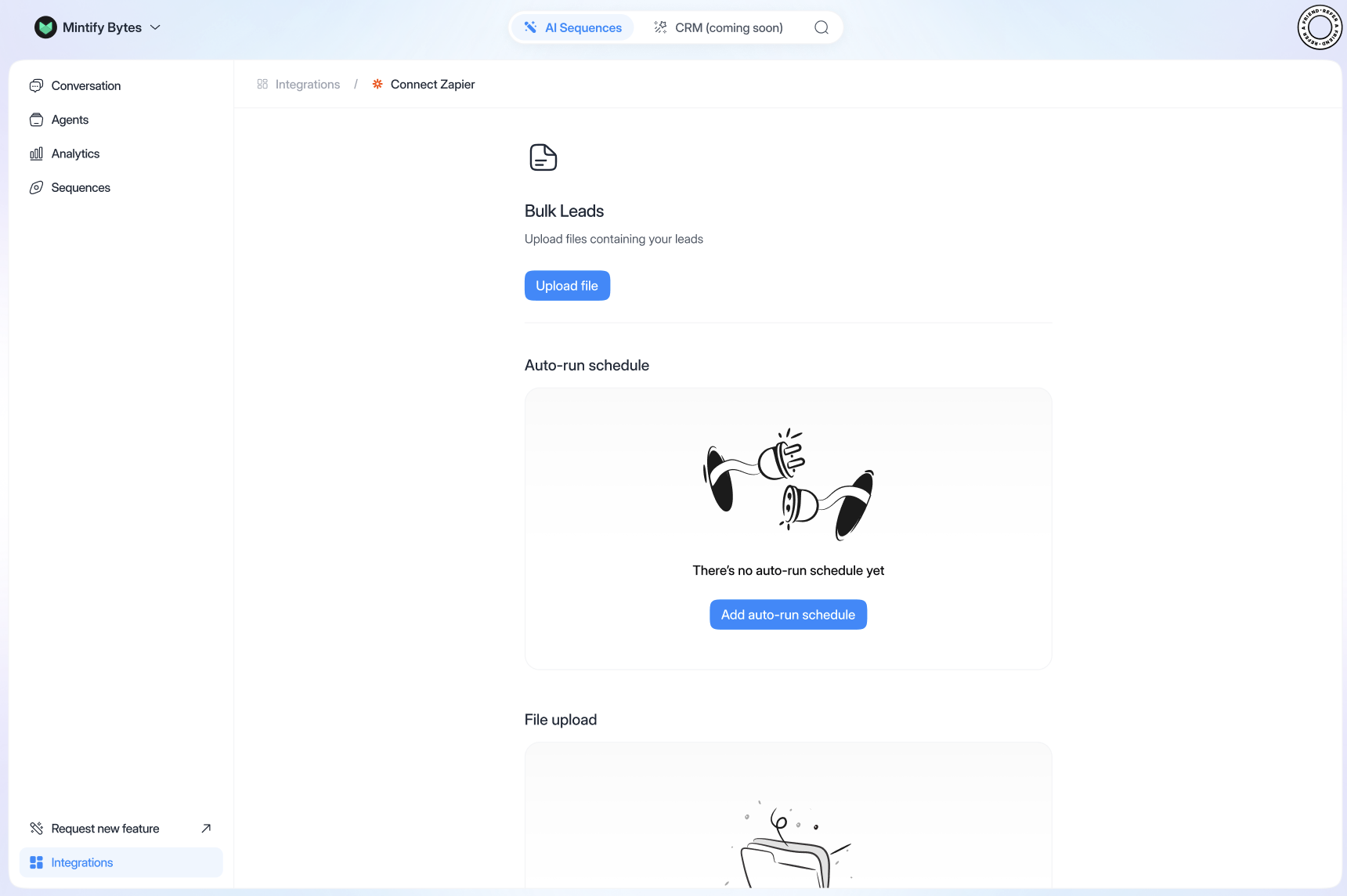
- Click on “Bulk Leads”, “Upload files”
Upload files:
Upload
Upload
- Import CSV file
- Fill in the country “France” (if French)
- First name/phone number: fill in the column title with the information
- Select the right sequence
- Click on “Upload file”
CONTACT_SUBSCRIBED_TO_SEQUENCE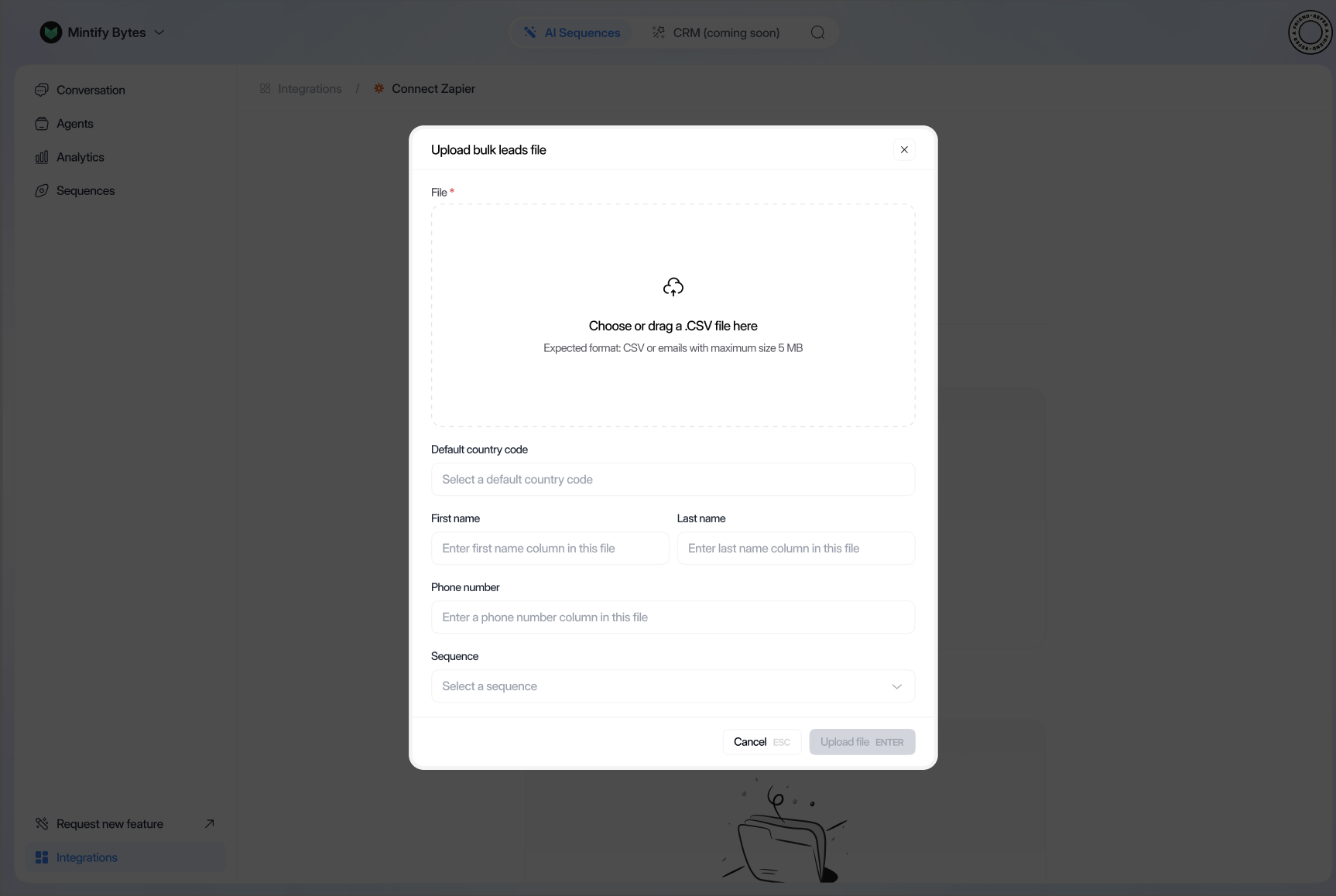
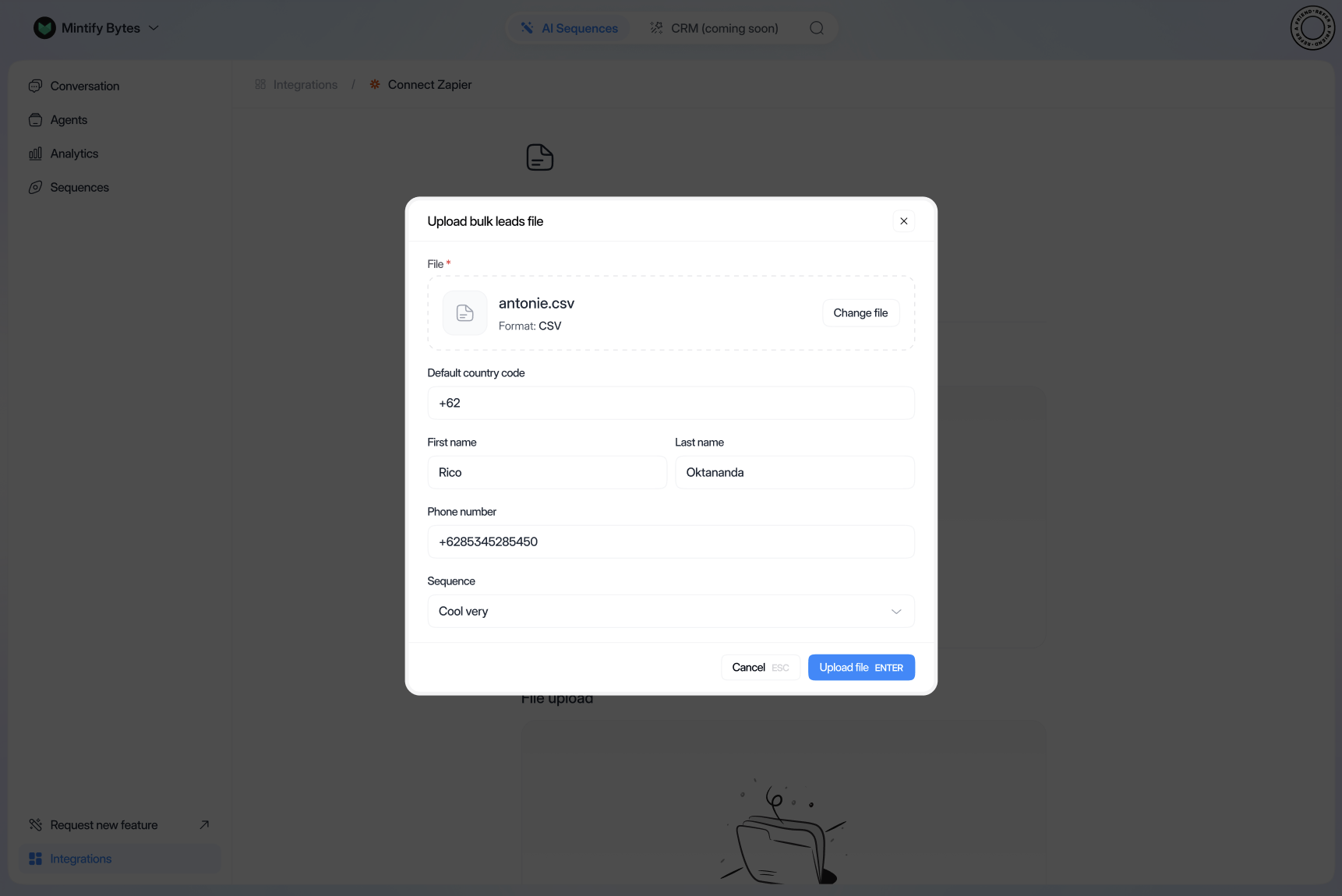
Update auto-run schedule:
Auto-run
Auto-run
- Select upload sequence
- Number of leads to be entered in sequence
- Click on “Update schedule”