
Two ways to connect WhatsApp: You can either connect your own existing WhatsApp Business account, or set up an external number — which will need to be connected to your Business Manager on Facebook.
🚀 What Our AI Does
Our AI is built to automate your prospecting, qualification, and follow-ups directly on WhatsApp. It helps you chat with leads instantly, book calls automatically, and keep your pipeline full — without lifting a finger.🔹 Core Capabilities on WhatsApp
- Direct Messaging Automation: Send personalized WhatsApp messages to reach out to new contacts.
- AI Qualification: Our AI will converse with every contact to make sure they are qualified, and if so, the AI will make them book a call.
- Upload a CSV of contacts and contact them all.
🔹 Lead Management & CRM Sync
- Automatic Qualification: Screen leads, ask the right questions, and book qualified calls.
- CRM Integrations: Native connection with Zapier and other CRMs.
- CSV Import: Upload thousands of leads and engage them at scale.
- Multi-Step Follow-ups: Run customized follow-up sequences to re-engage prospects.
🔹 Scheduling & Booking
- Calendar Integrations: Works with Calendly, iClosed, GoHighLevel, ClickFunnels, and others.
- Timezone-Aware Scheduling: Automatically adjusts outreach and bookings to each prospect’s timezone.
🔹 Analytics & Control
- Advanced Analytics: Track conversions, engagement, and ROI in real time.
- Multilingual AI: Communicates in English, French, Spanish, and more.
🤳 Set up your account
Step 1: Set up your WhatsApp account
Step 1: Set up your WhatsApp account
📲 Create the WhatsApp Account
📲 Create the WhatsApp Account
- Go to Integration → WhatsApp
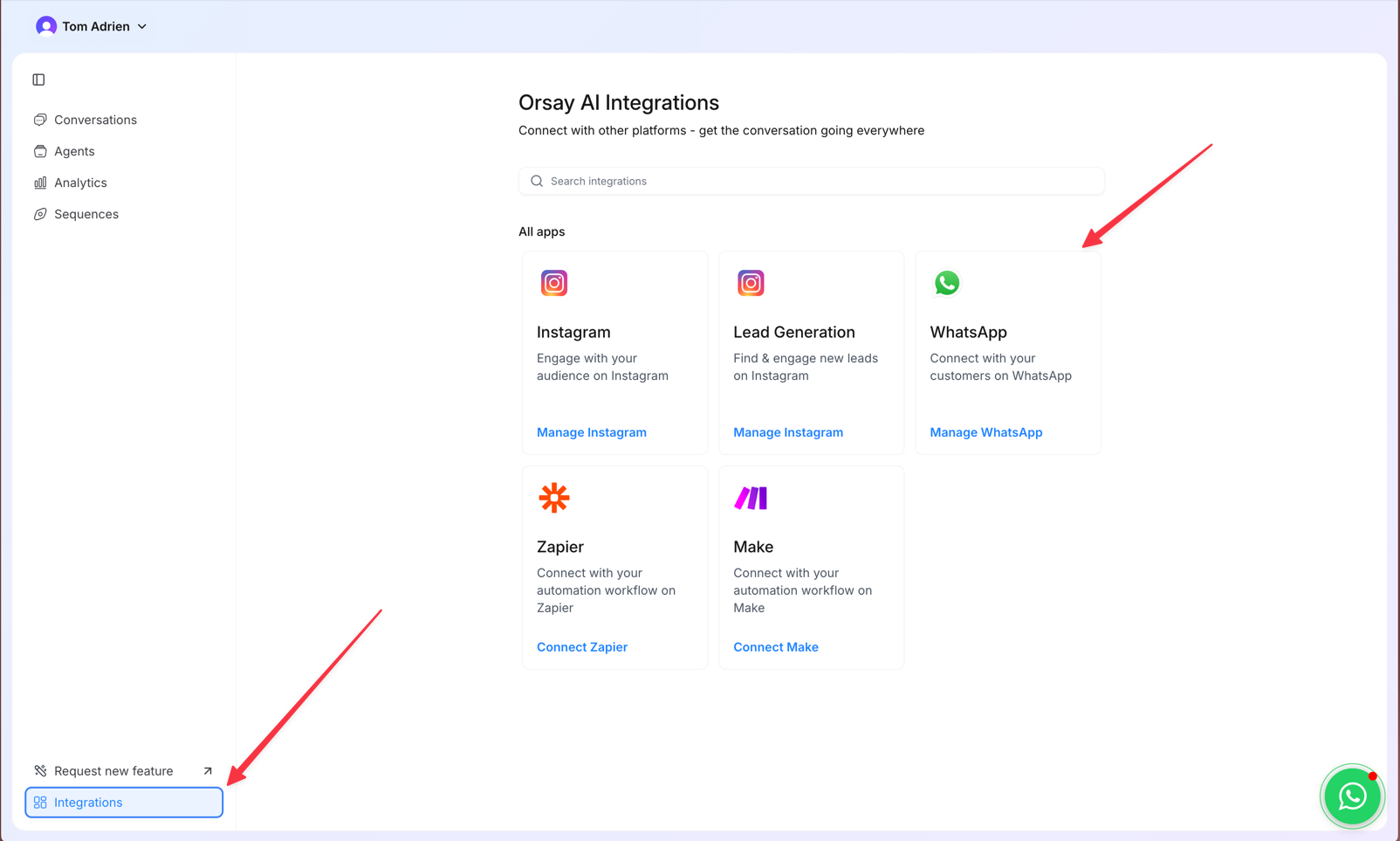
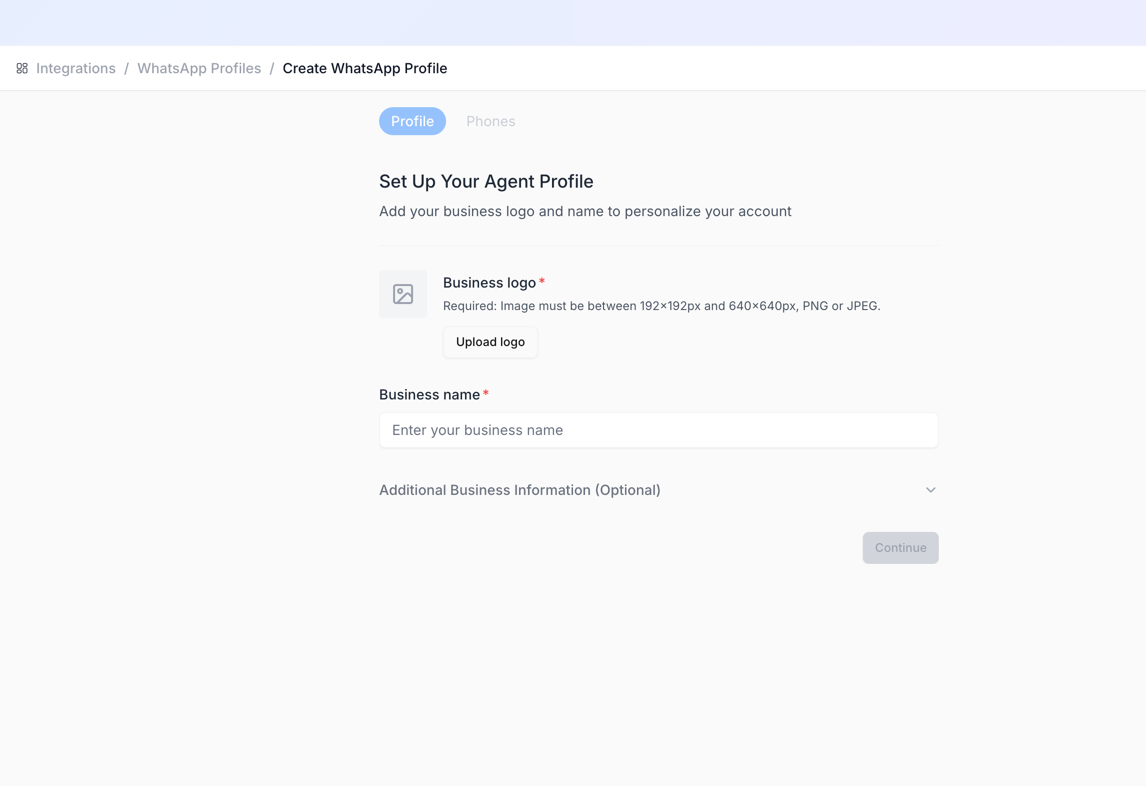
- Create a new profile (add a name + profile picture)
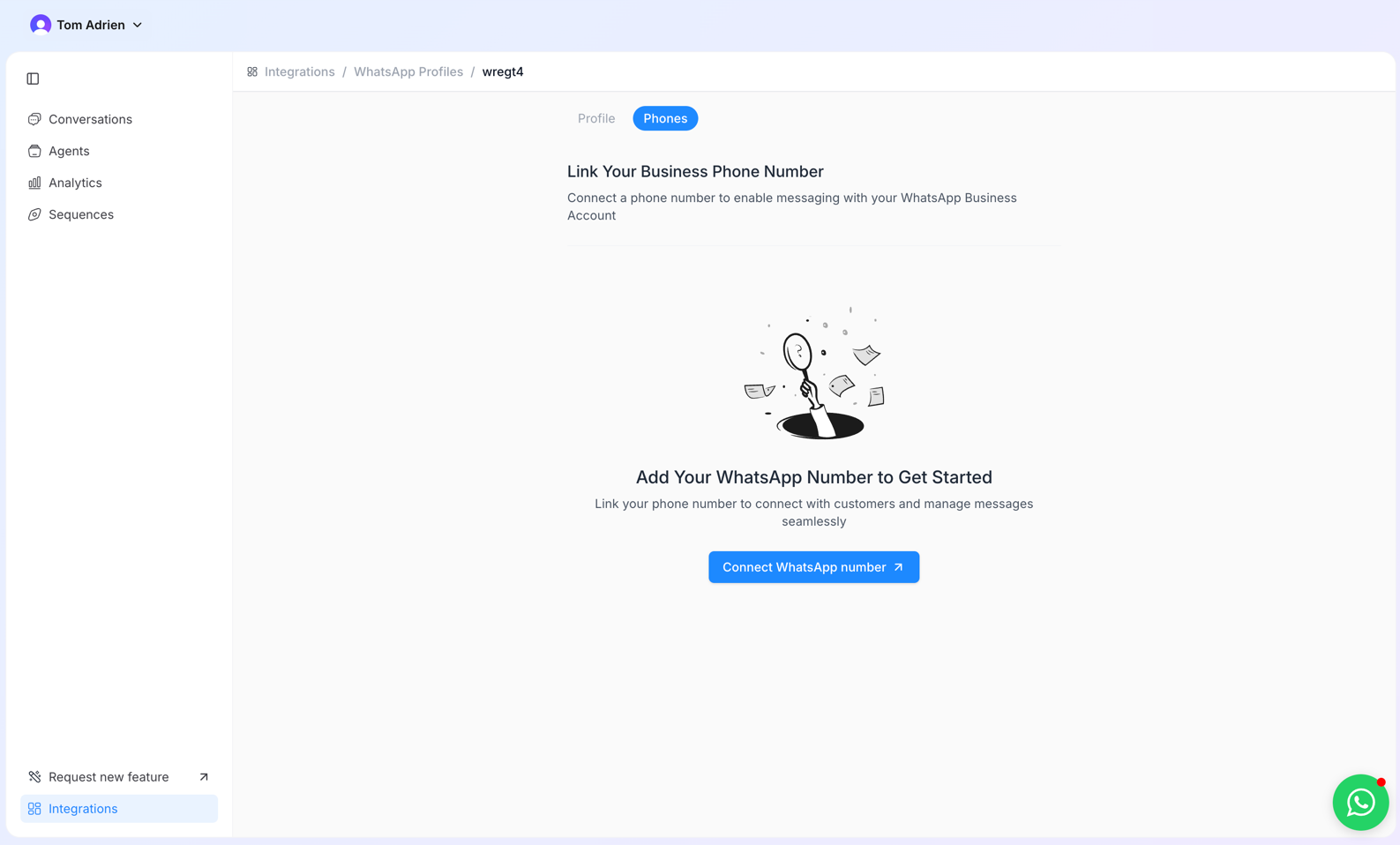
- Connect a new WhatsApp number
- You will be redirected to a Facebook page; approve the first pages, then select your business manager
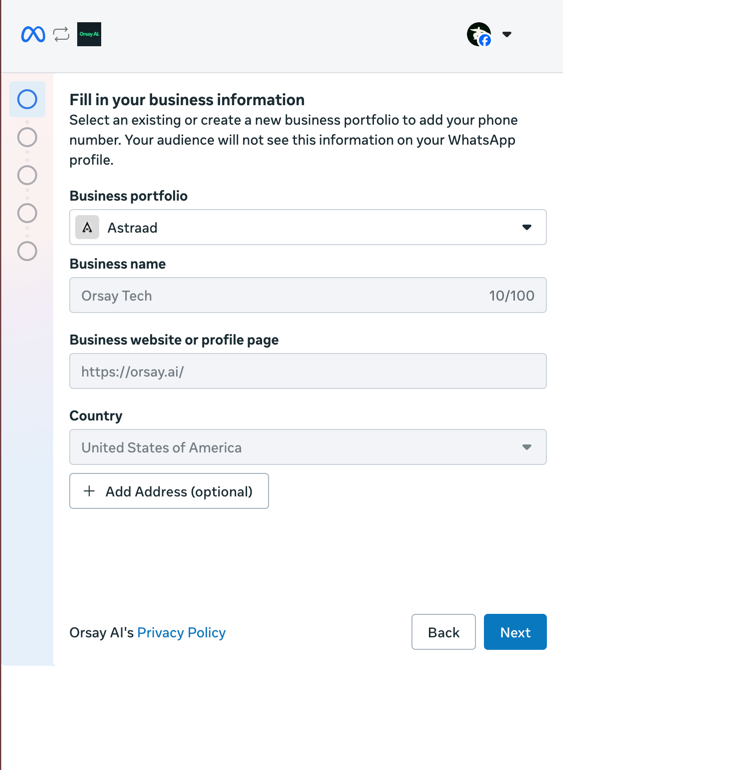
- Then, create a new WhatsApp Business Account
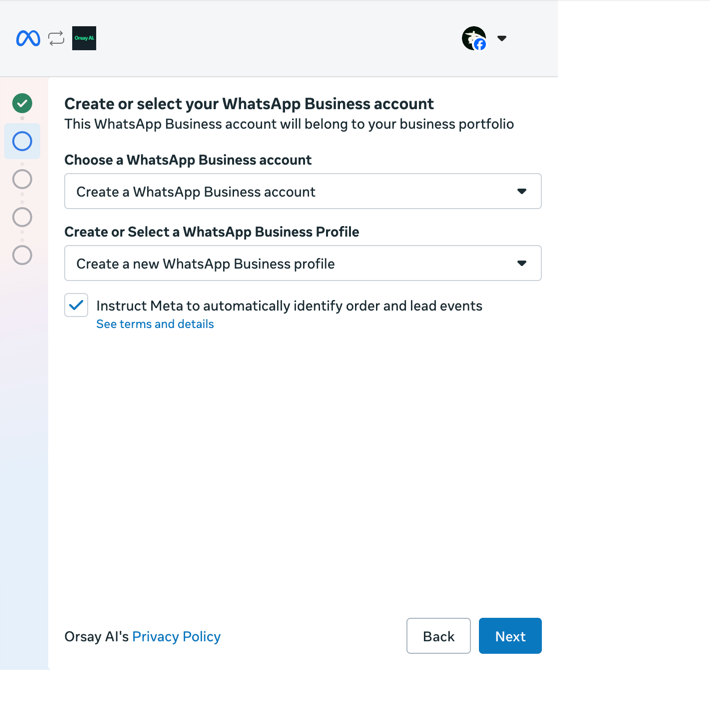
- Create a name — to be approved, you need a name in this format: ‘Name - Your Company’
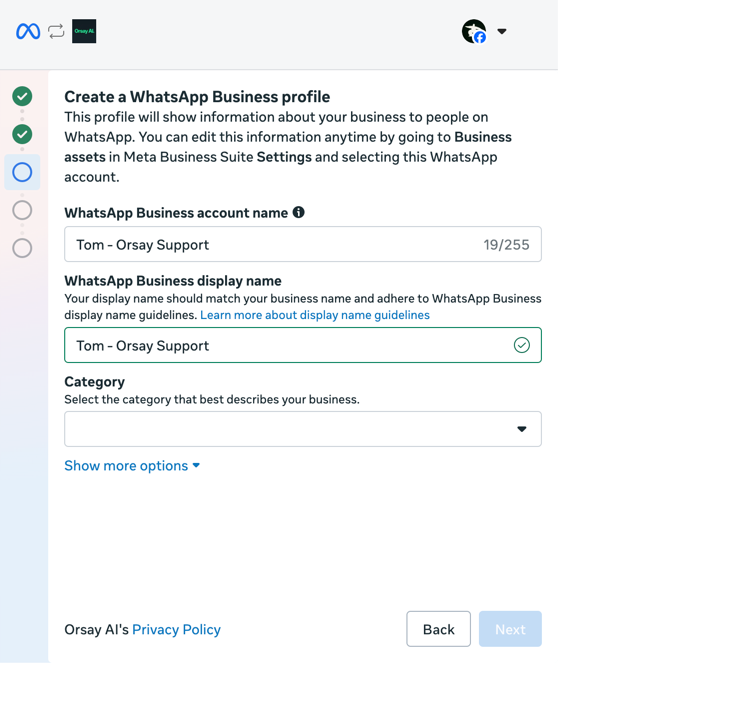
- You will need to add a phone number (that is not connected to any WhatsApp yet). We recommend using On Off Business to get a phone number easily.
- You will need to validate the phone number with a 2FA code.
- You can then validate the phone number.
📲 Connect with your phone number
📲 Connect with your phone number
- Go to Integration → WhatsApp
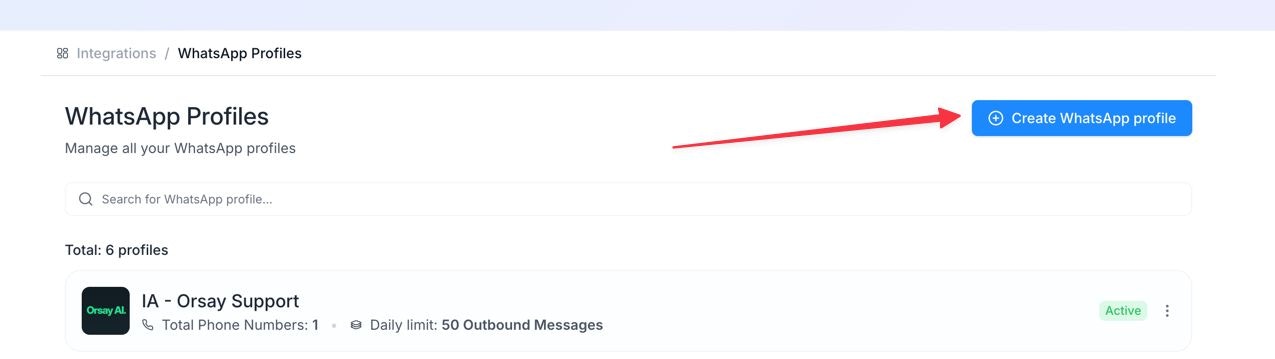
- Create a new profile (add a name + profile picture)
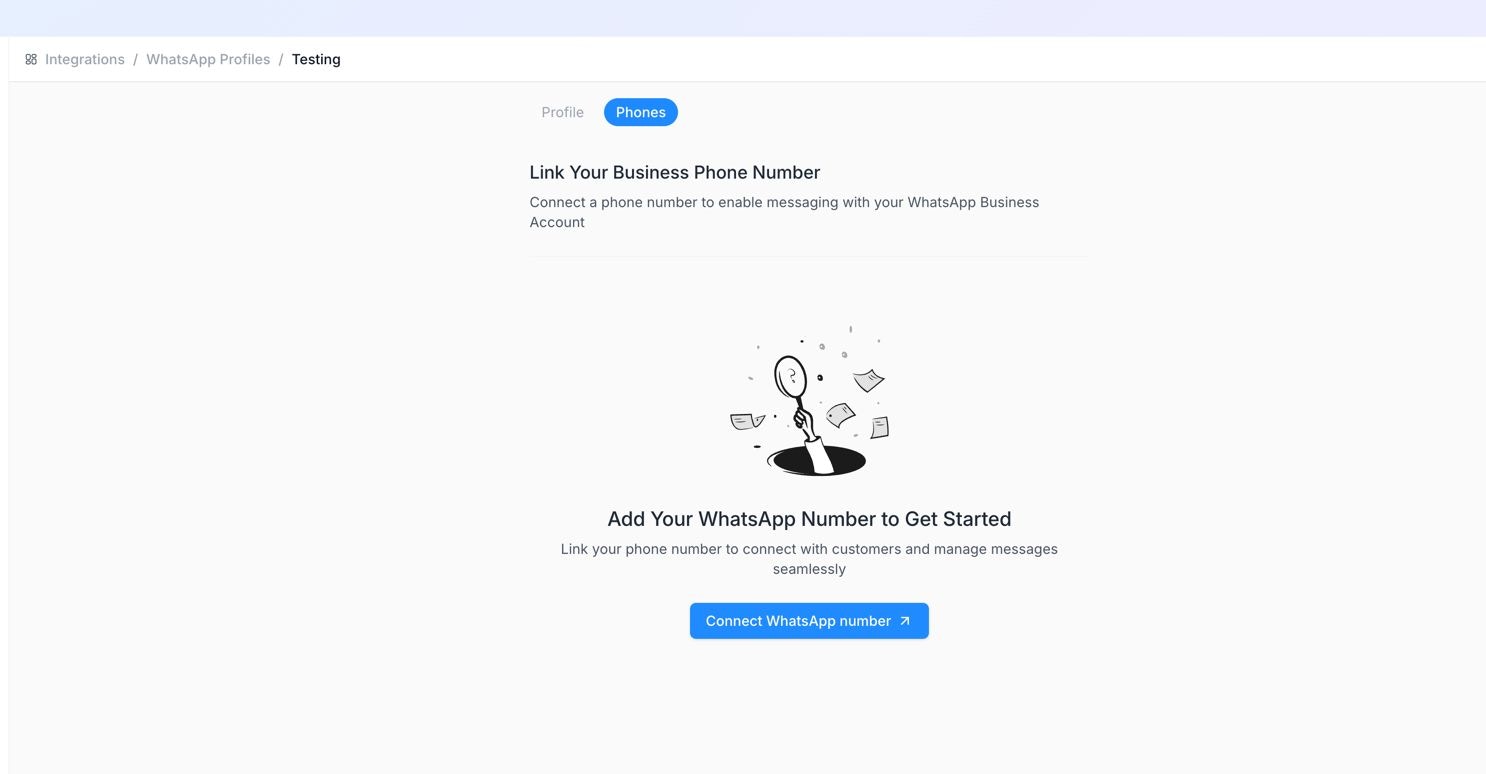
- Click on “Connect WhatsApp number”
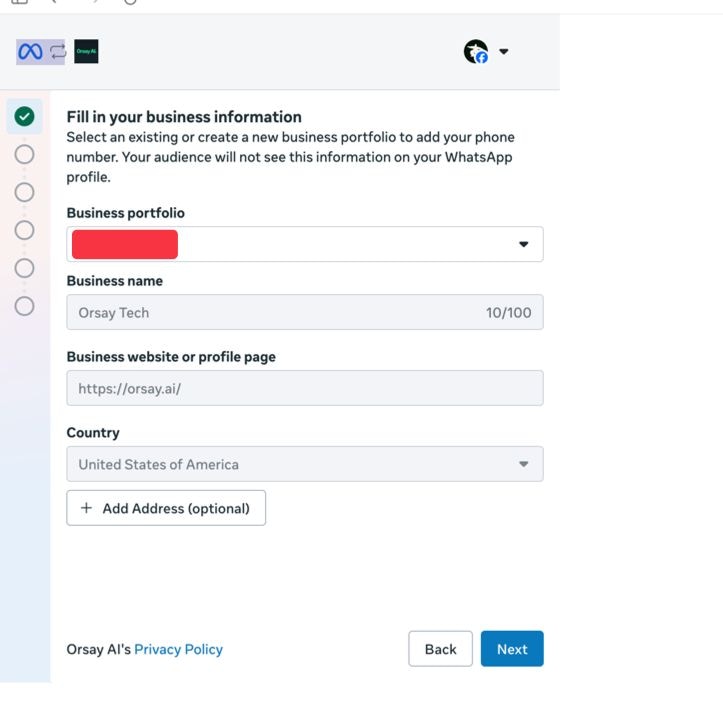
- You will be redirected to a Facebook page; approve the initial pages, then select your Business Manager
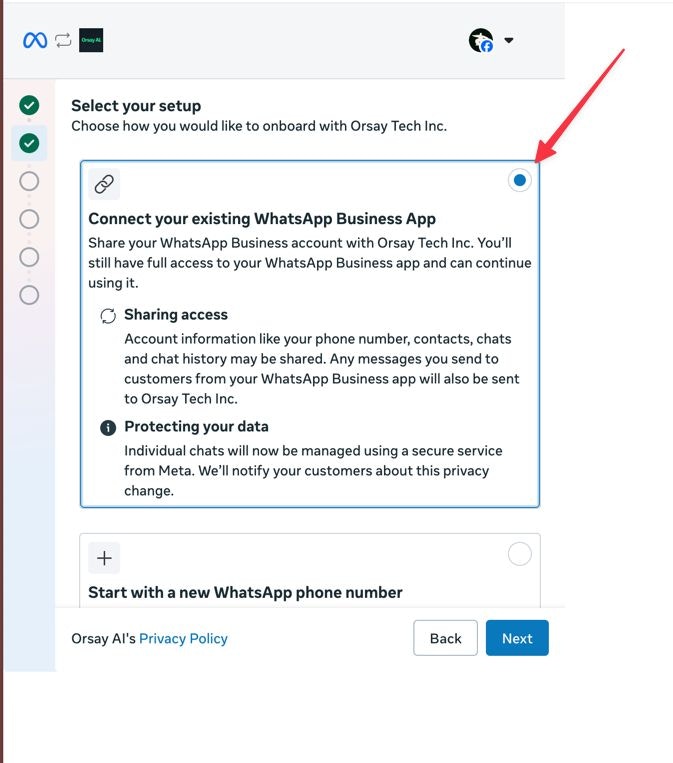
- Select “Connect with existing WhatsApp Business App”
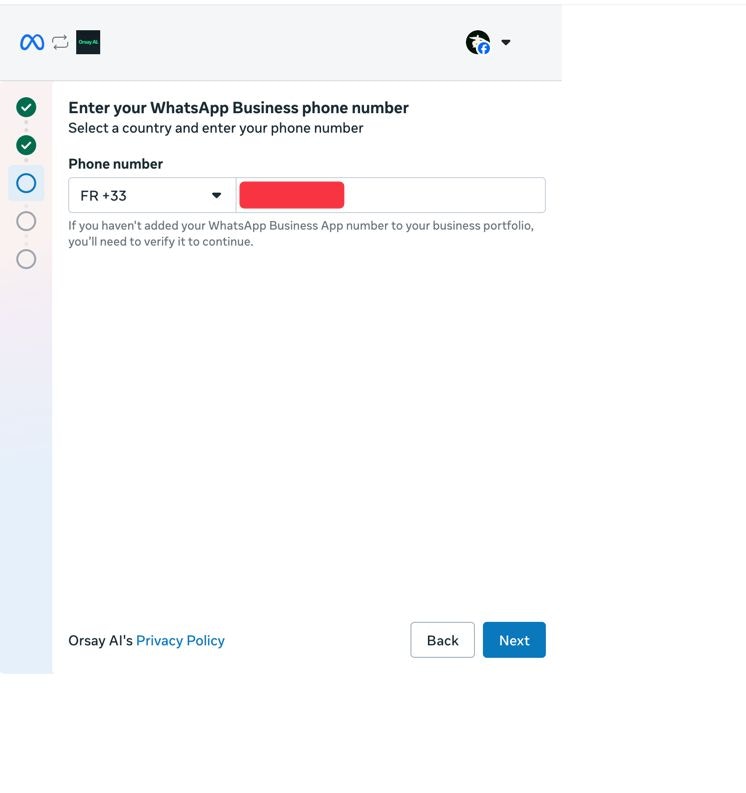
- Enter your phone number
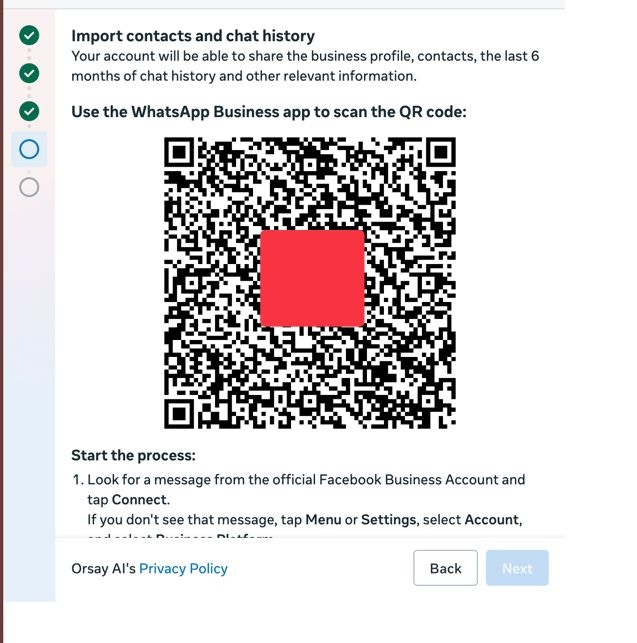
- Scan the QR code
- Validate the number with a 2FA code
- You can then confirm the number
✅ Validate the phone number
✅ Validate the phone number
- Go to https://business.facebook.com/billing_hub → Select the right business you have just added a phone number to → go to WhatsApp and add a payment method to it.

- You will have a ‘TEST’ button to validate your phone number. Click on test, then input your personal WhatsApp and click SEND. If you receive a message, you’re all set.
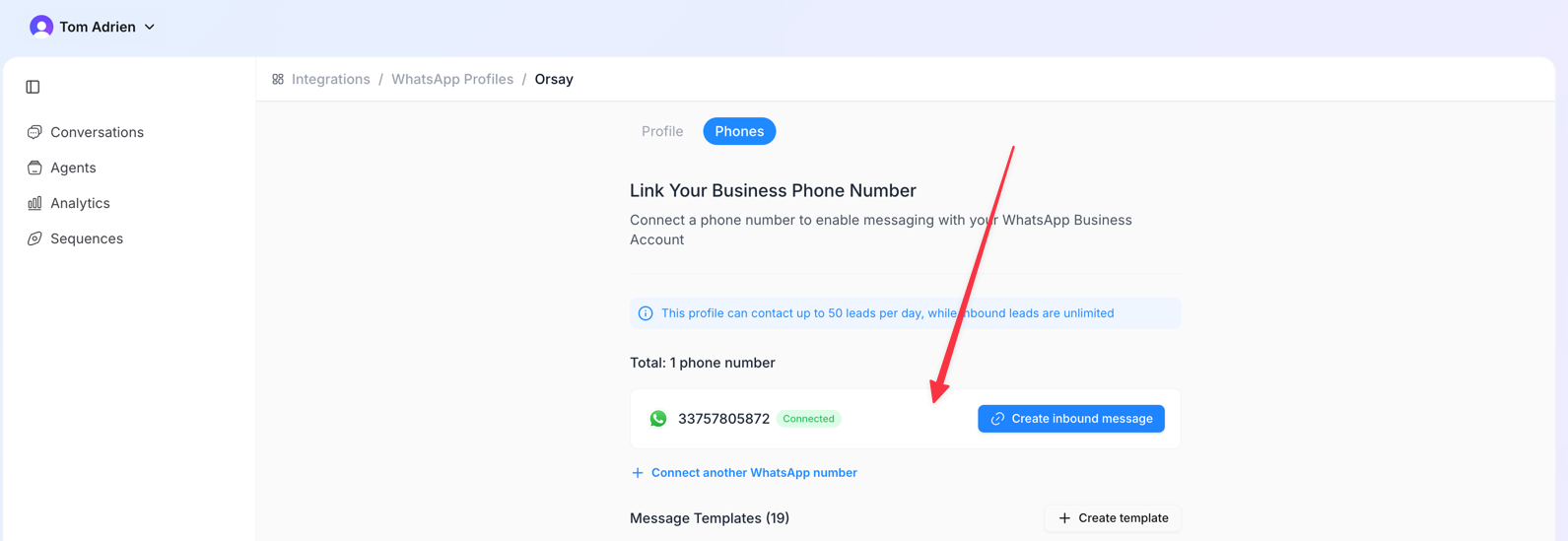
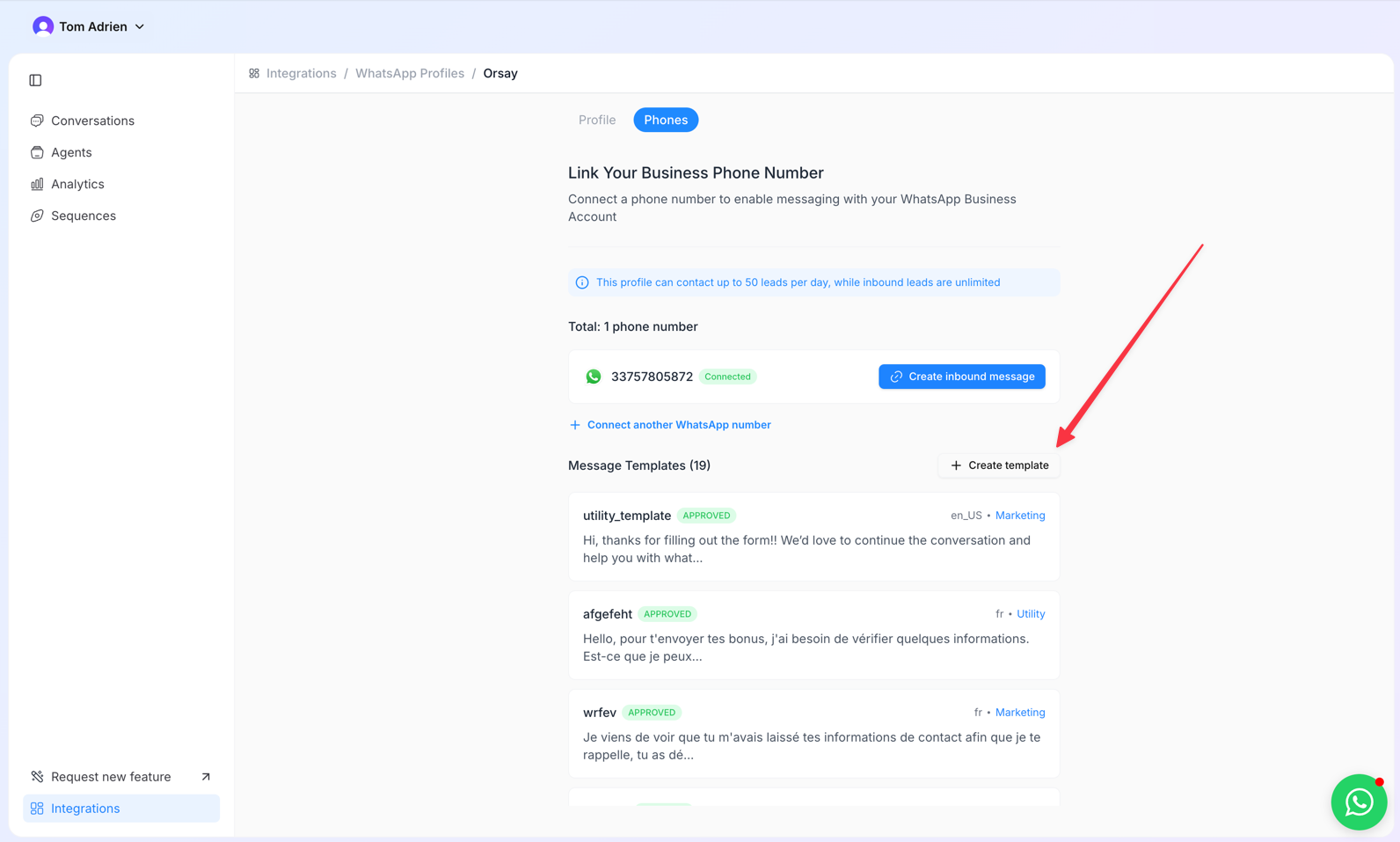
Create your template message
Create your template message
- You can now create template messages that you will use in the Step 3: Create a Sequence section.
Step 2: Create an Agent
Step 2: Create an Agent
- Tutorial Here: 📤 Agents
Step 3: Create a Sequence
Step 3: Create a Sequence
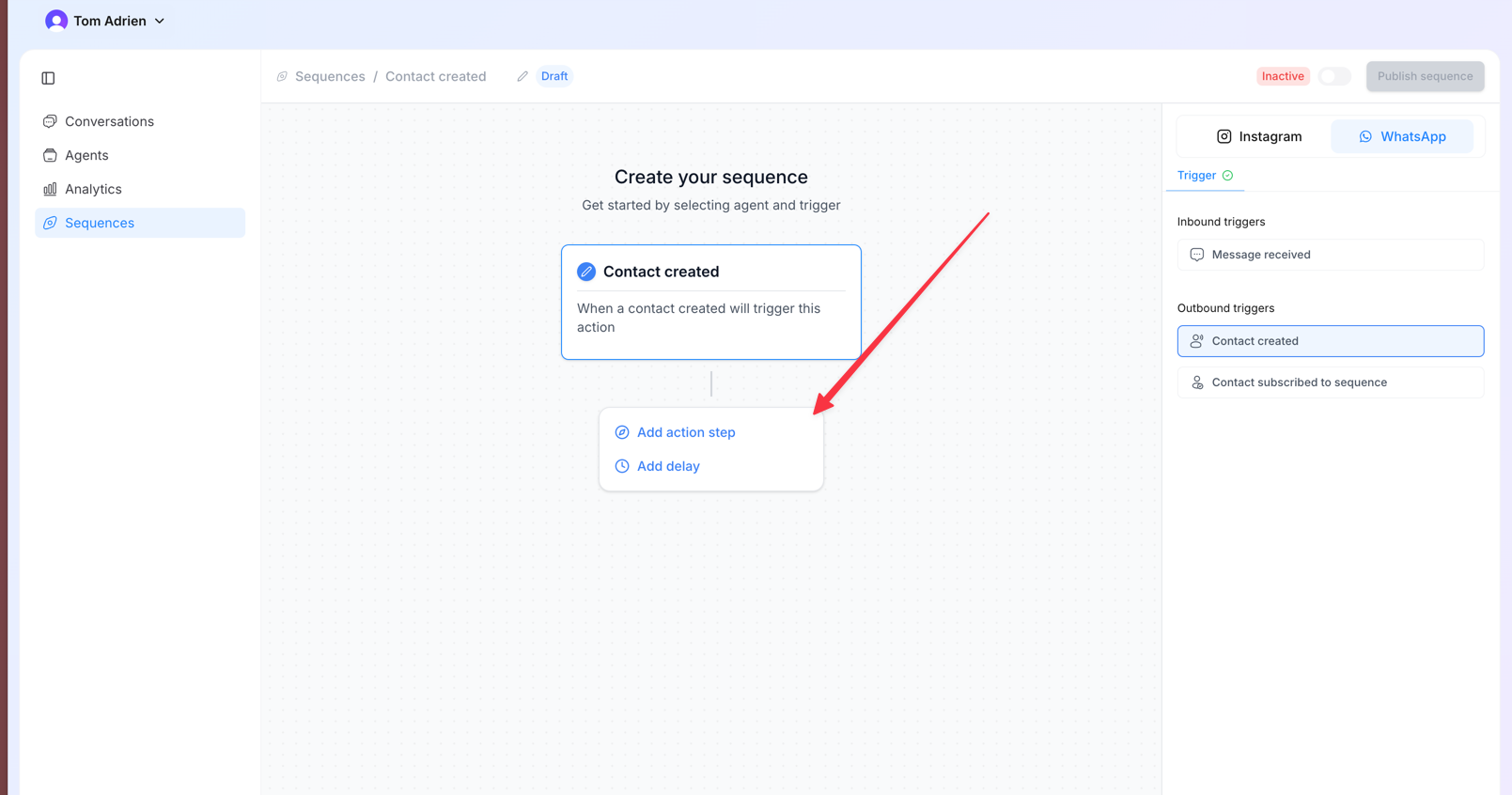
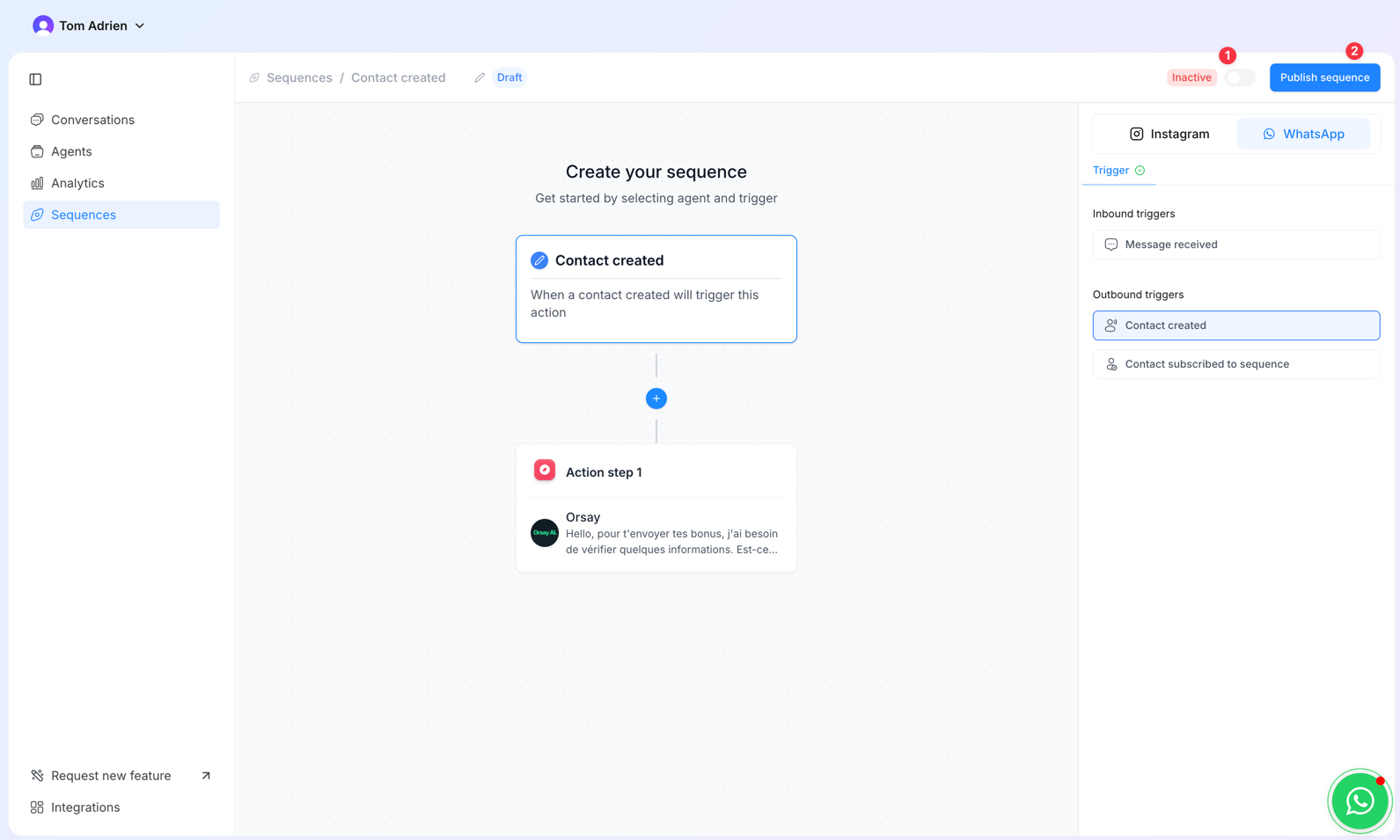
- Create a new sequence
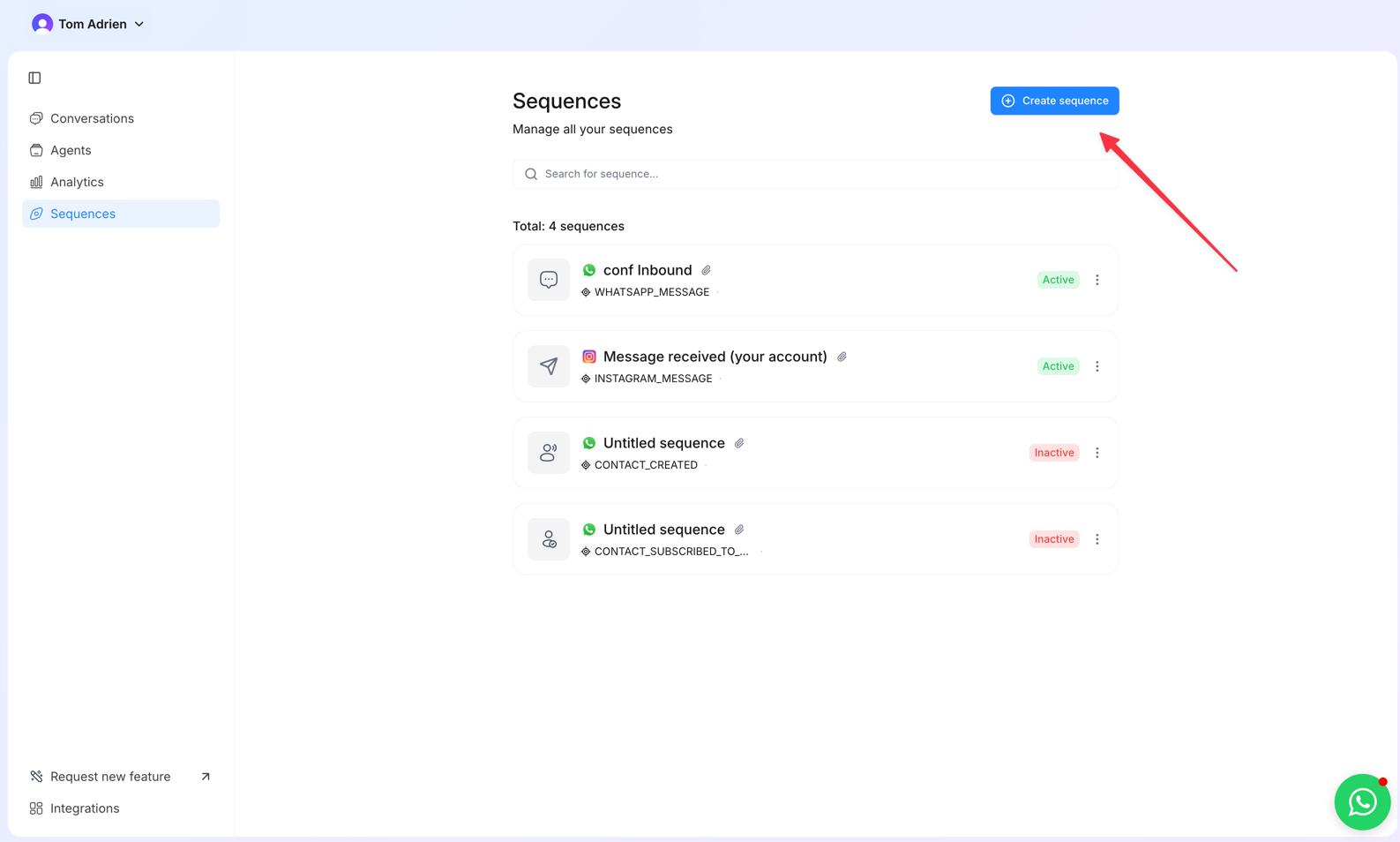
- Choose WhatsApp
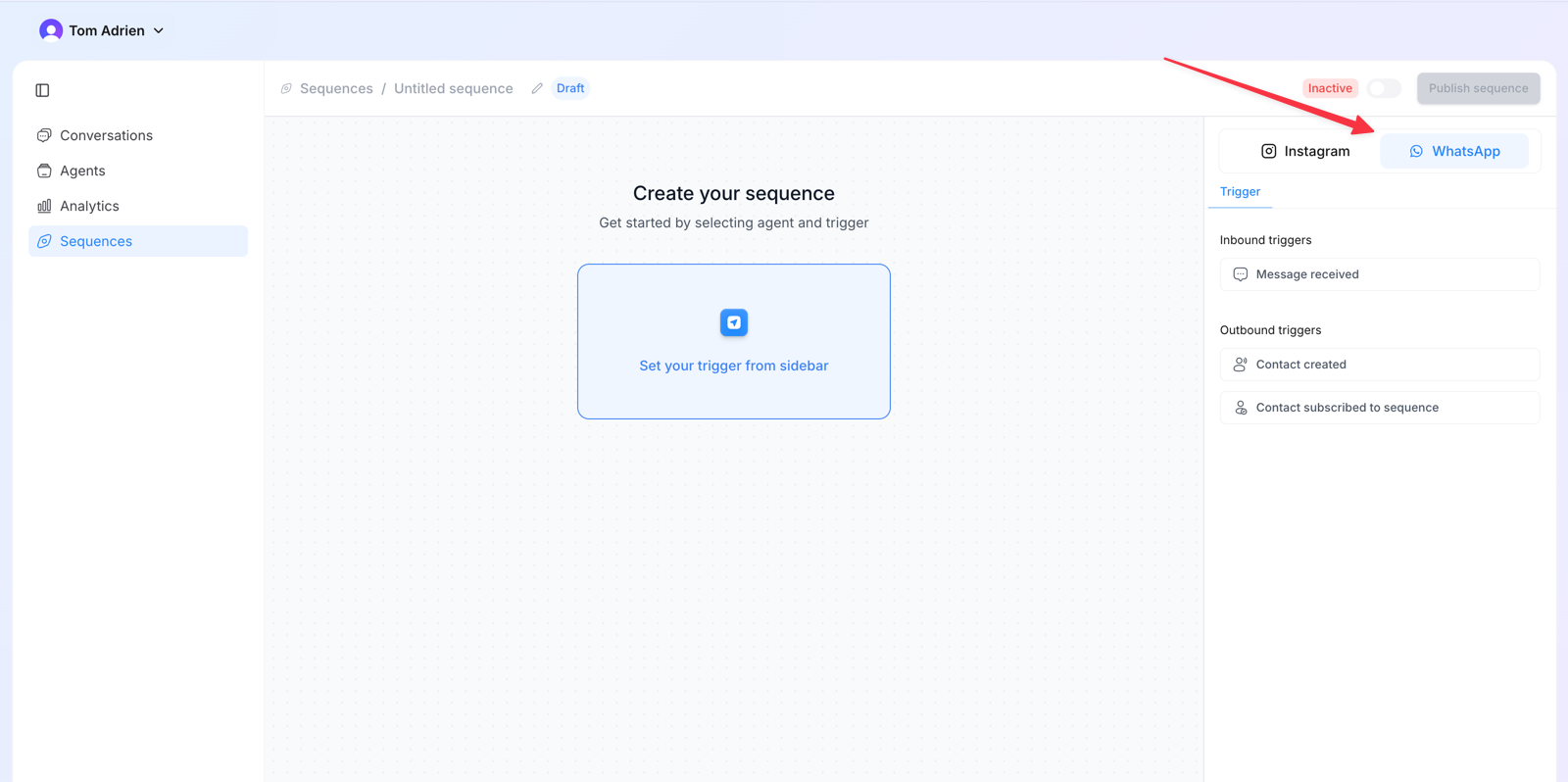
Different sequence explanation
Different sequence explanation
- Message received → The sequence will start each time a new lead sends a message to your number.
- Contact created → Contacts any new lead that has not been attributed to any other sequence.
- Contact subscribed to sequence → Starts a sequence for the leads that have been assigned to this sequence.
- Create a new step
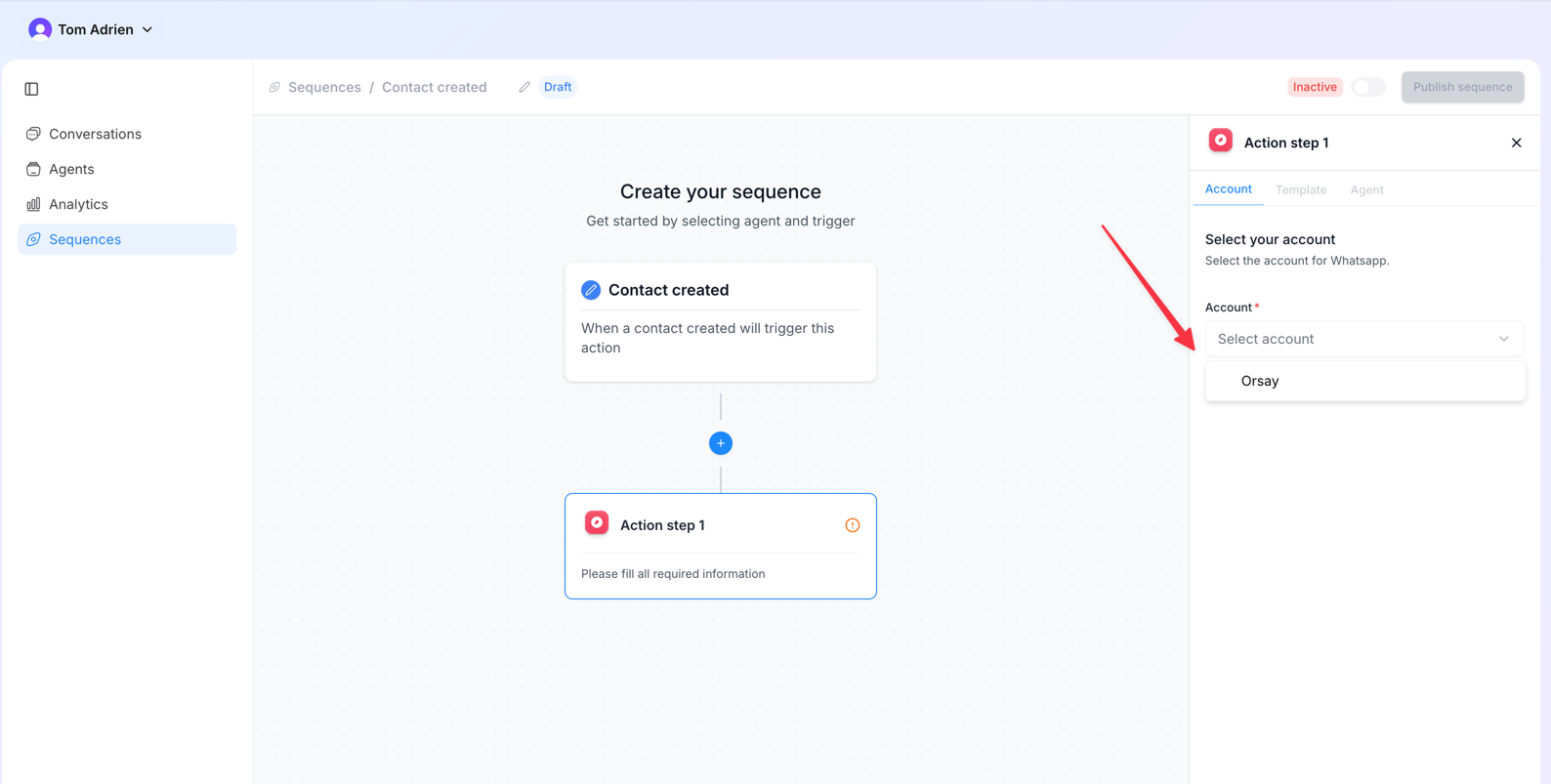
- Select your WhatsApp account
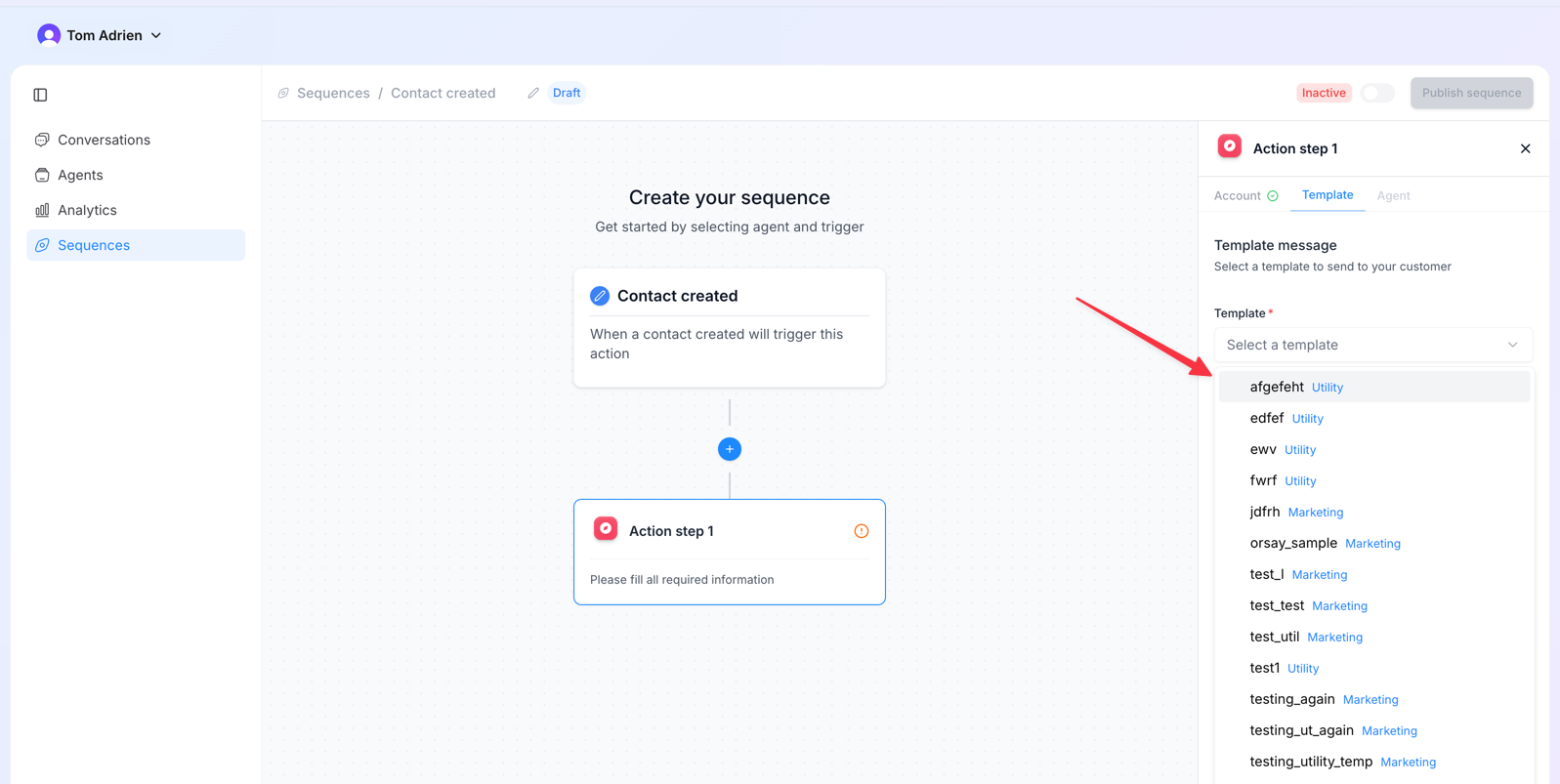
- Select the template message you want
- Select the Agent, Response Delay, and add follow-ups if needed, then click ‘Confirm’.
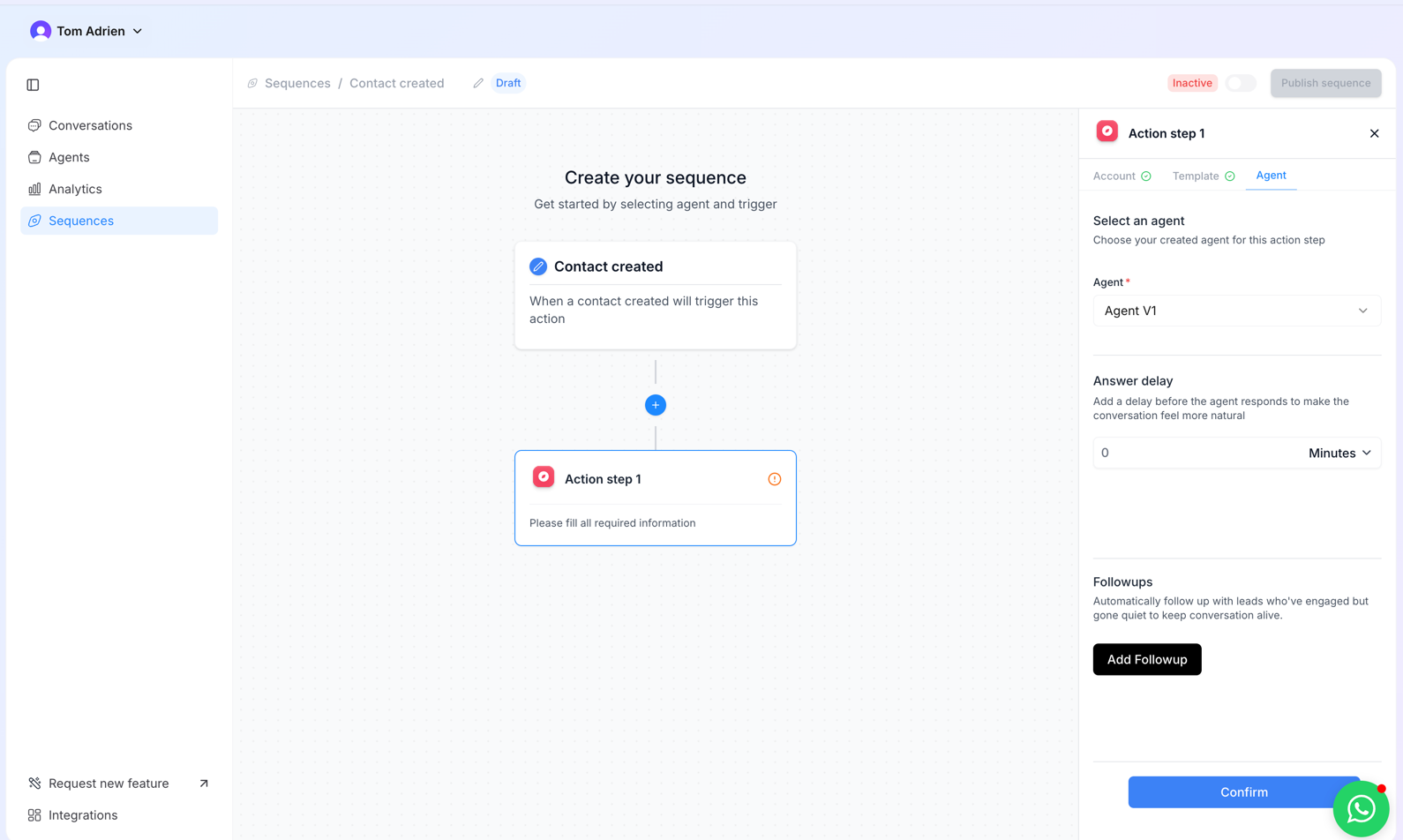
- Then toggle on the sequence and publish it.
Step 4: Connect Zapier
Step 4: Connect Zapier
- Tutorial Here: 🧢 Connect Zapier to Orsay
Step 5: Send Bulk Campaign
Step 5: Send Bulk Campaign
The integration steps work in the same way for each platform.
To upload a file to the dashboard: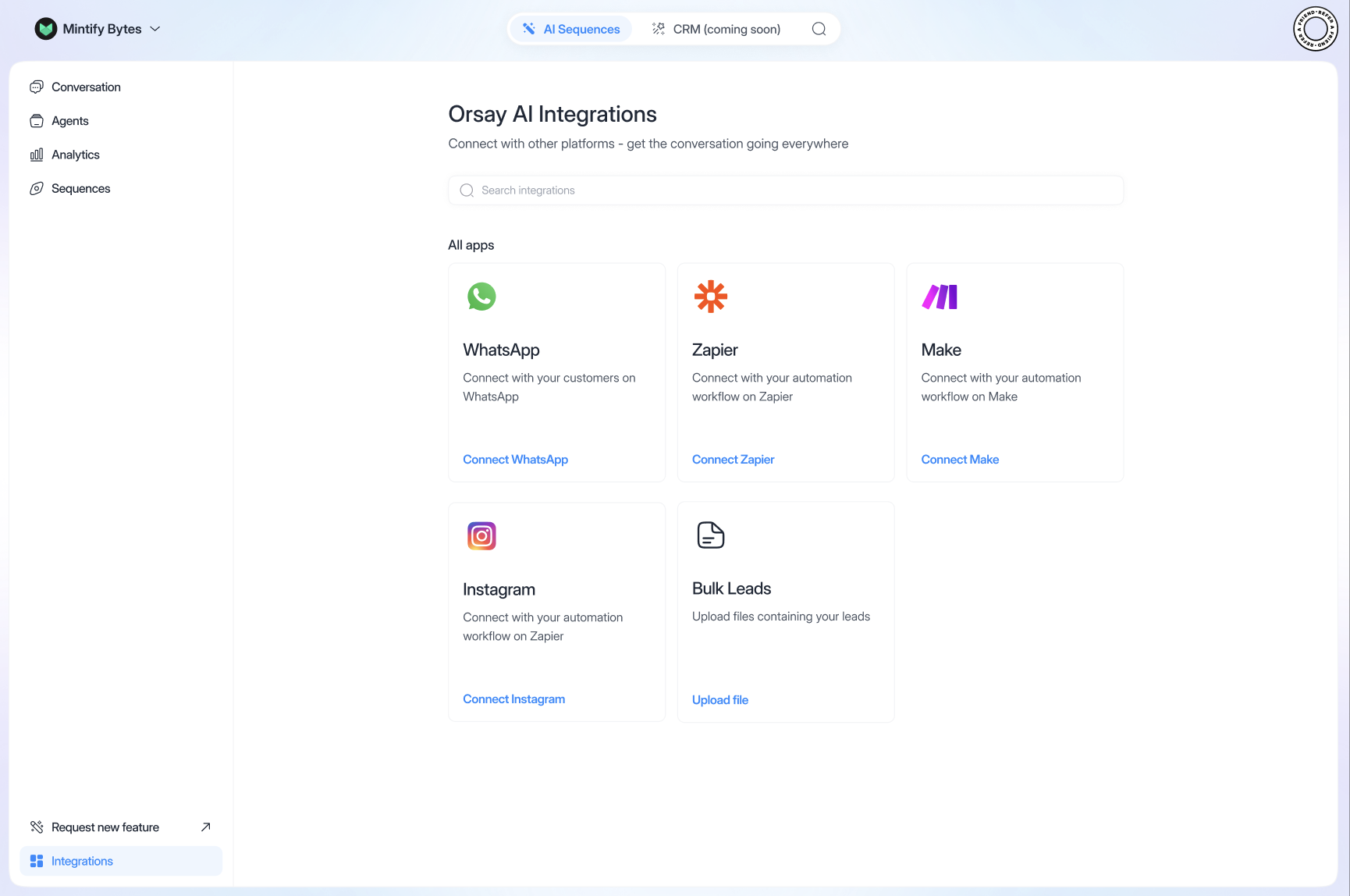
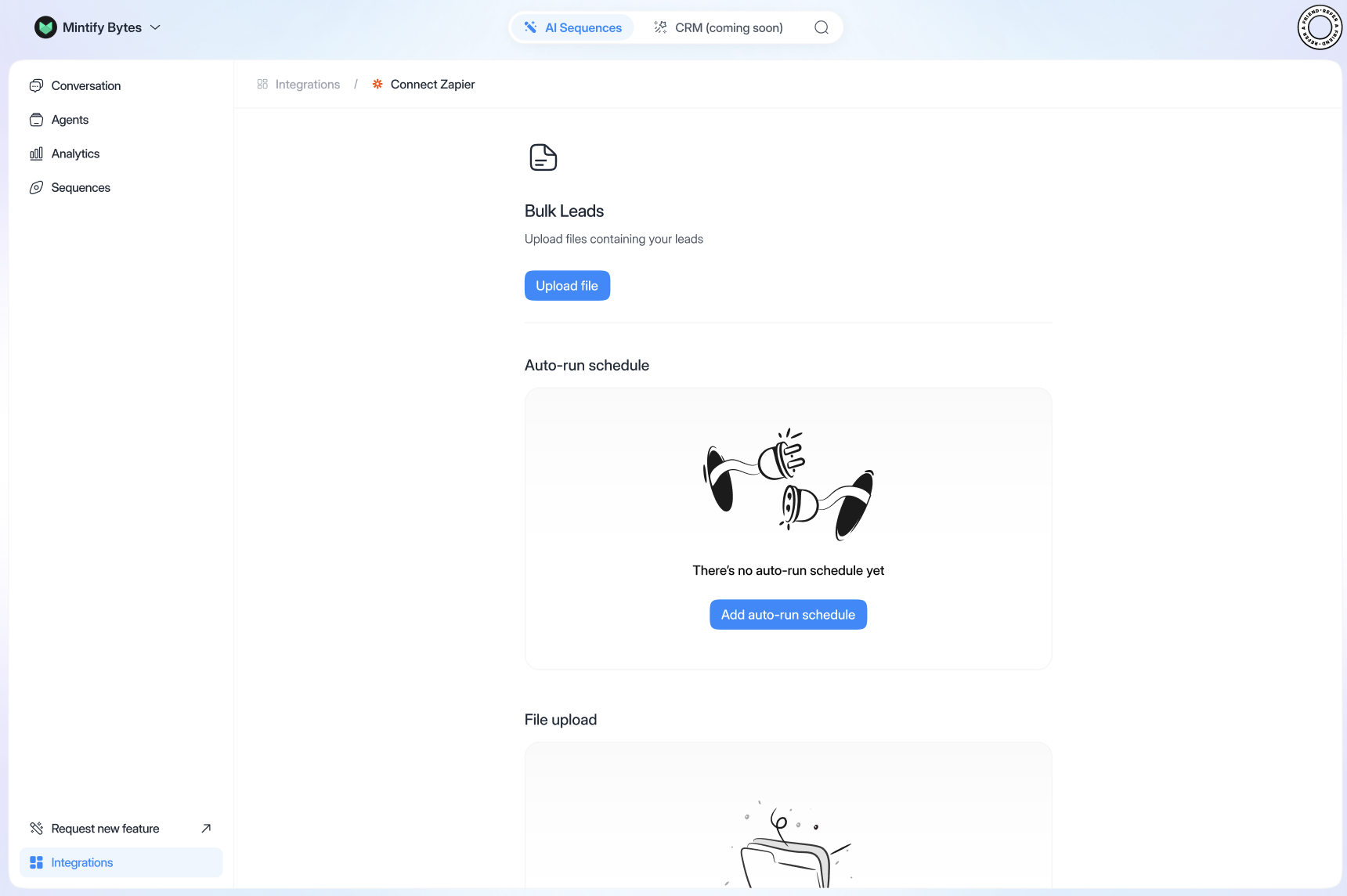
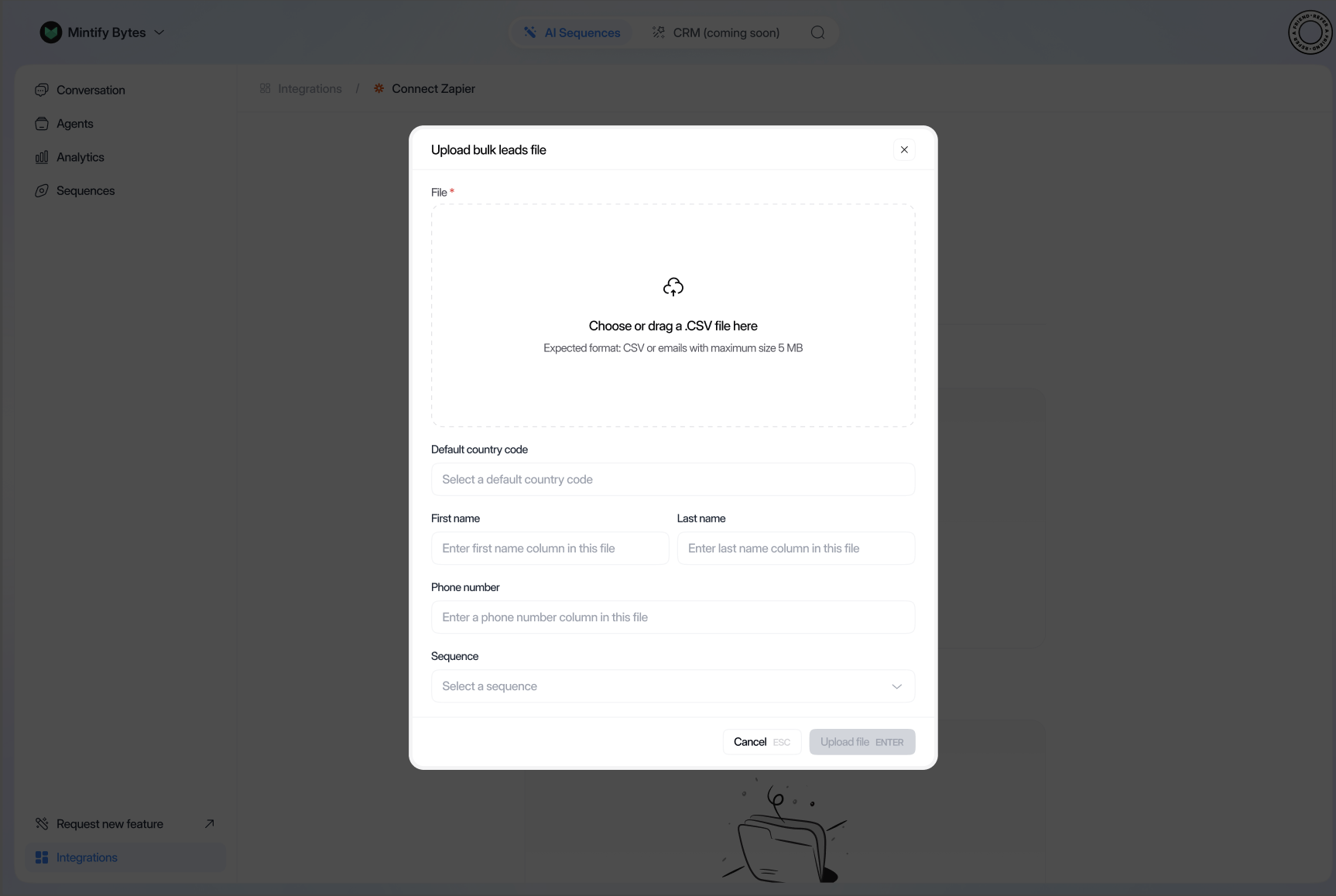
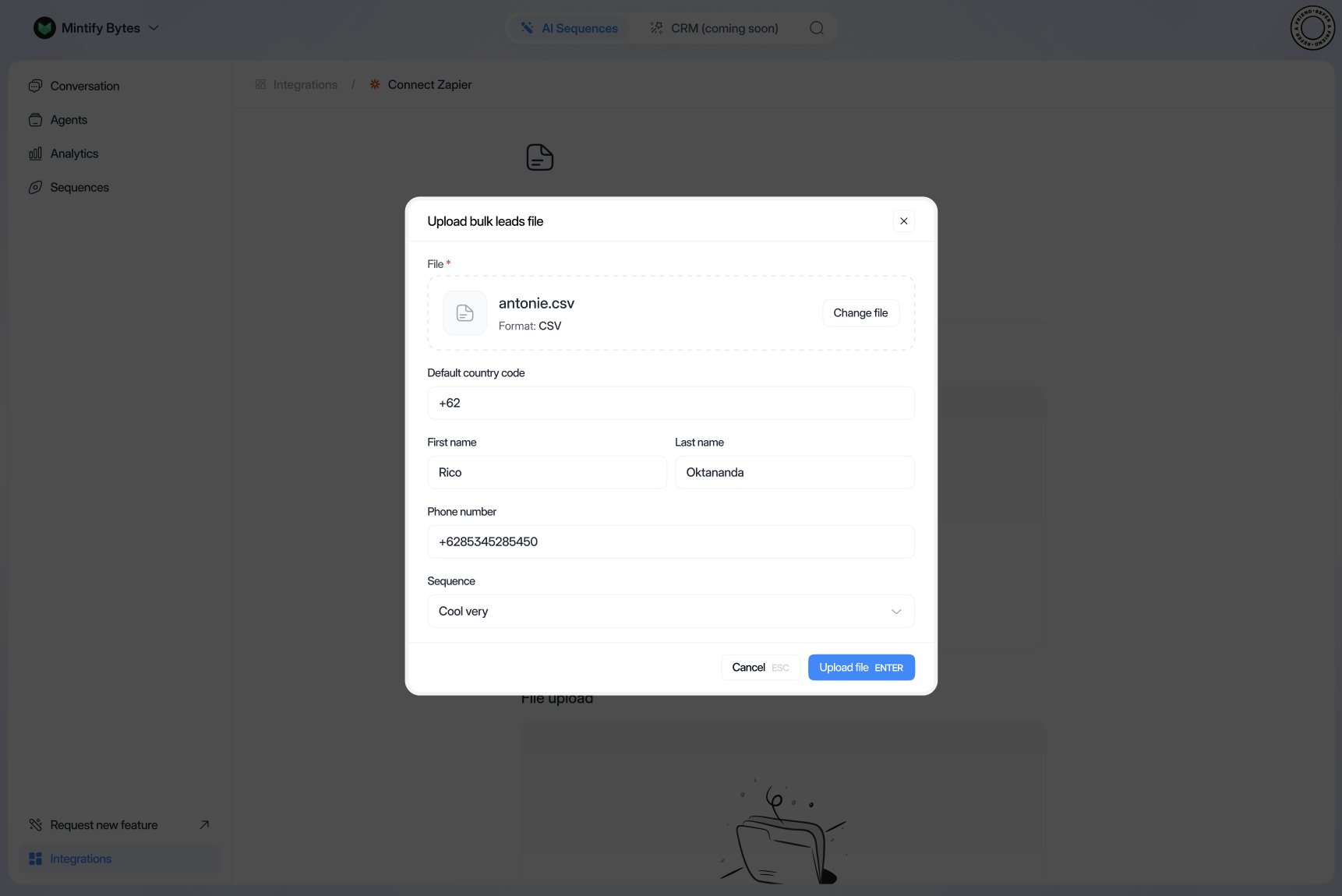
- Click on “Bulk Leads”, “Upload Files”.
- Import CSV file
- Fill in the country (“France” if French)
- First name/phone number: fill in the column title with the information
- Select the right sequence
- Click on “Upload File”
CONTACT_SUBSCRIBED_TO_SEQUENCE- Select upload sequence
- Number of leads to be entered in sequence
- Click on “Update Schedule”
If you need help configuring your AI agent, Orsay’s support team is here for
you! Reach out to us on WhatsApp for quick and
personalized assistance.