
- Go to your organization in the top left-hand corner
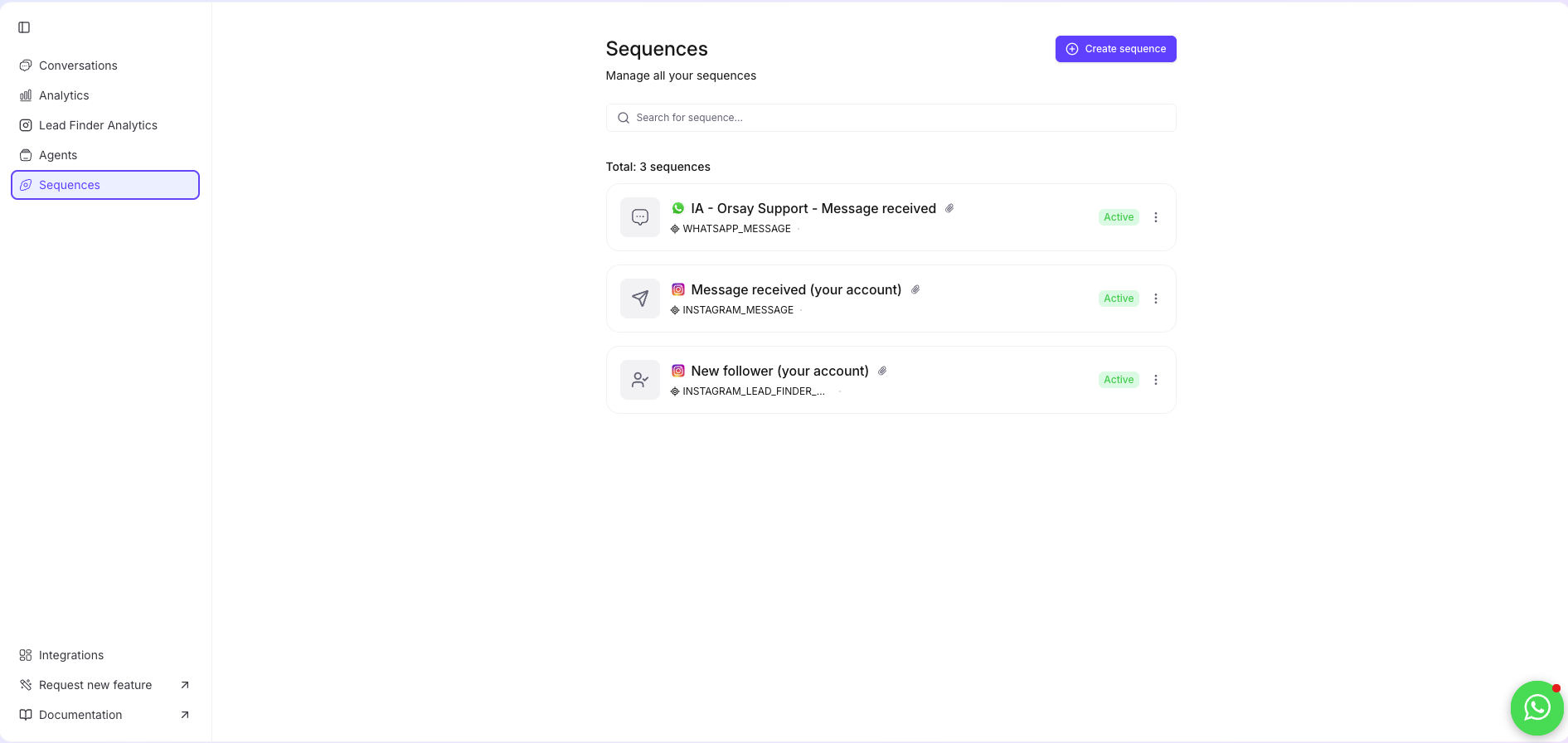
- Click on “Sequences”
- Then click on “Create Sequence”
Create WhatsApp sequences
Create WhatsApp sequences
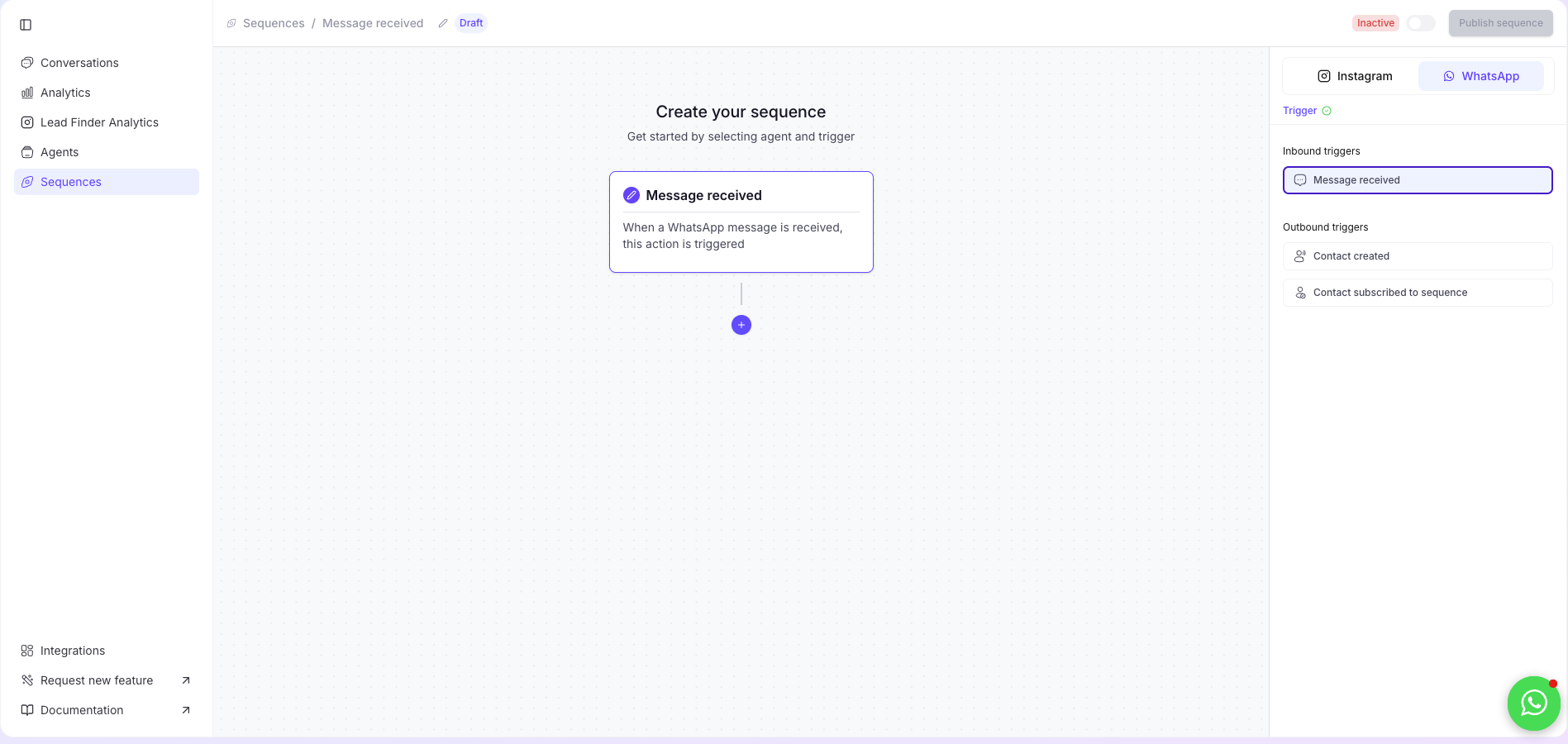
Select your triggers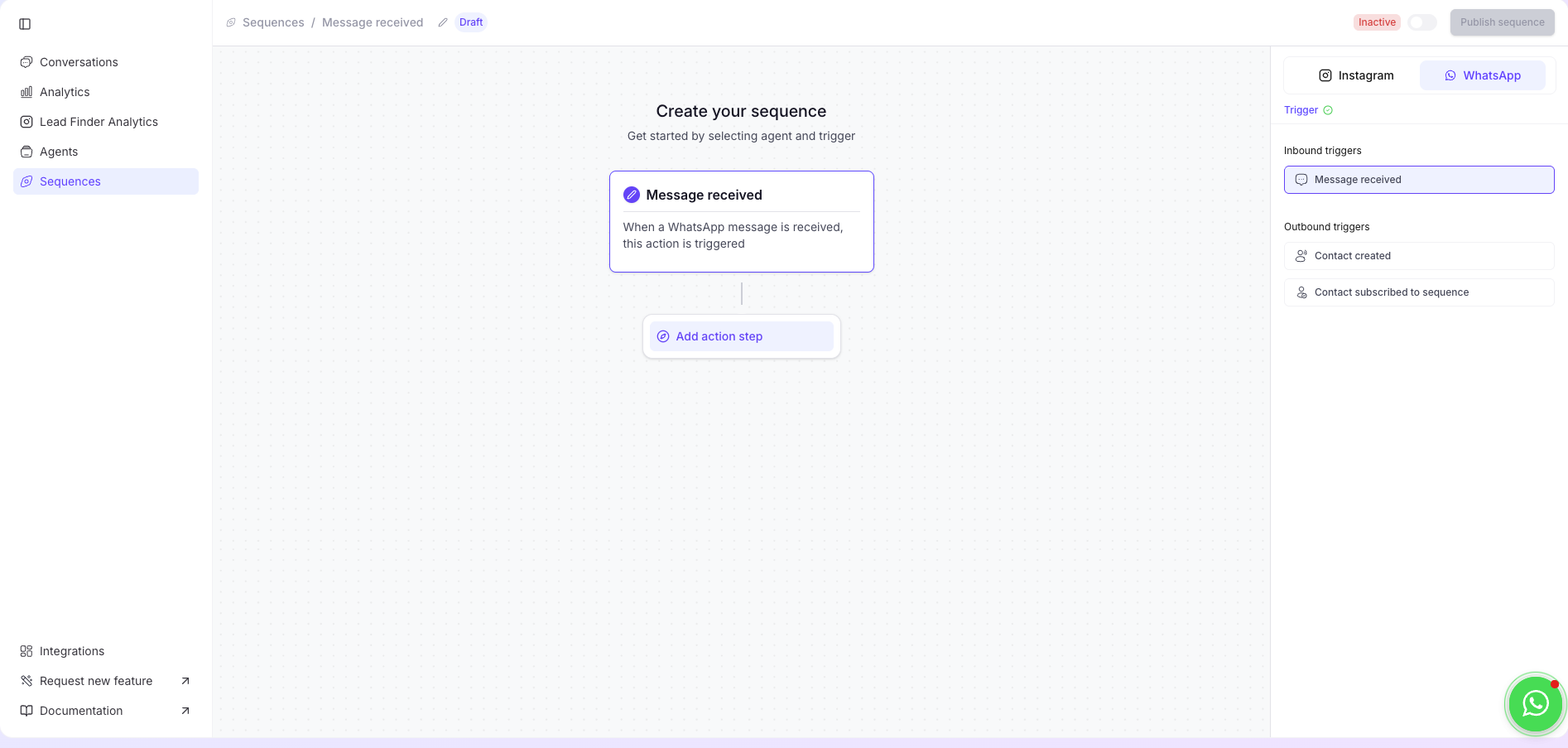
Inbound
Inbound
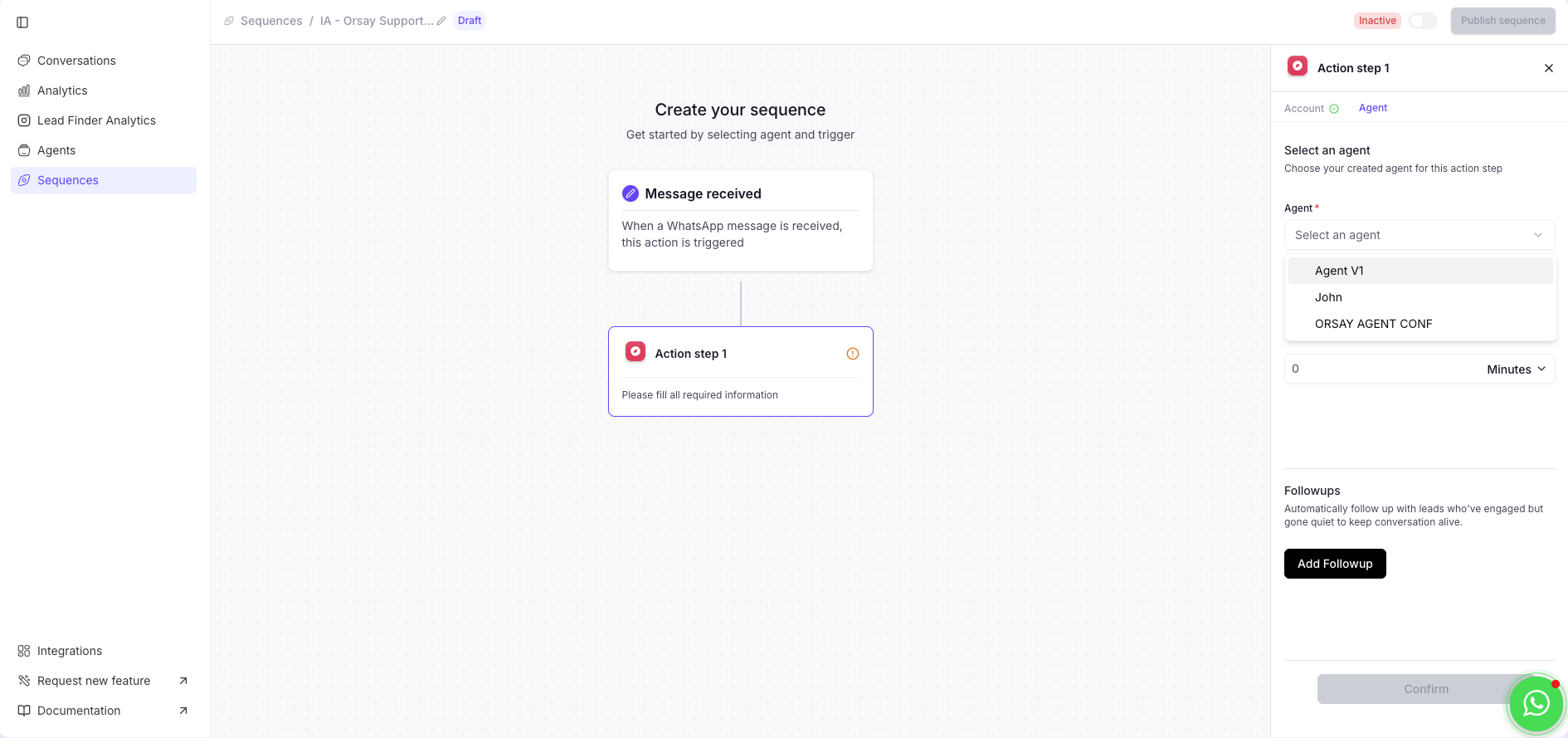
- Select inbounds triggers and click on “+” and “add action step”.
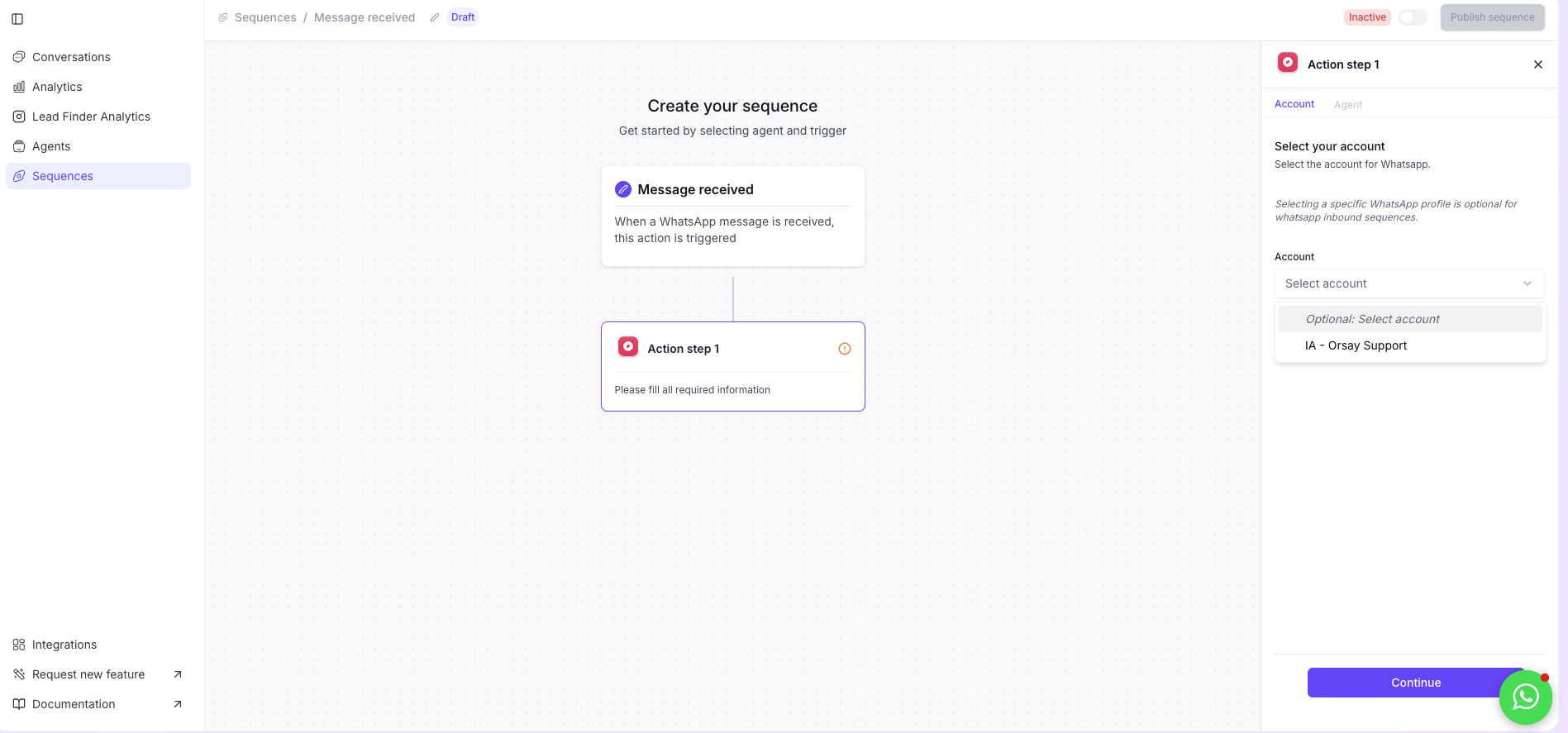
- Select your WhatsApp account and click on “continue”.
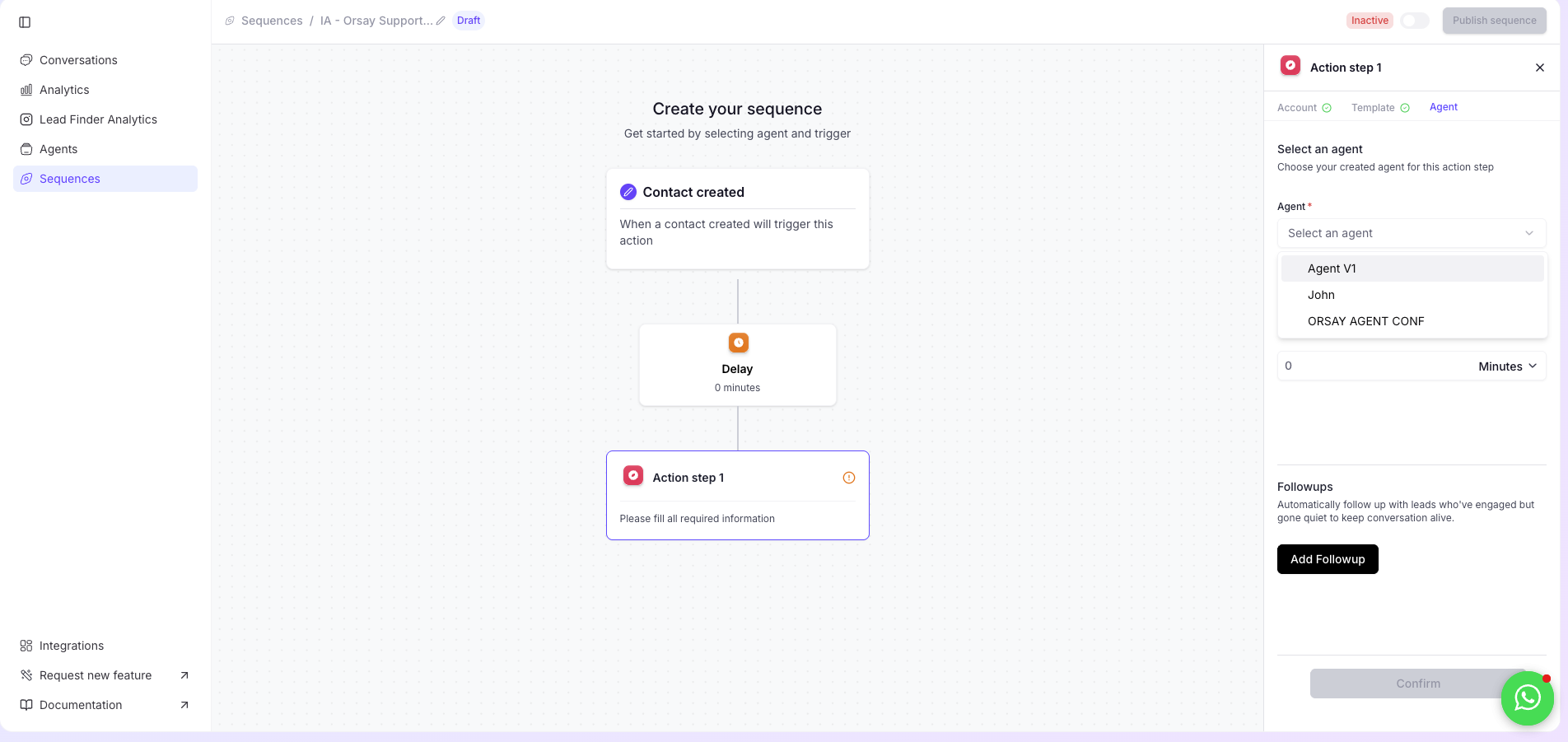
- Select agent, answer delay and click on “continue”
Outbound
Outbound
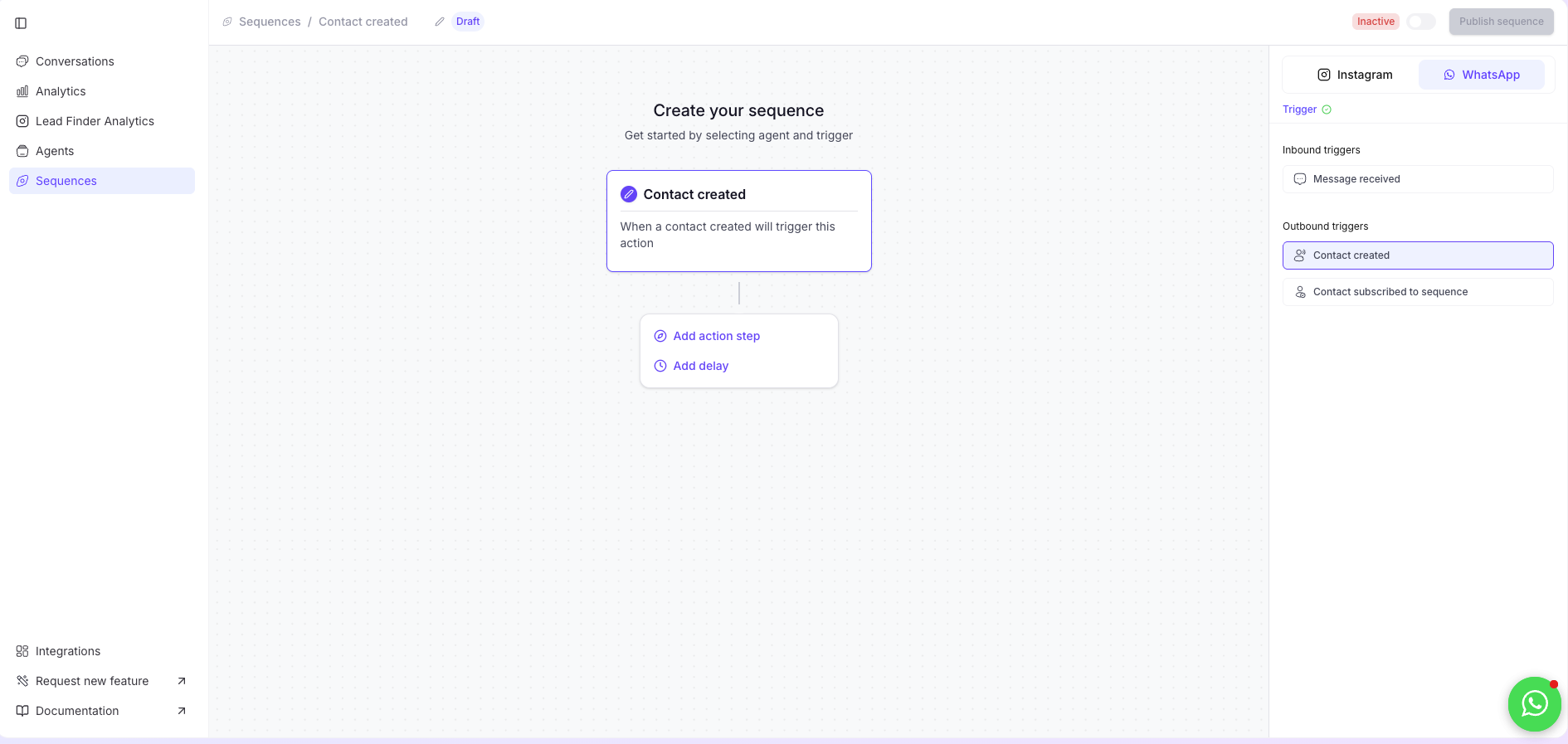
- Select outbounds triggers and click on “+” and “add action step”. -
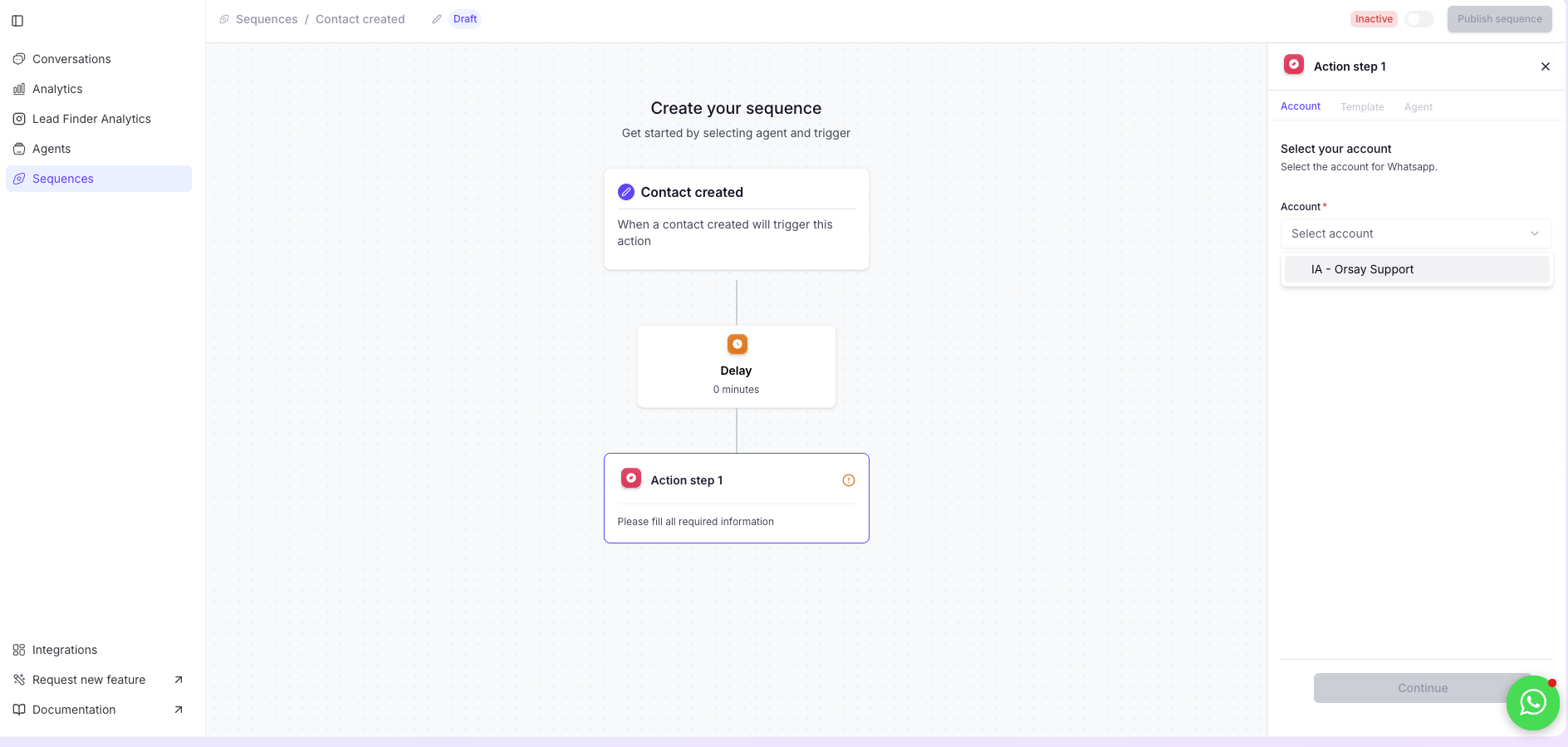
- Select your WhatsApp account and click on “continue”.
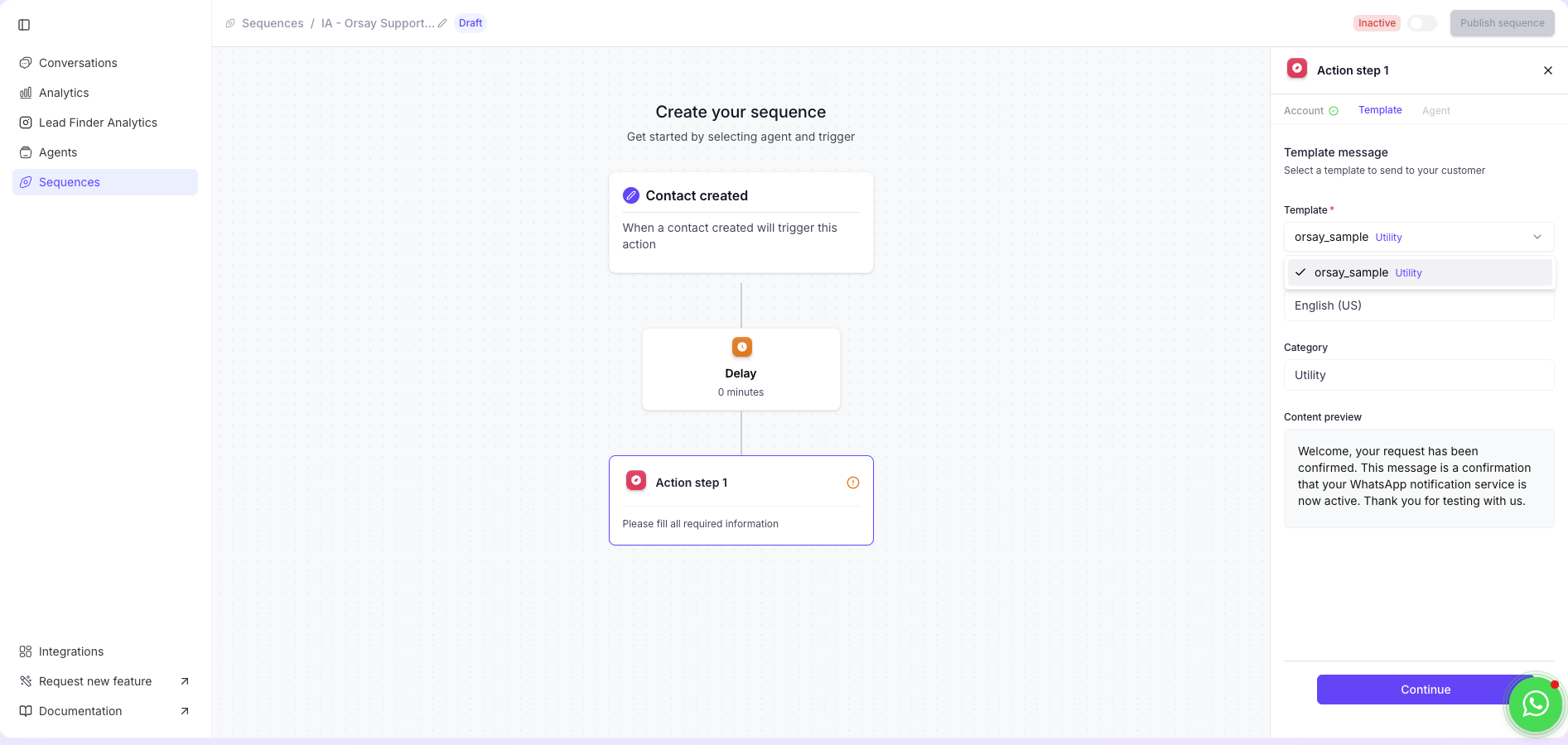
- Select your template and language
- Select agent, answer delay and click on “continue”
Create Instagram Inbounds sequences
Create Instagram Inbounds sequences
- Select inbounds triggers and click on “+” and “add action step”.
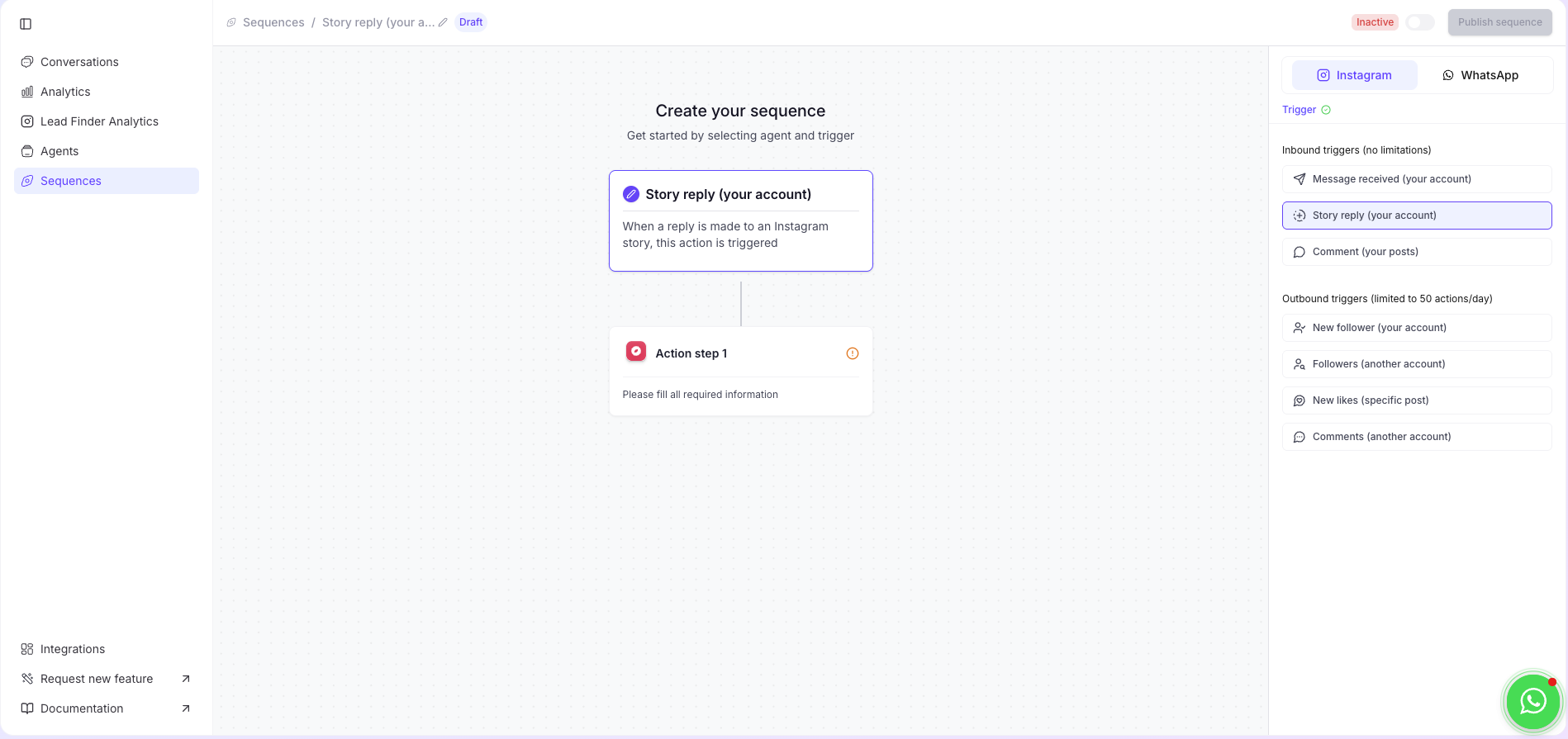
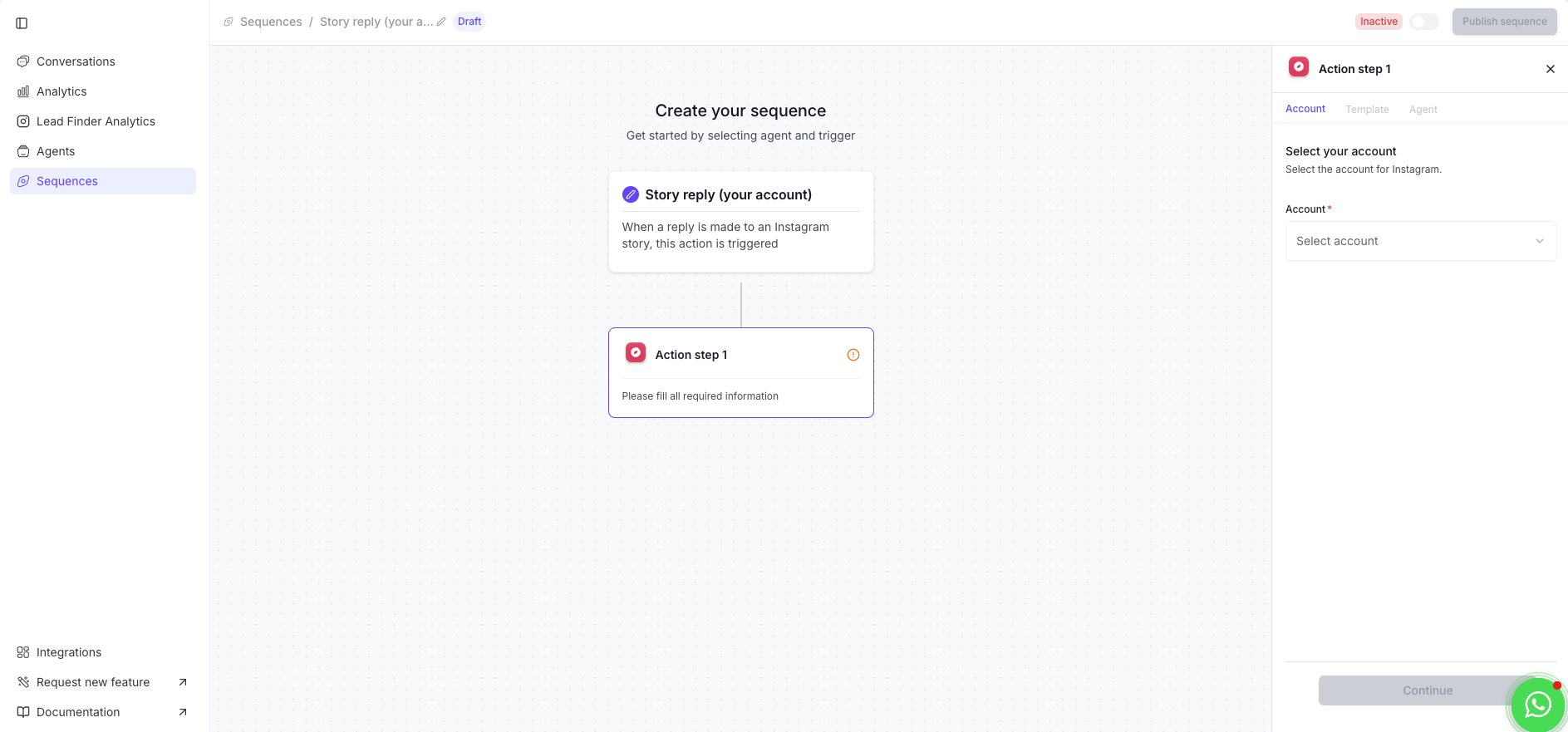
- Select your Instagram account and click on “continue”.
- (Optional) Add trigger keywords to create a specific sequence. The sequence will only trigger when the comment or story reply contains one of those keywords. If no keywords are added, it becomes a global sequence that triggers on every incoming comment or story reply. Keywords are case-insensitive and matched with OR logic.
- (Optional) Select target posts or stories to scope the sequence to specific content. If no posts/stories are selected, the sequence applies to all of them.
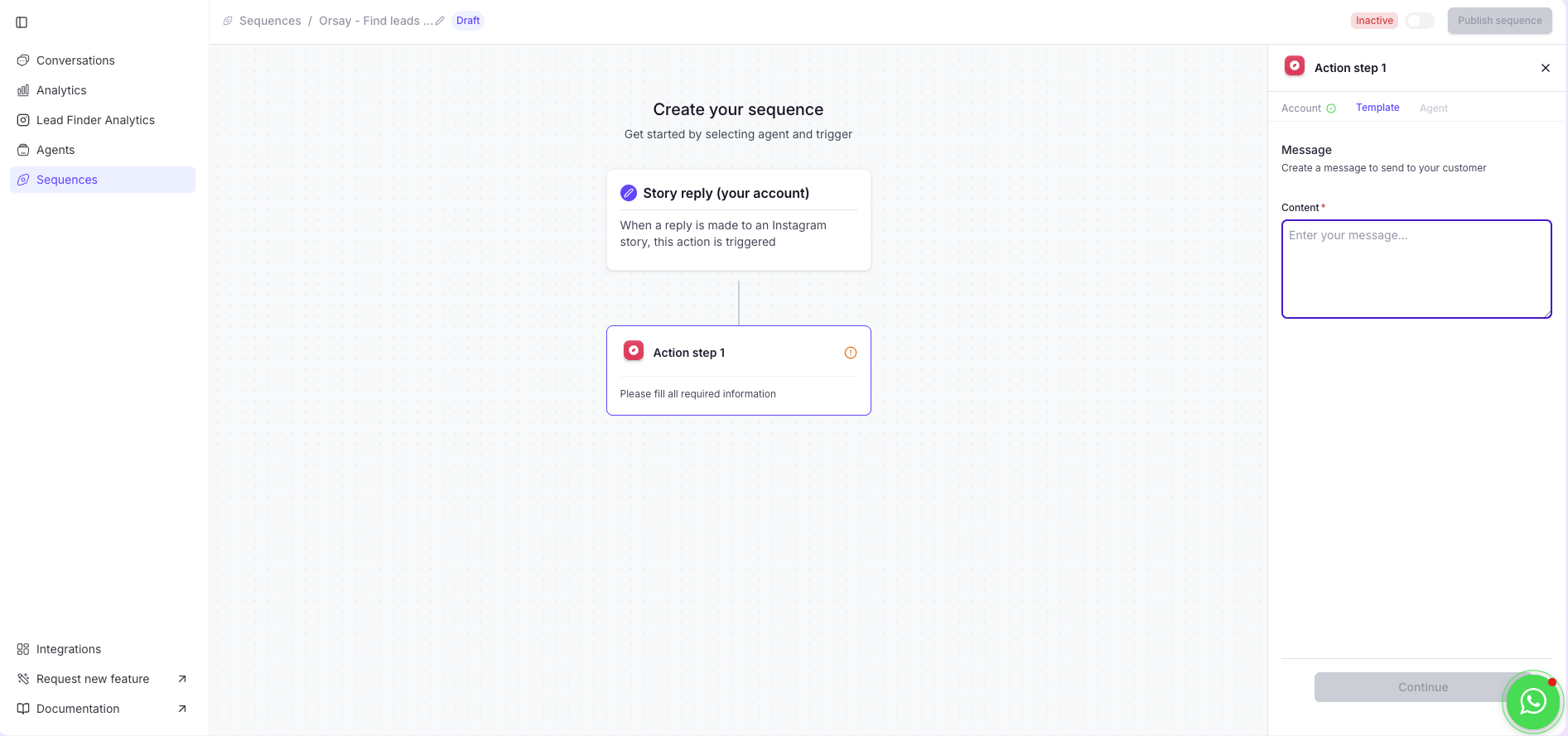
- Create your template message and click on “continue”.
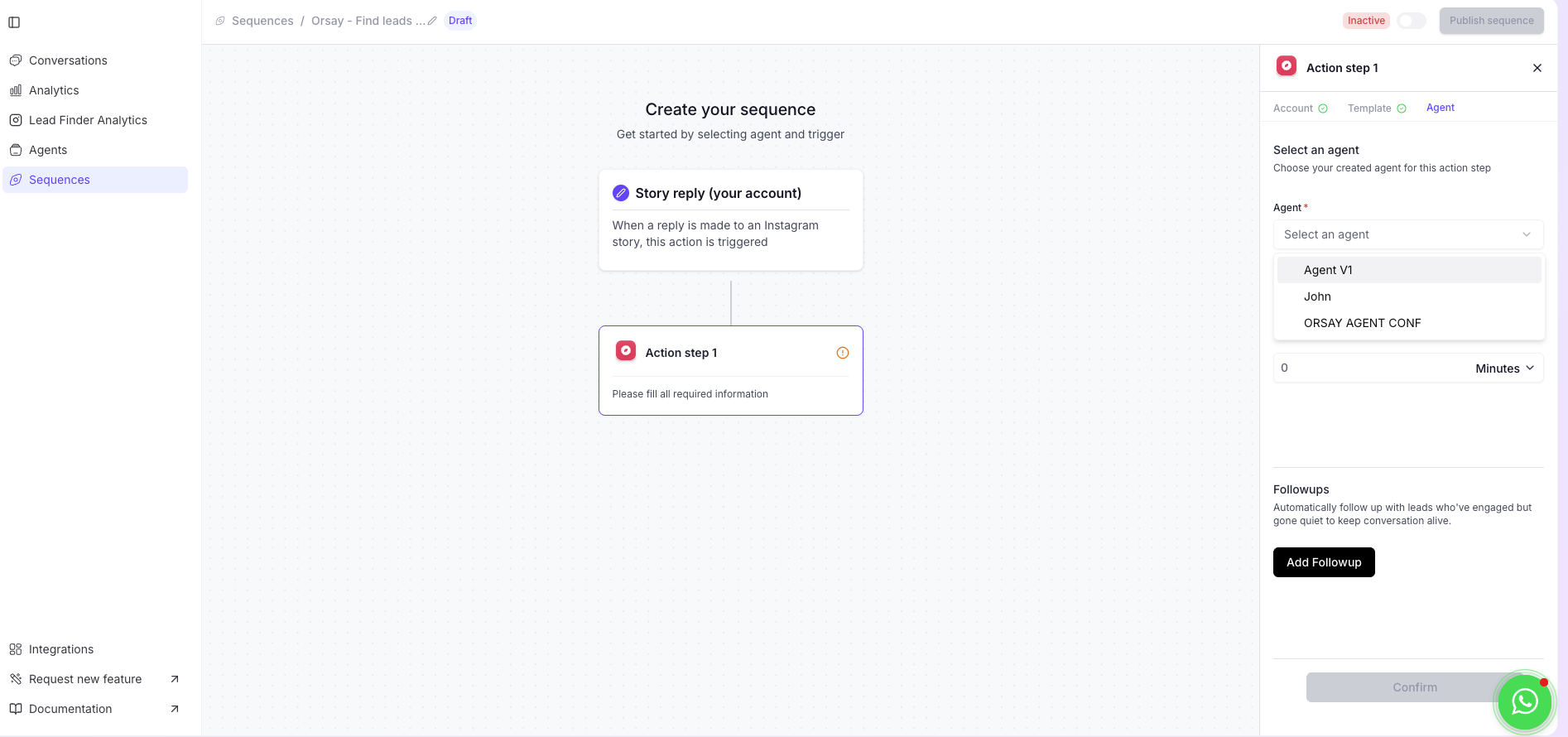
- Select agent, answer delay and click on “continue”
Create Instagram Outbounds sequences
Create Instagram Outbounds sequences
Setting Up Triggers and Actions
Start by selecting a trigger such as “New Followers” or “New Like.”
Then add the actions that will be executed from your Instagram account.
All actions added to the same flow will be triggered sequentially on this account when the trigger is activated.Example:Trigger: “New Like” (on a specific post).
Actions: “Follow” then “Like.”
Result: If someone likes the post, the system will first follow that user, then like one of their posts.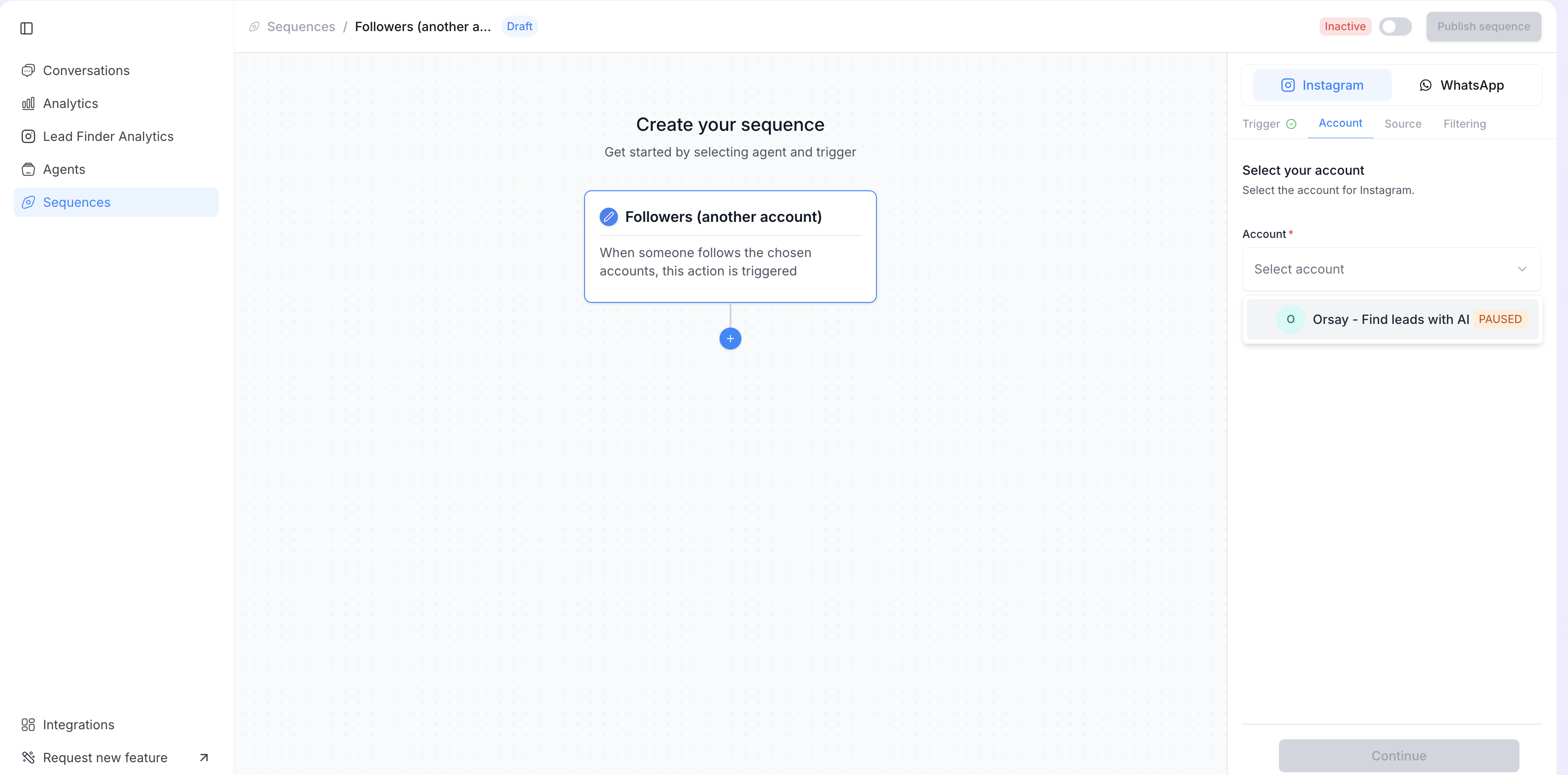
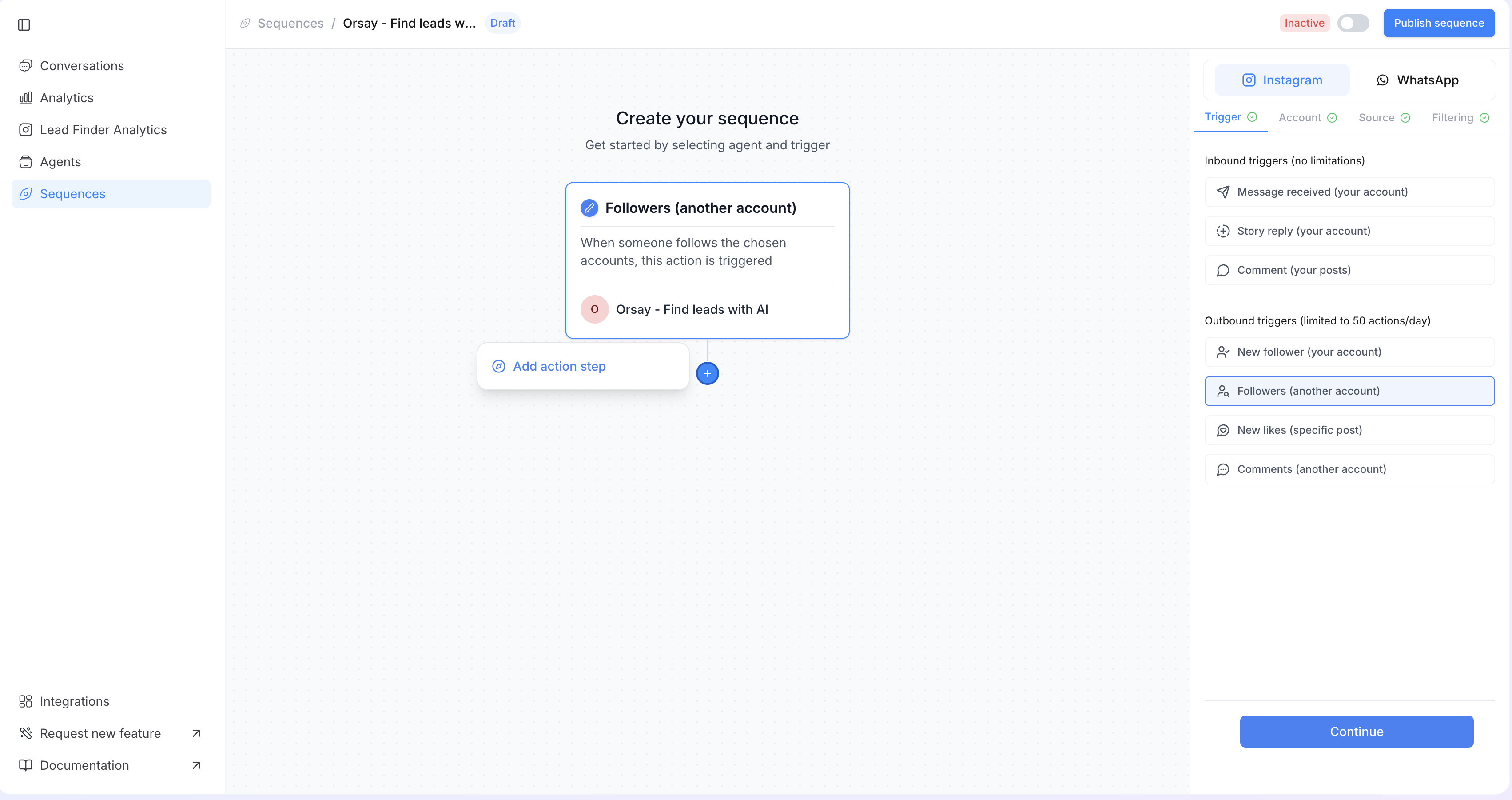
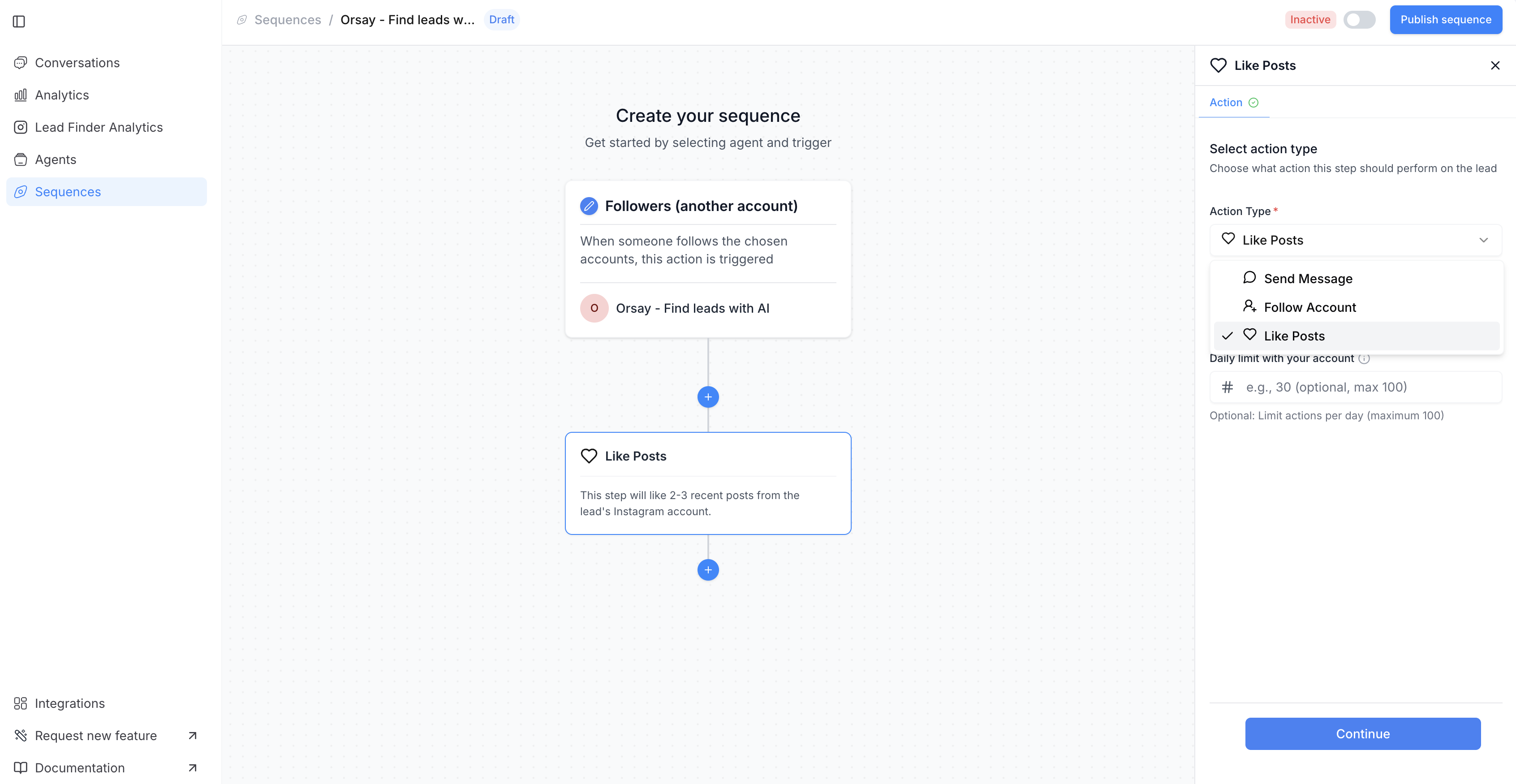
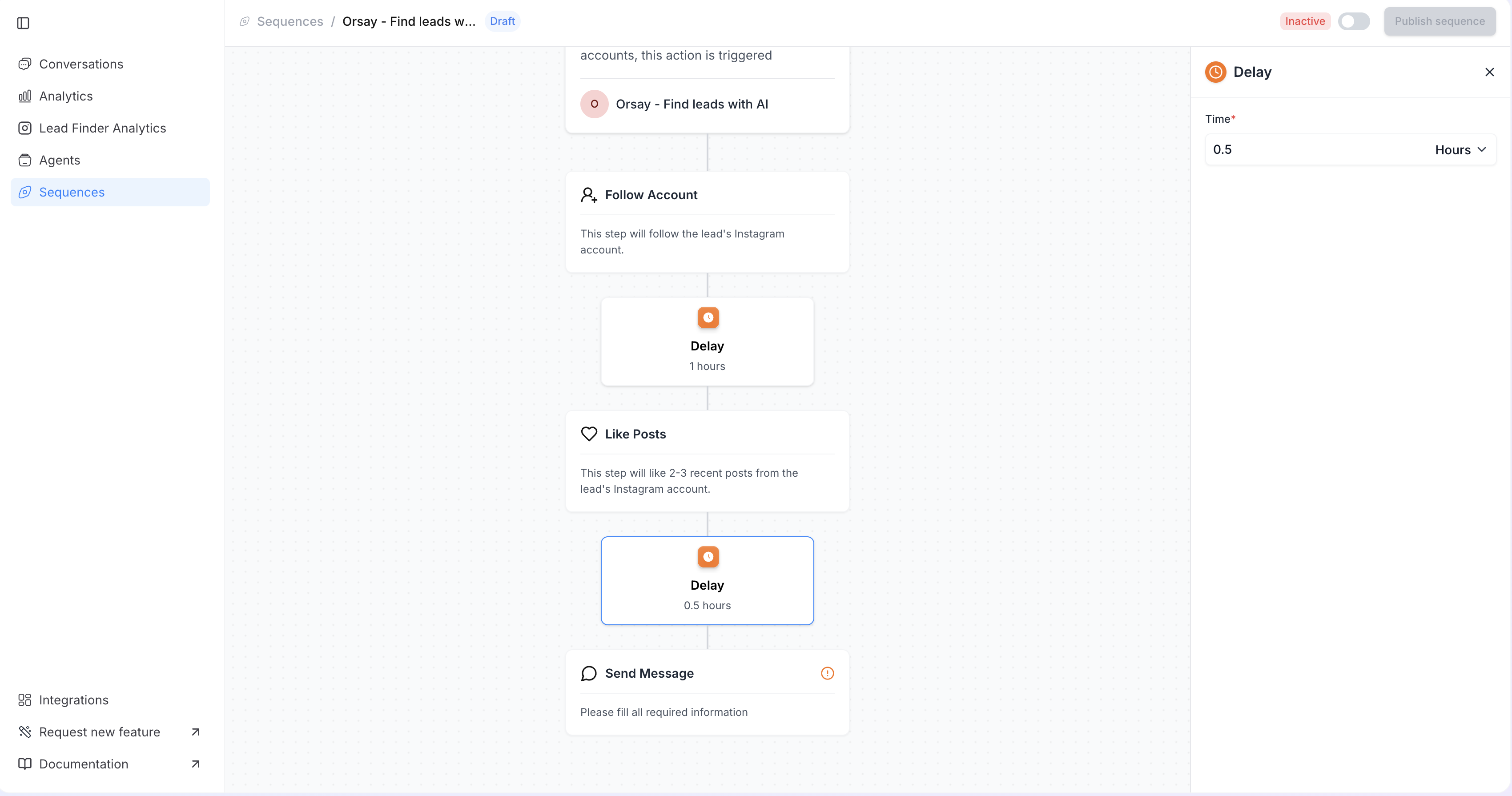
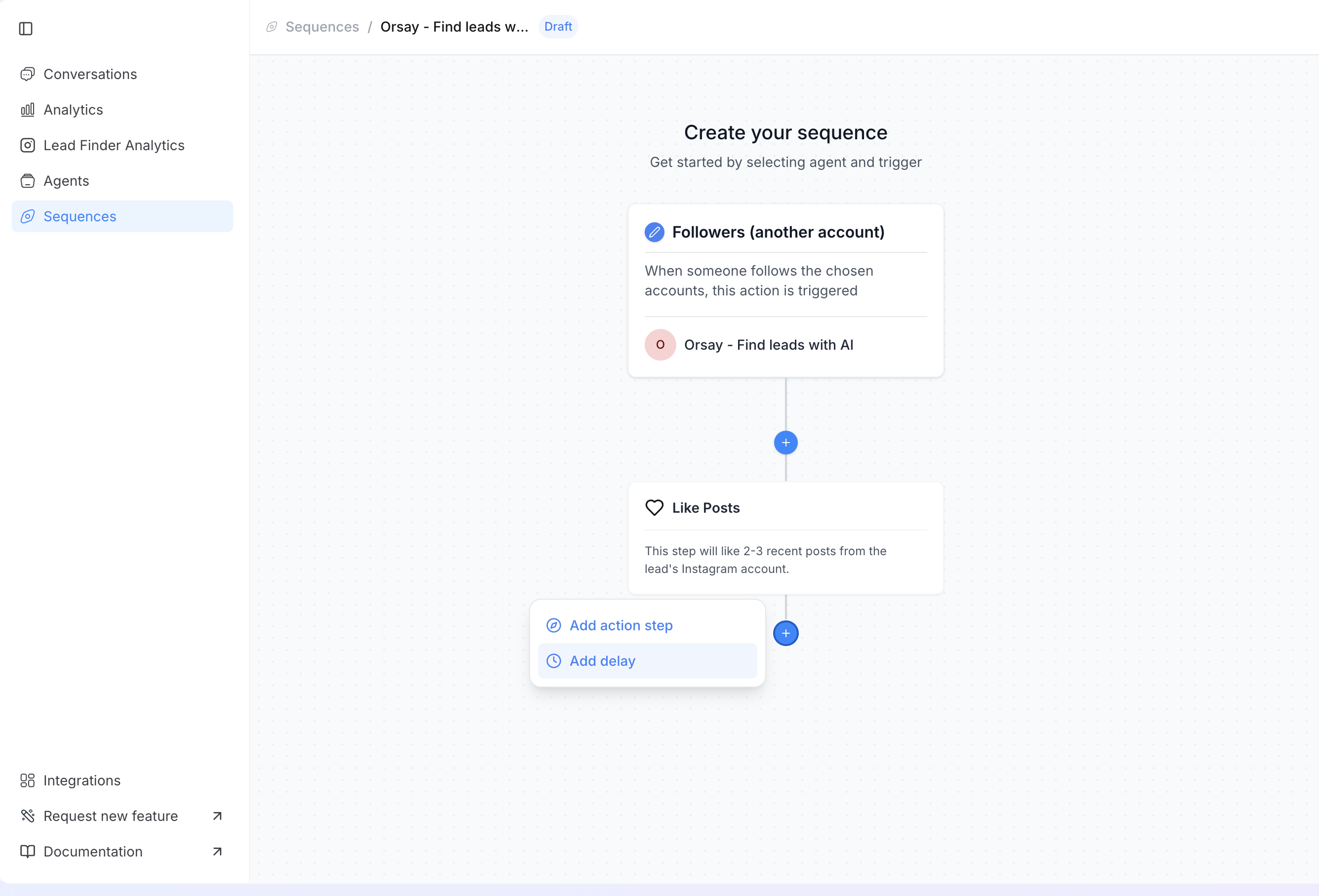
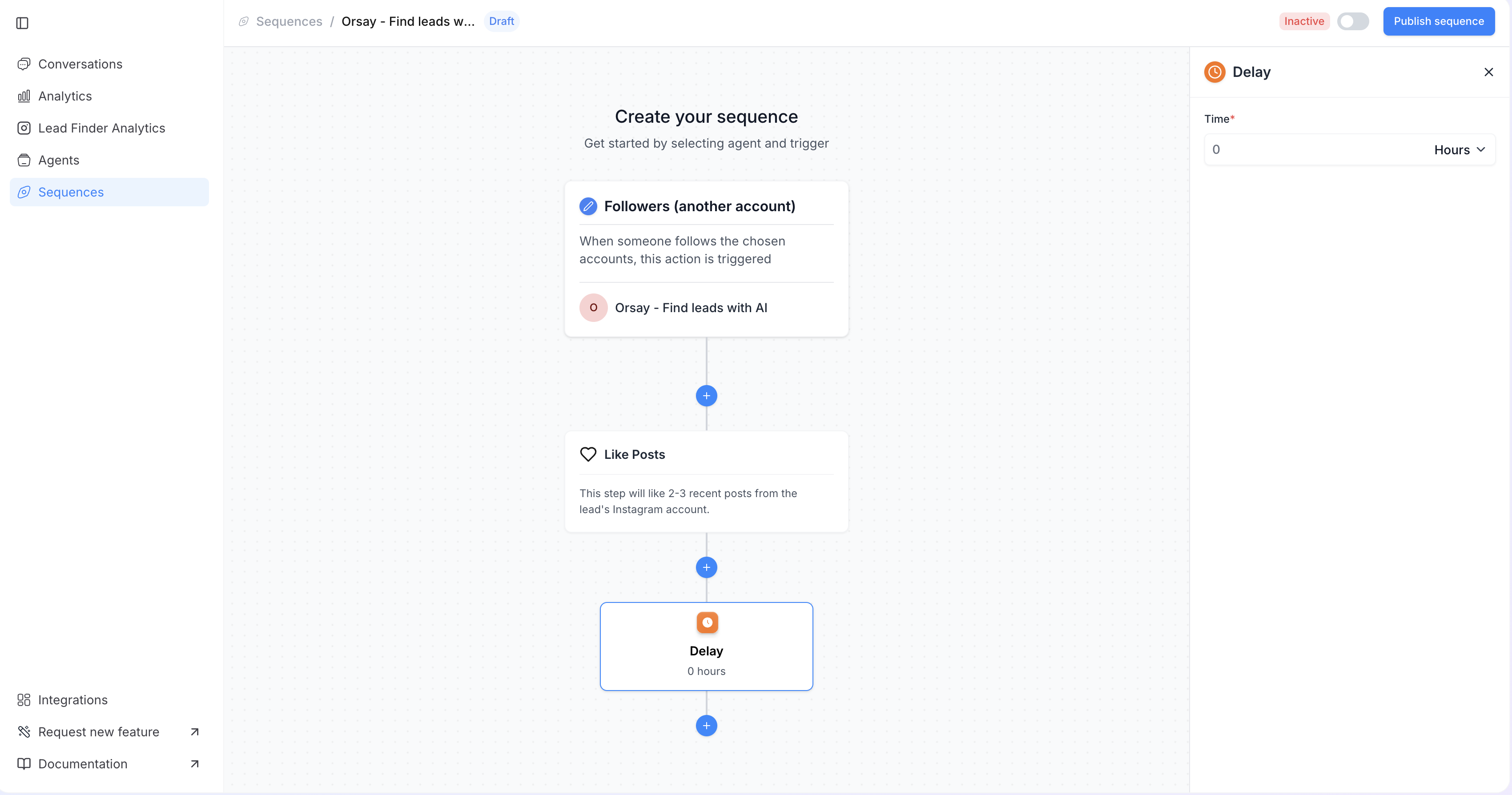
Start by selecting a trigger such as “New Followers” or “New Like.”
Then add the actions that will be executed from your Instagram account.
All actions added to the same flow will be triggered sequentially on this account when the trigger is activated.Example:Trigger: “New Like” (on a specific post).
Actions: “Follow” then “Like.”
Result: If someone likes the post, the system will first follow that user, then like one of their posts.
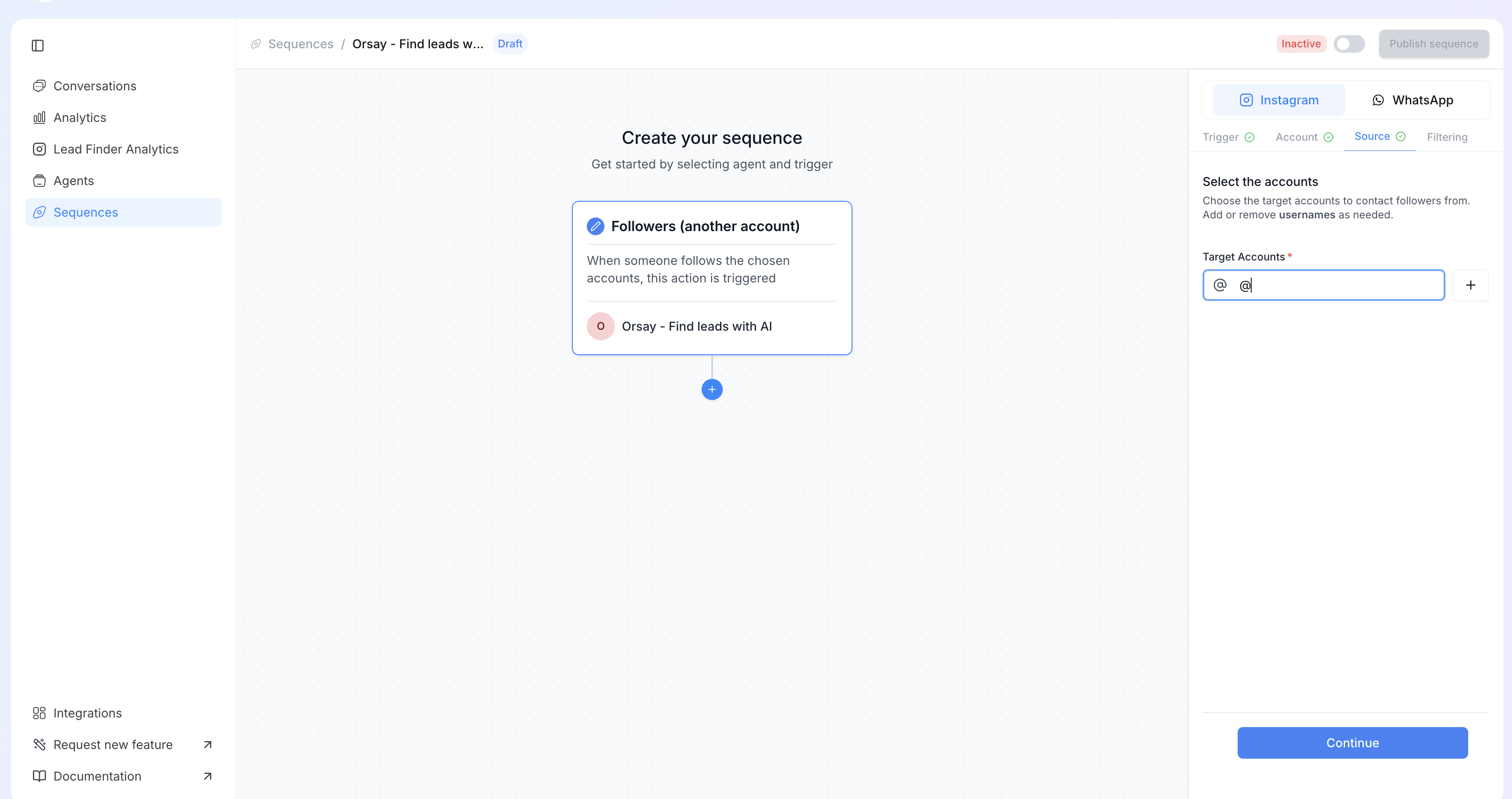
- Add the source: use @username for followers and the post URL for likes or comments.
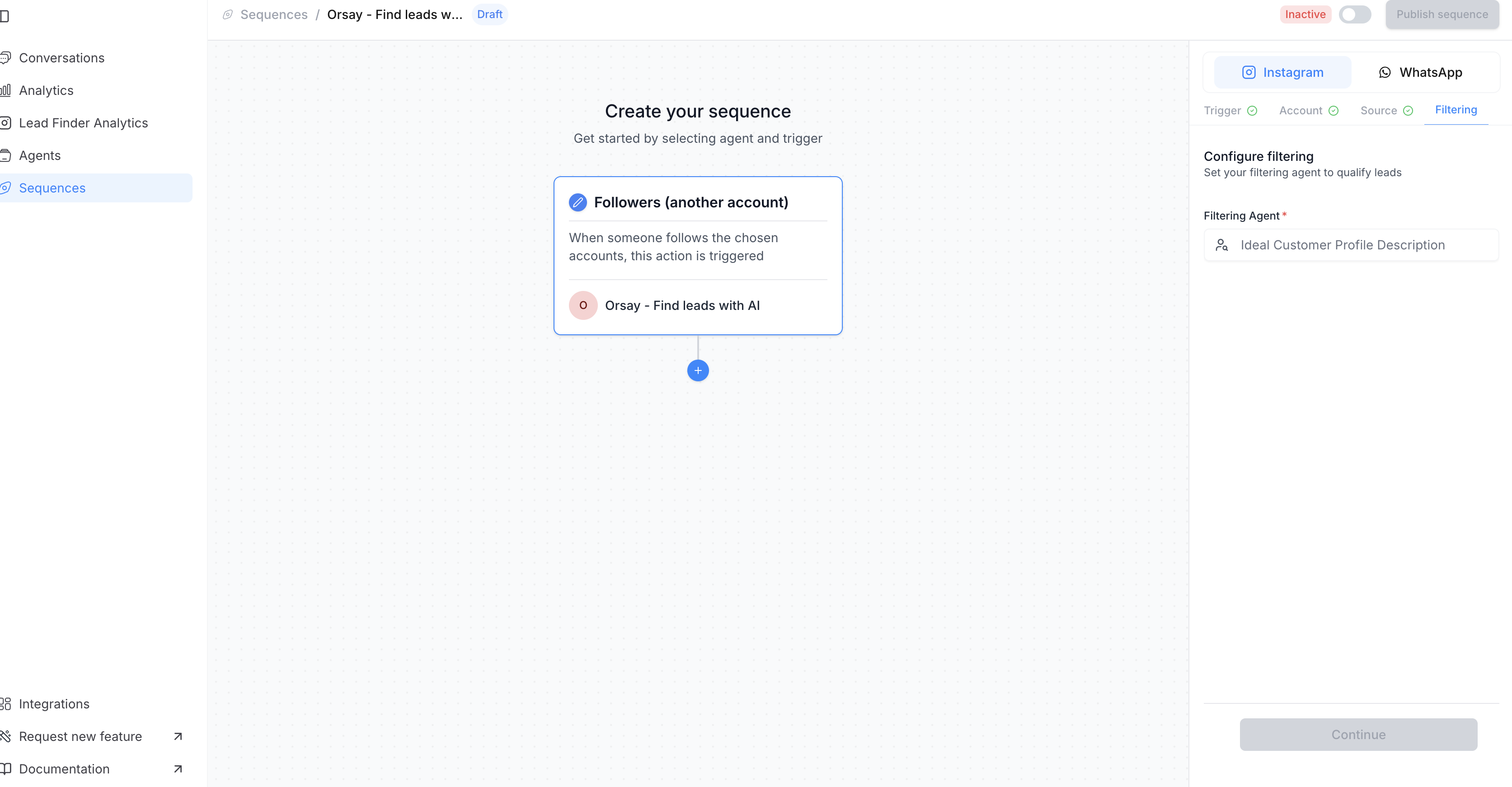
- Define the target prospect profile, then click on “Continue”.
- Click on the ”+”, then on “Add action step”.
- Choose the type of action you want to perform, then click on “Continue”.
- It is possible to combine several actions to perform multiple steps within the same sequence.
- You can also add a delay between each action.
- And choose the duration, either in hours or days.
If you need help configuring your AI agent, Orsay’s support team is here for
you! Reach out to us on WhatsApp for quick and
personalized assistance.