Setting account
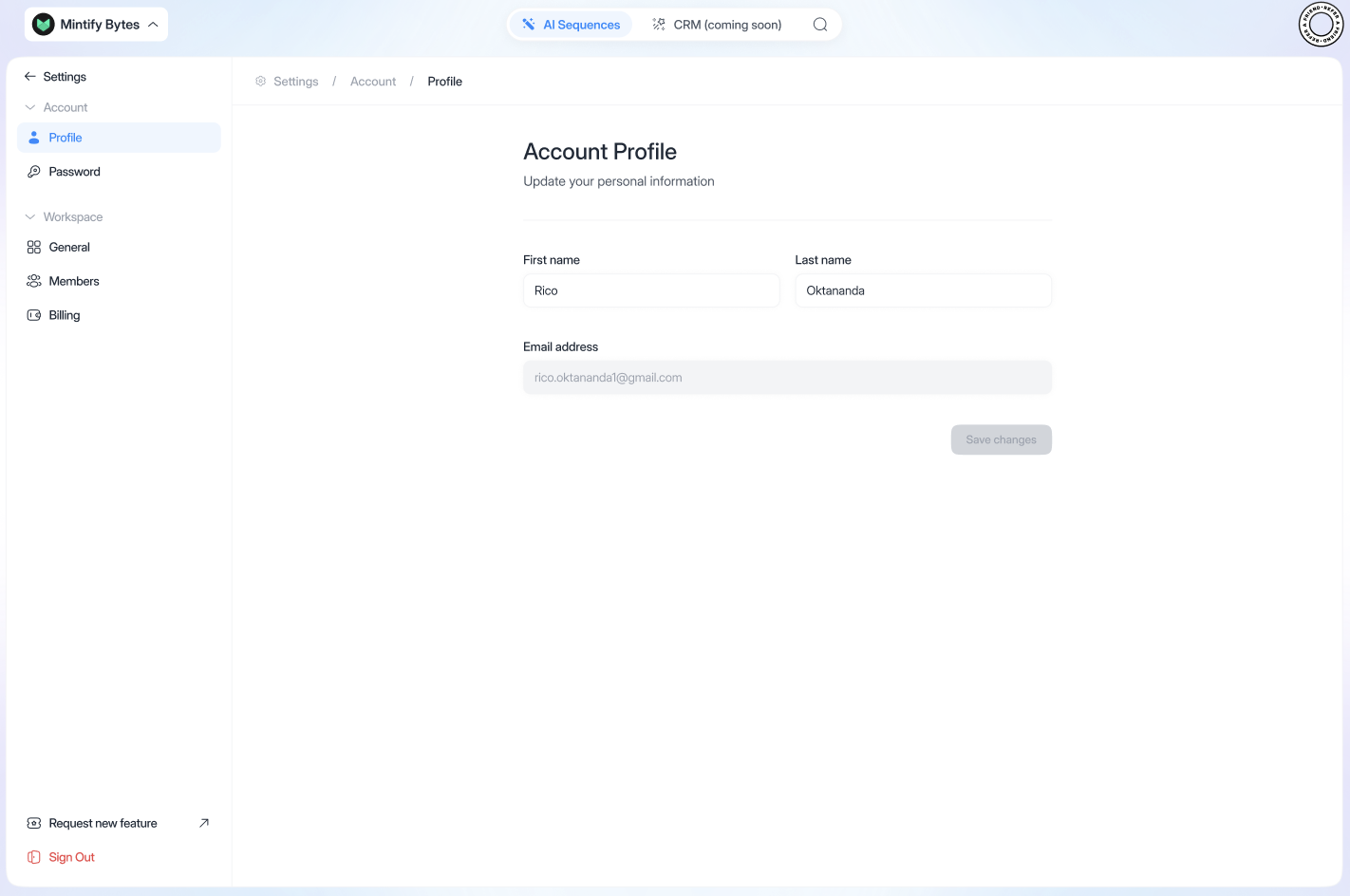
To update your email or your password:- Click on your organization (top left)
- Go to “Profile”
- You can change your first and last name and e-mail address
- Just click on “Save changes” to confirm.
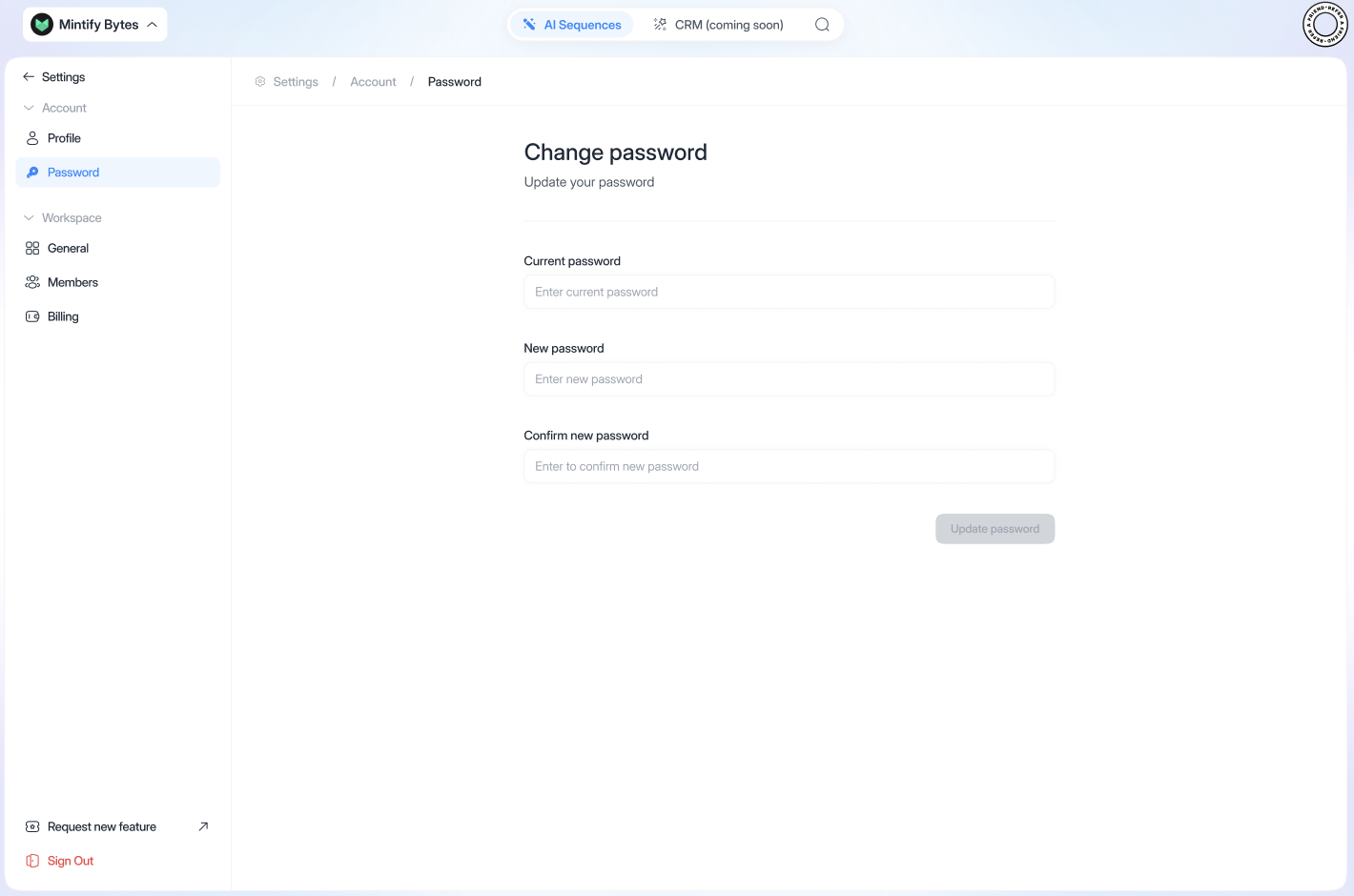
- To validate the password change, click on “Update password”.
Setting general
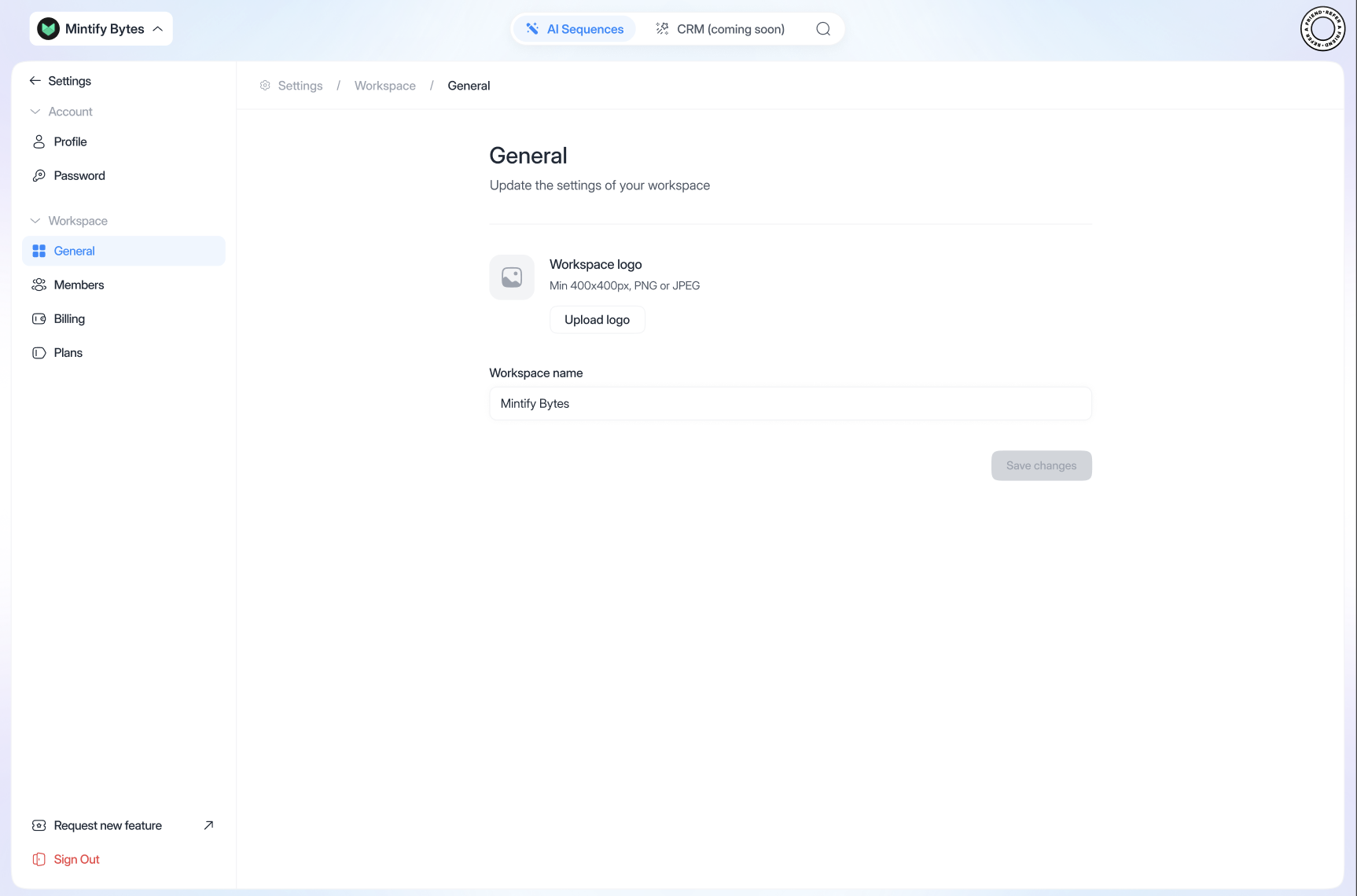
In “Workspace” you can upgrade your plans and add means of payment, credits, also update logo and organization name. To update your workspace logo:- Go to “General”
- Then go to “Upload logo”
- Name your Workspace in “Workspace”
- Just click on “Save changes” to confirm
To update your payment information:
- Go to “Billing”
- Then go to “Add payment method”
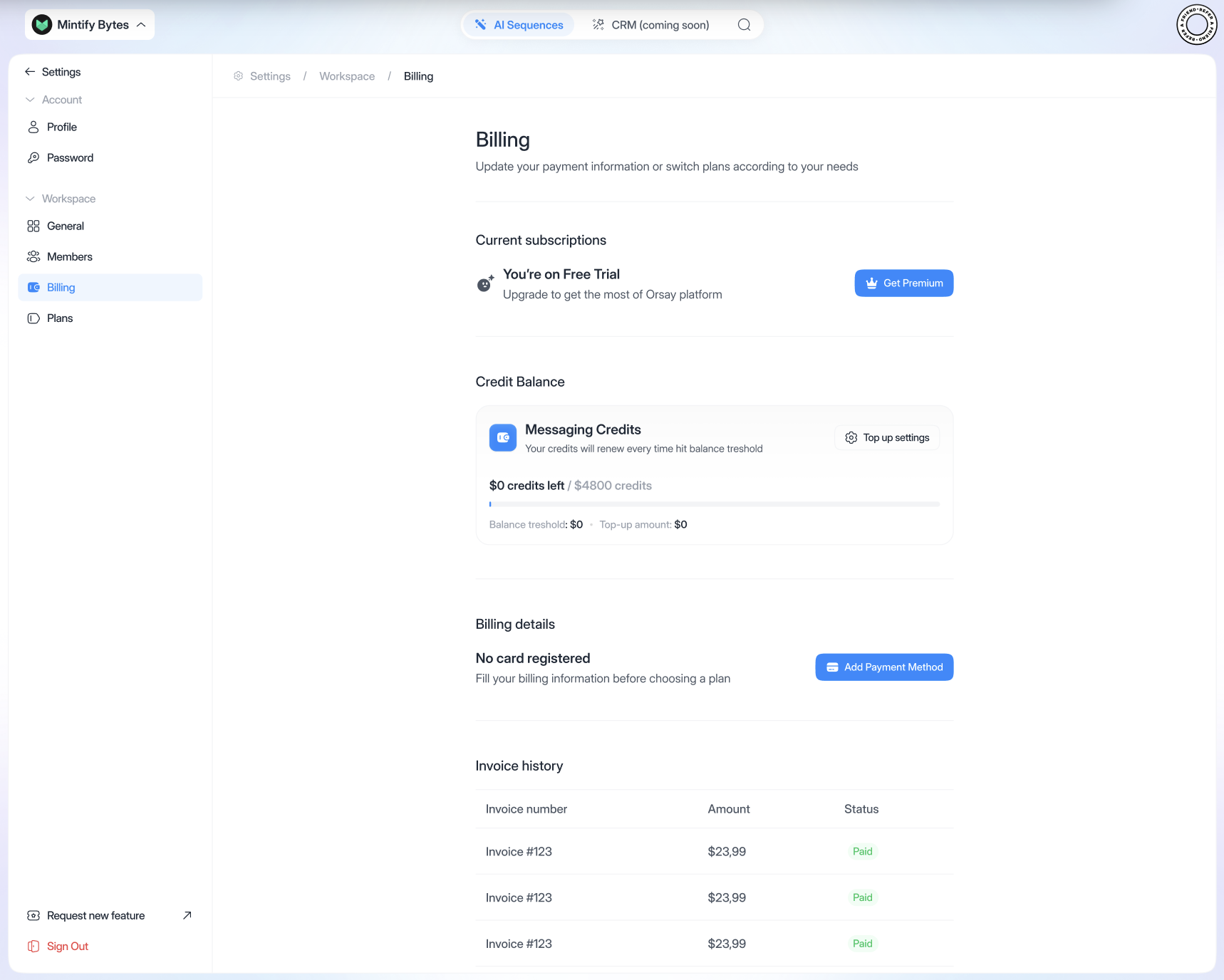
To change your subscription:
- Click on “Get Premium”
- Then select the membership of your choice
- Simply enter your bank details and click on “Upgrade to”
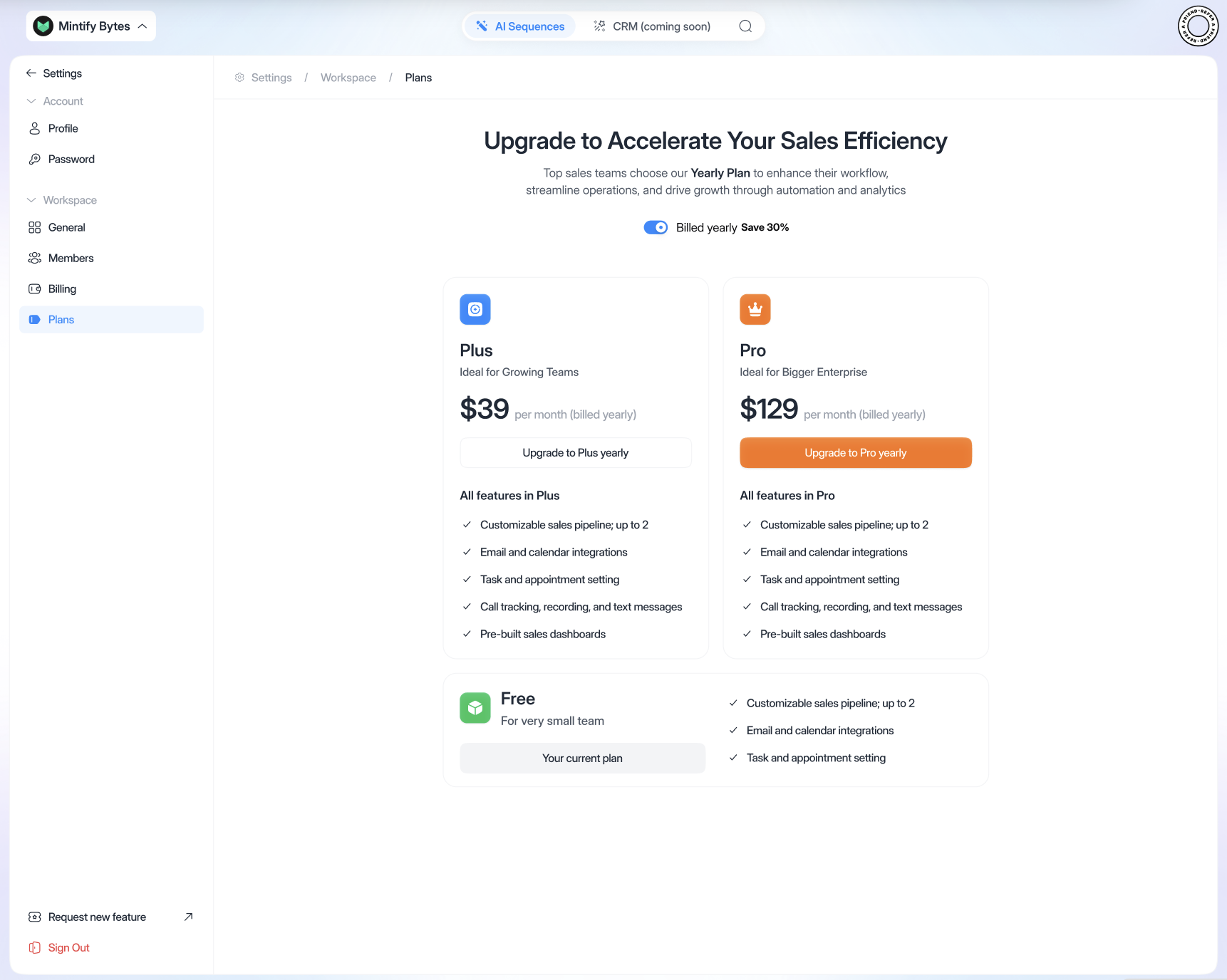
To downgrade your subscription:
- Click on “Get Premium”
- Then “Downgrade to…”
- A question will be asked (for our feedback)
- Click on “Continue” then on “Confirm downgrade”
To buy credits:
- Click on “Top up settings”
- To confirm your choice, click on “Confirm”
Setting member
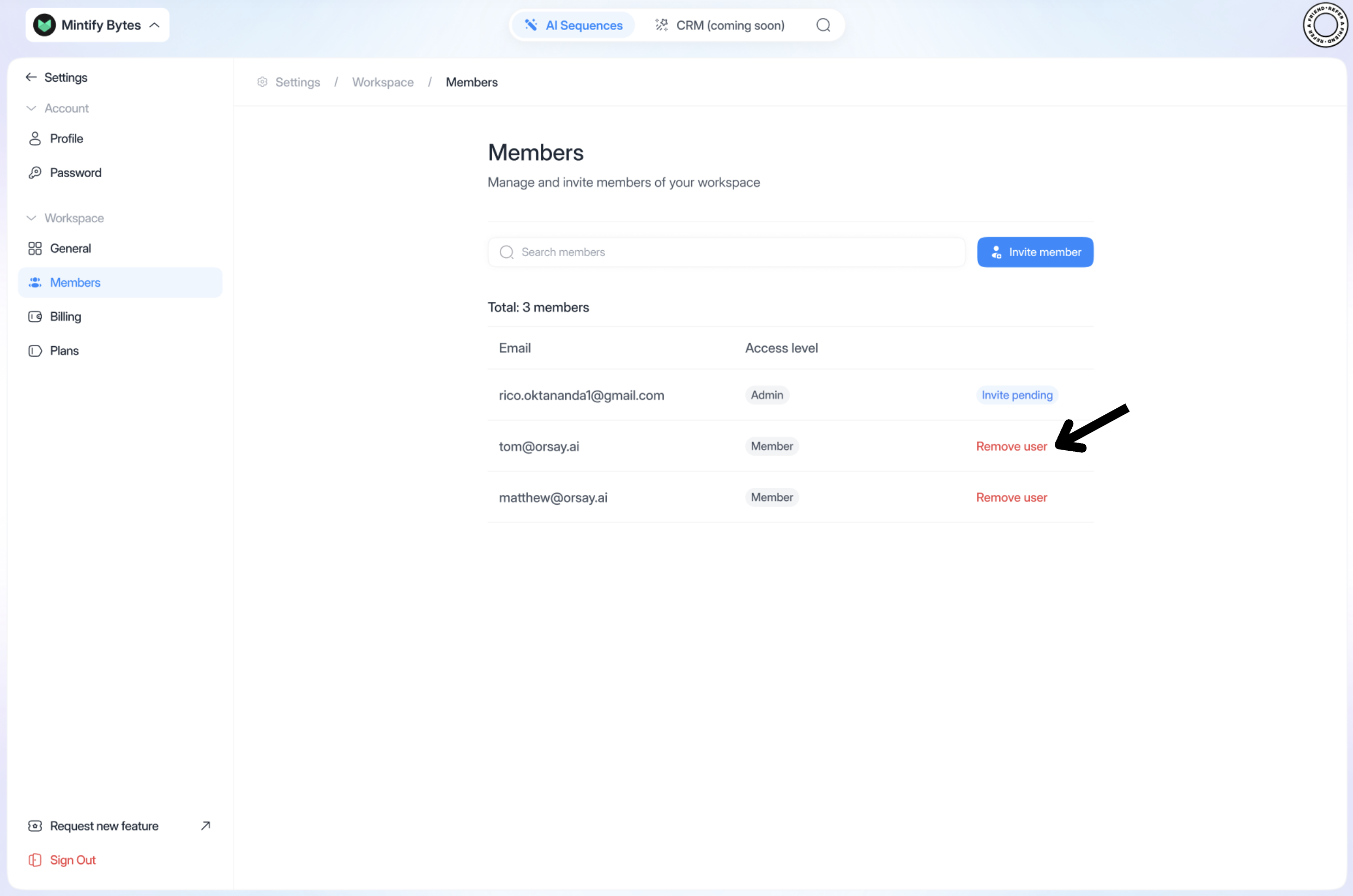
To add a member:
- Click on “Invite member”
- Fill in the member’s details
- You can choose whether it’s an “Admin” or not
- To confirm, click on “Invite member”
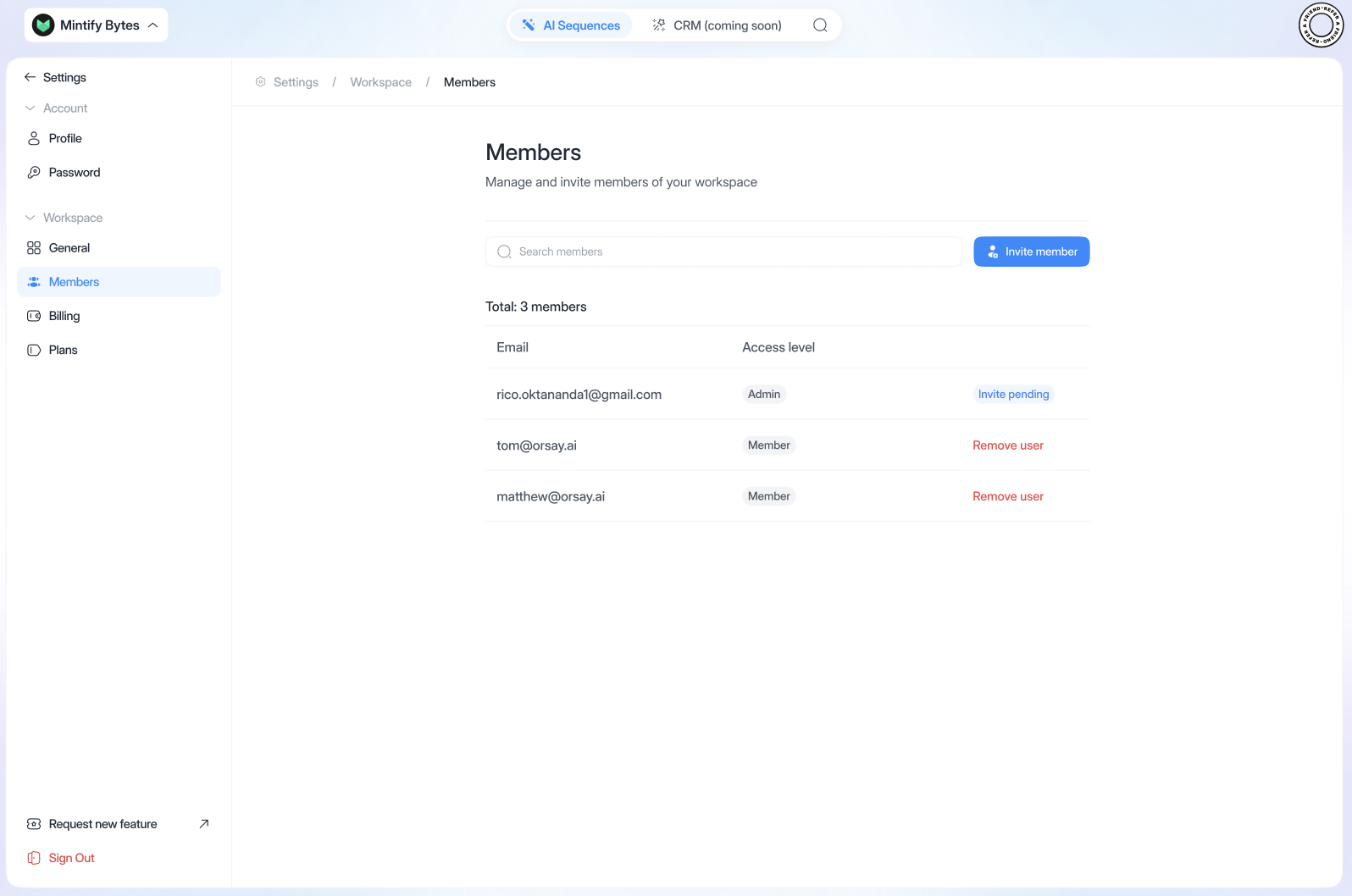
To delete a member:
- Click on “Remove member”
- Enter your verification code (without it, the member cannot be removed)
- Click on “Submit”