
If the sequence is created correctly
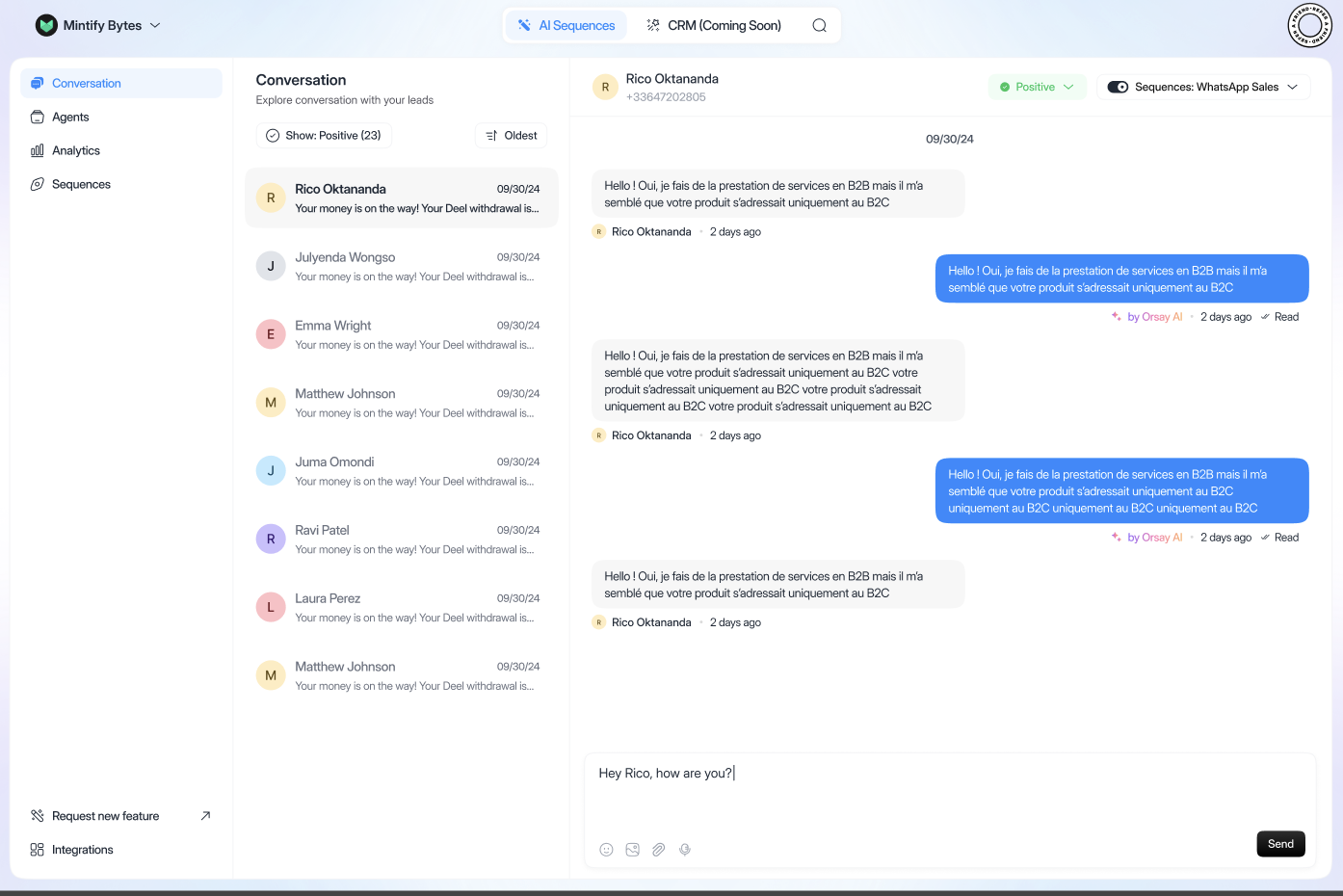
The page will be displayed like this: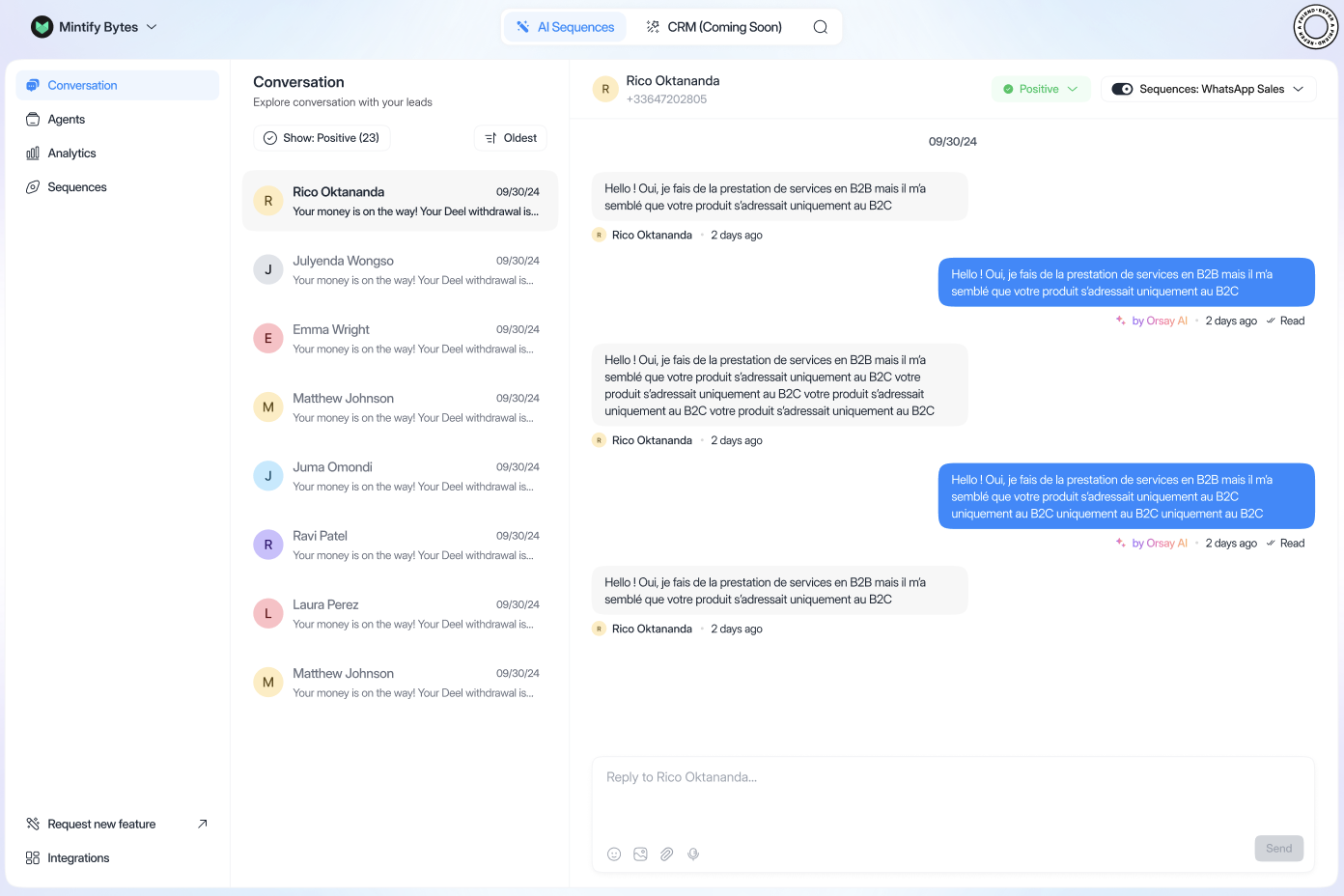
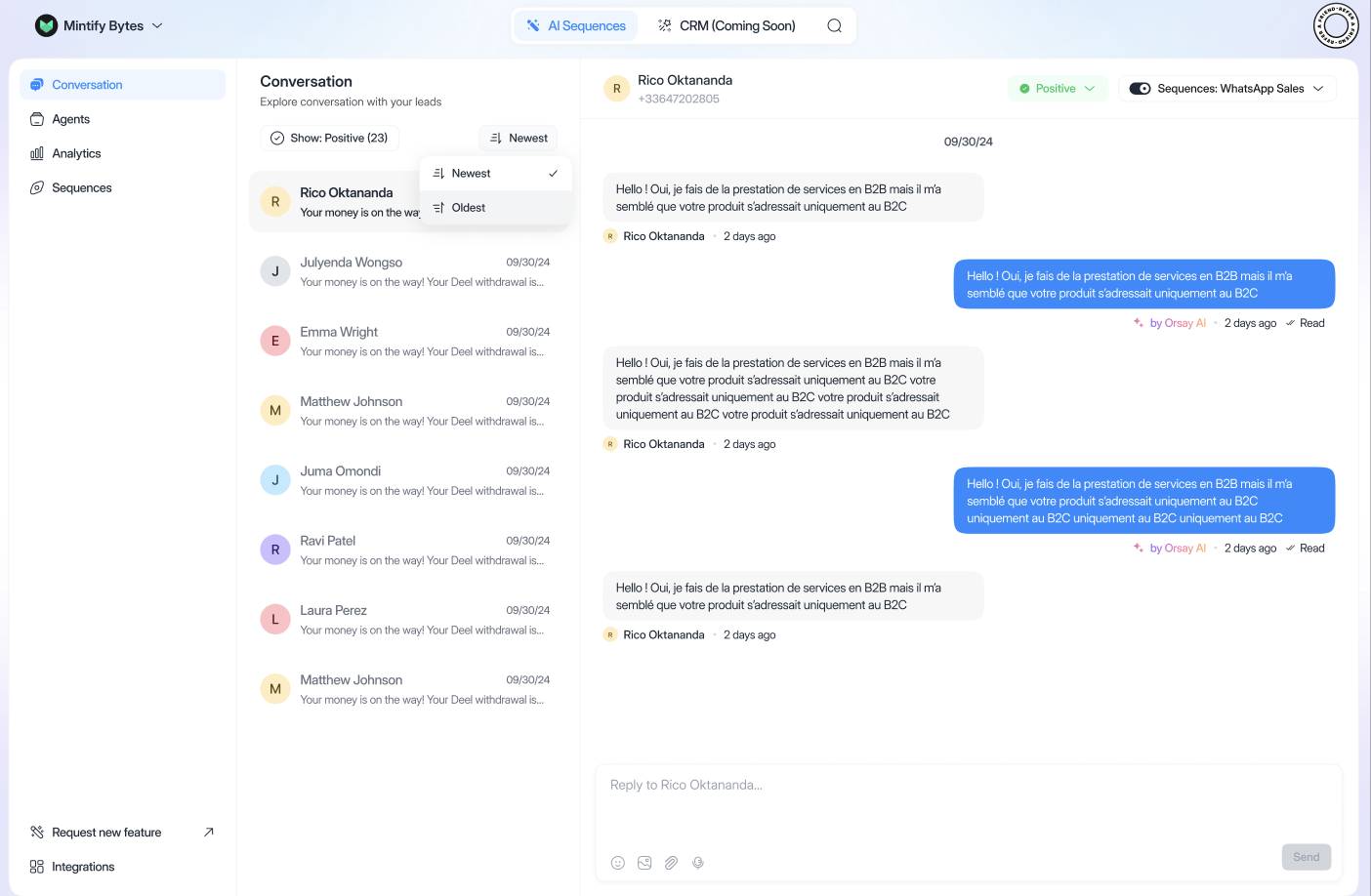
- Click on “newest”
- Here you can choose to sort between “newest” and “oldest”
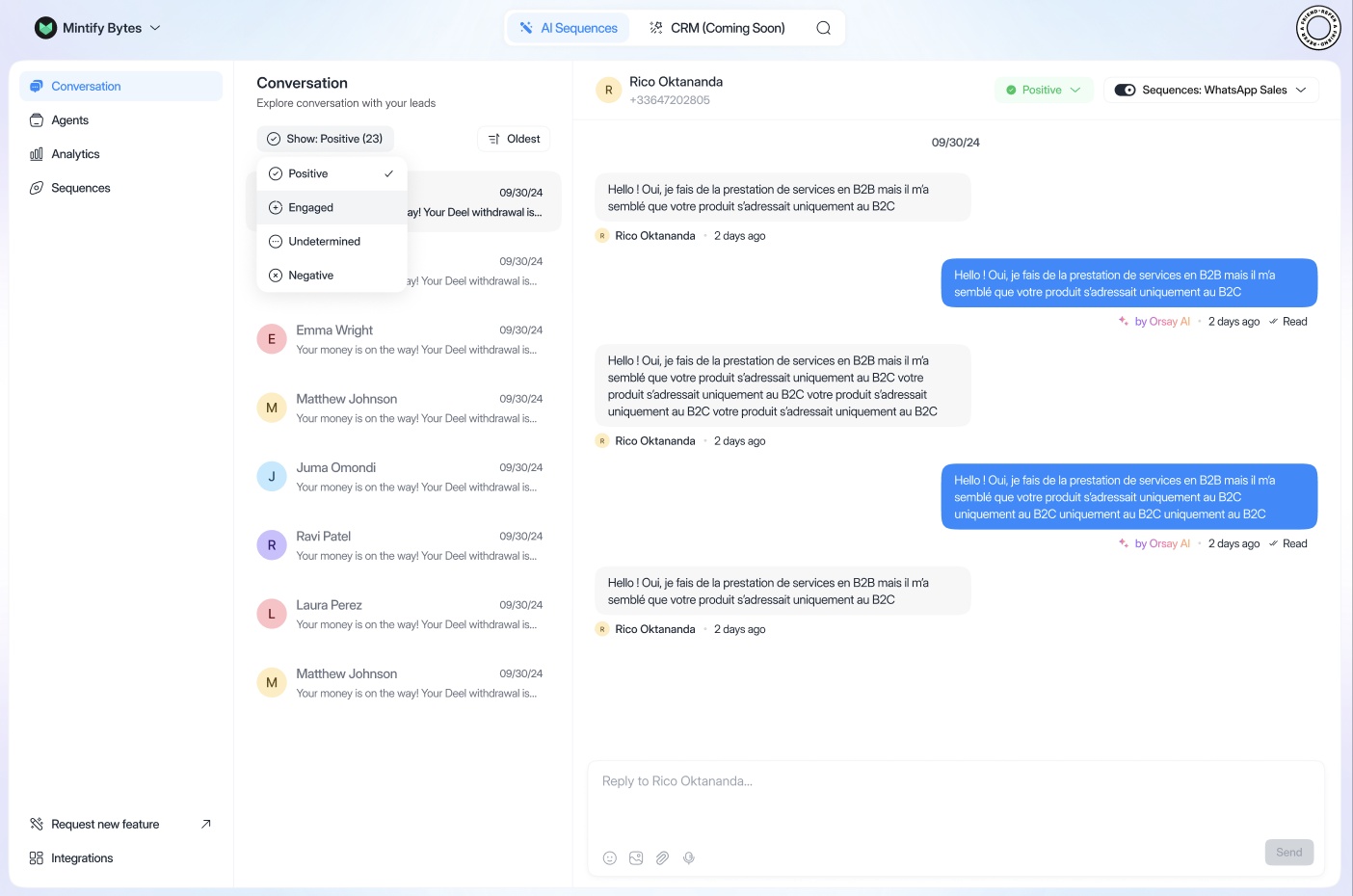
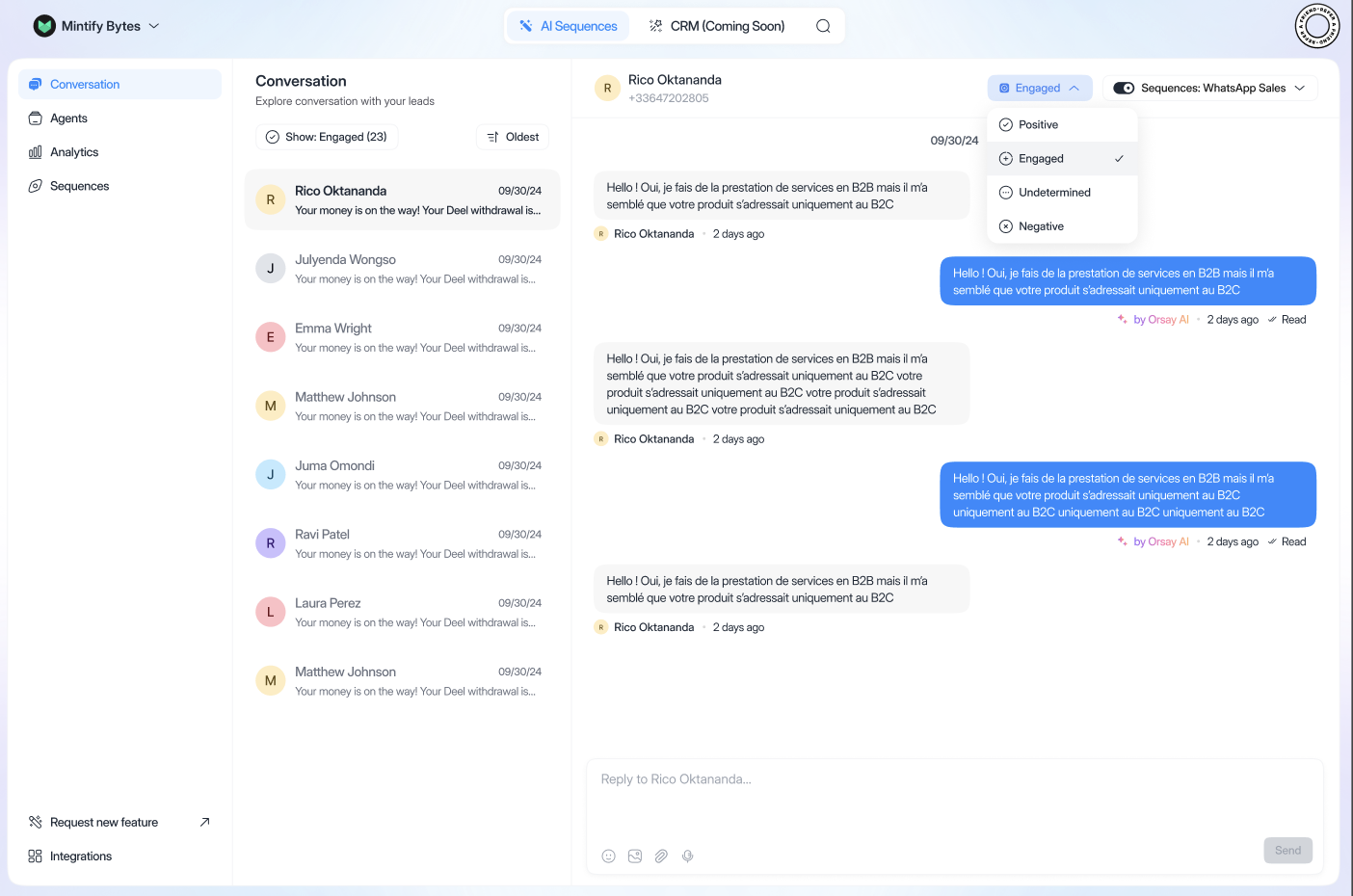
- positive
- engaged
- indeterminate
- negative
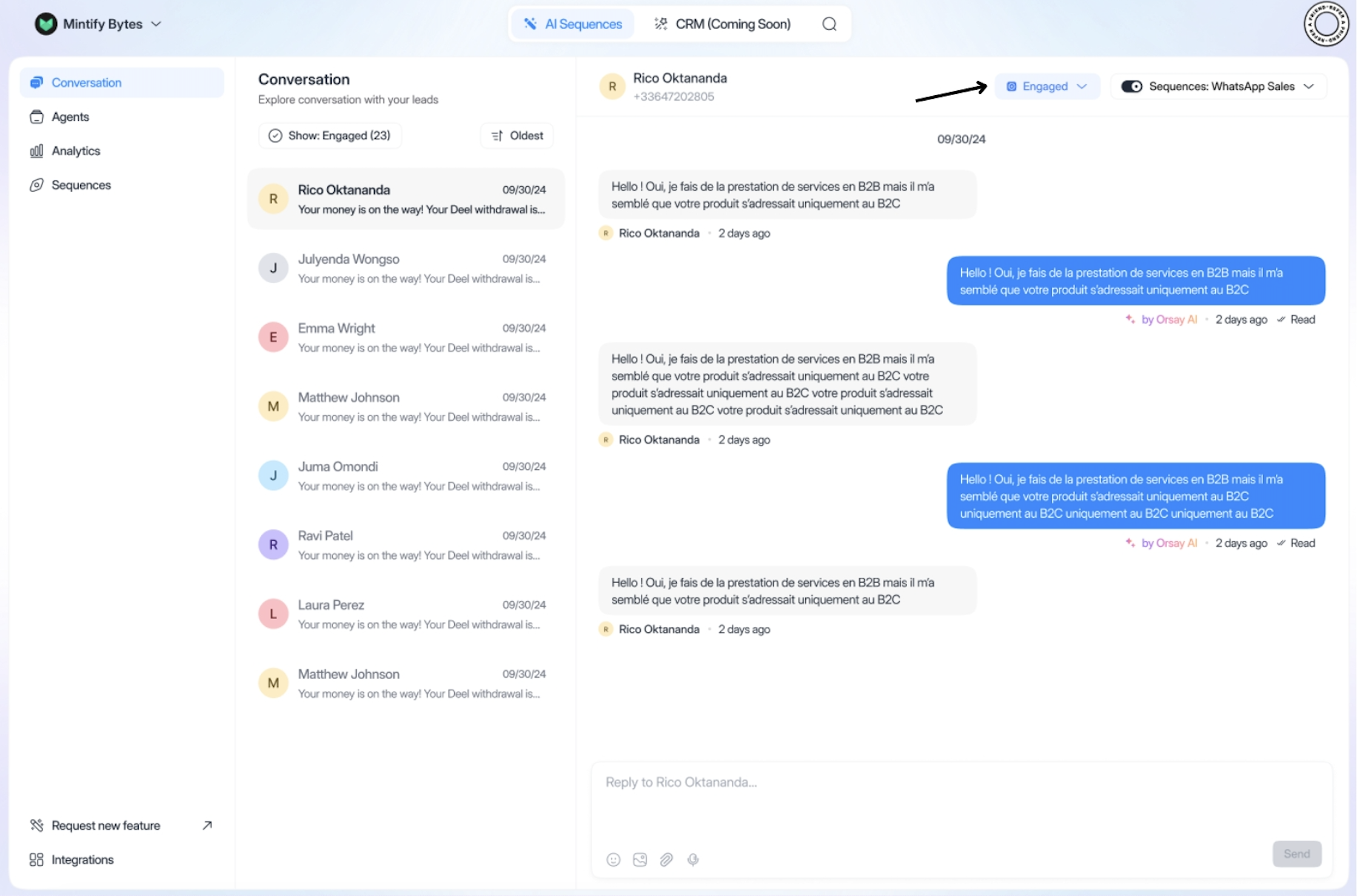
- Click on the arrow (engaged, positive, etc.)
- Select the state of the conversation
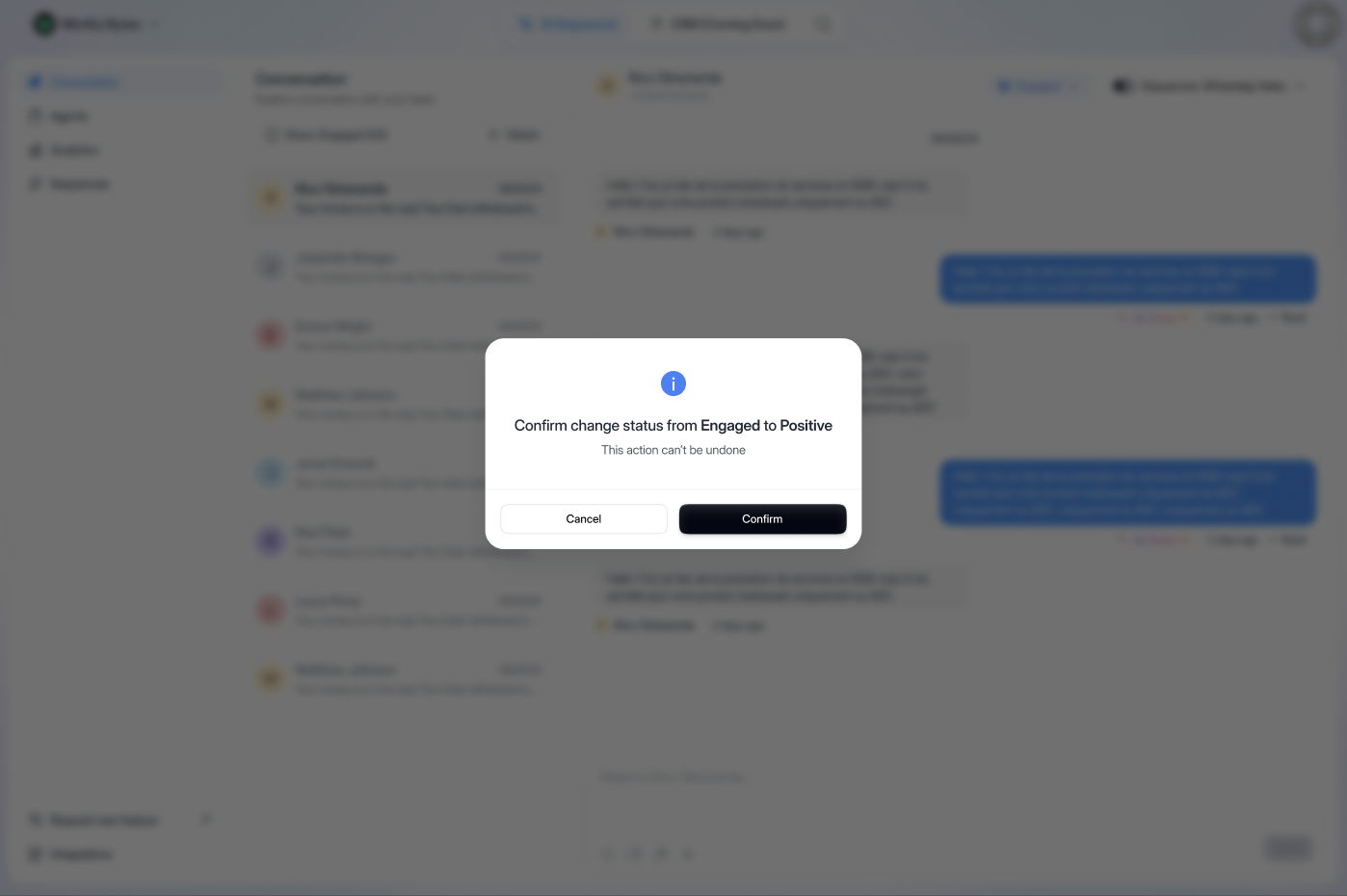
- Click on “Confirm”
Choose your sequence:
Choose your conversations
Choose your conversations
On the right, in “sequence”, you can select the message sequence you
want (the sequences you’ve just created)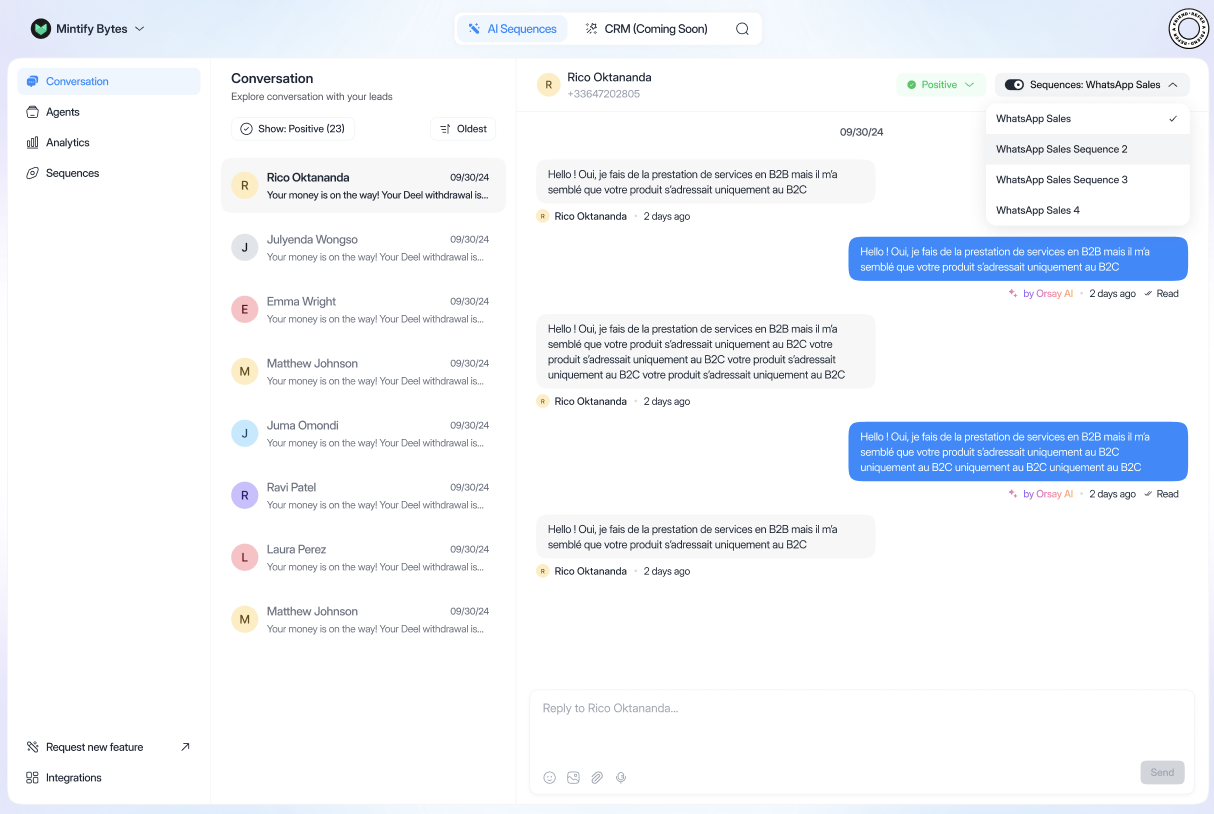
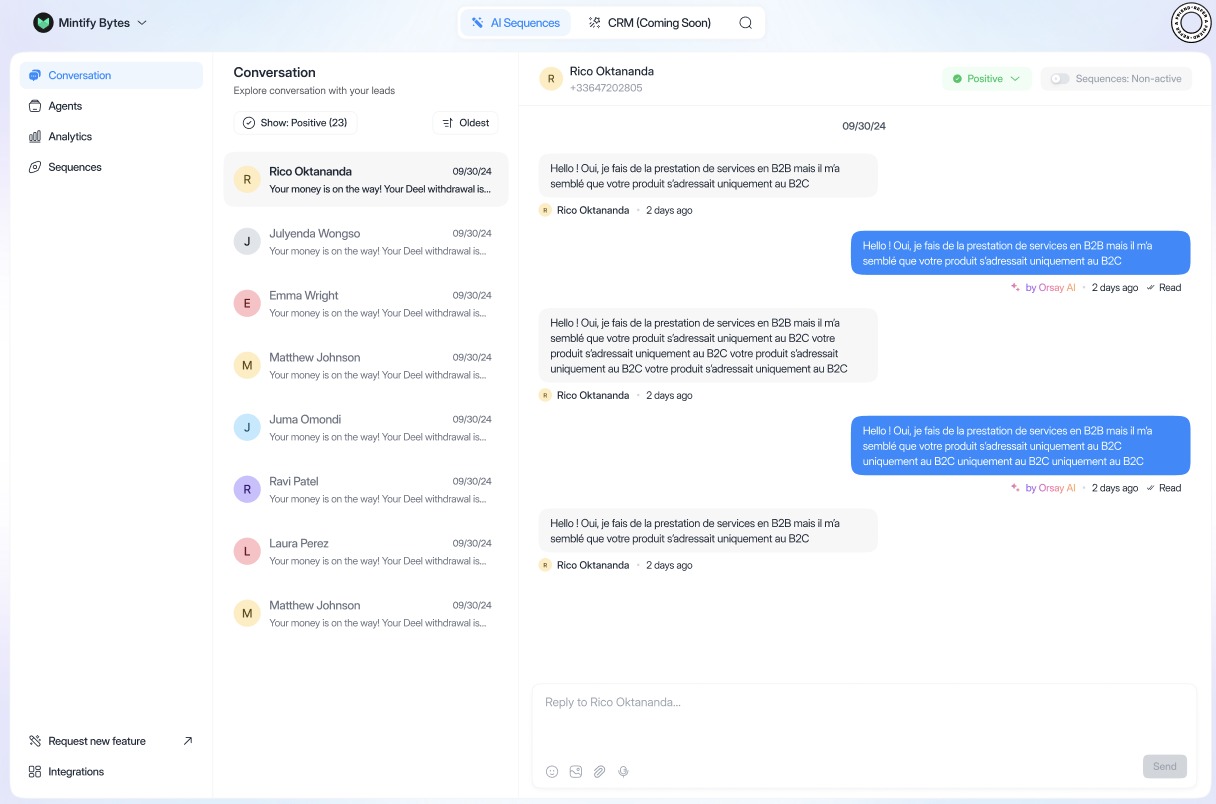
How to reply:
Reply to your conversations
Reply to your conversations
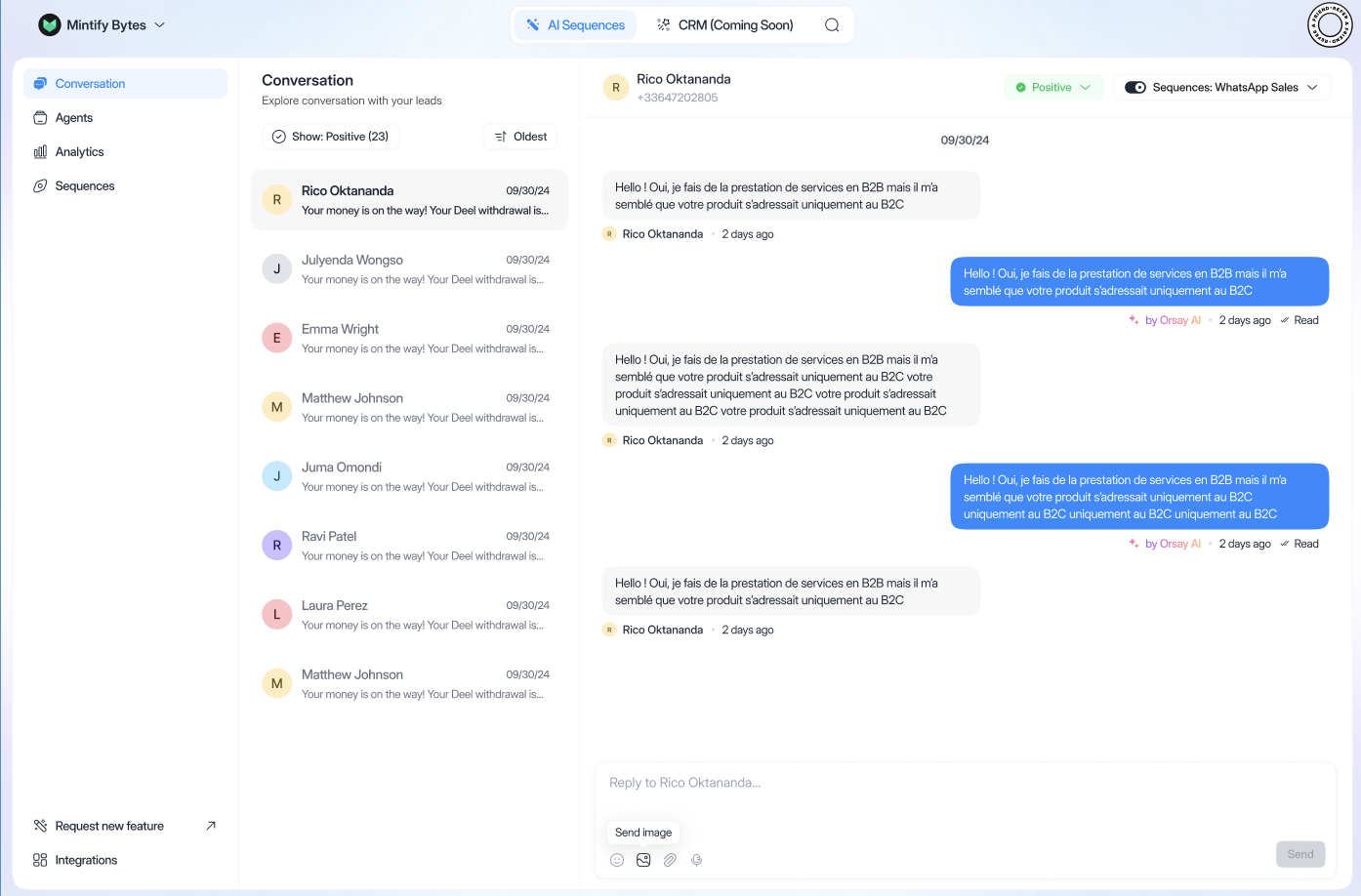
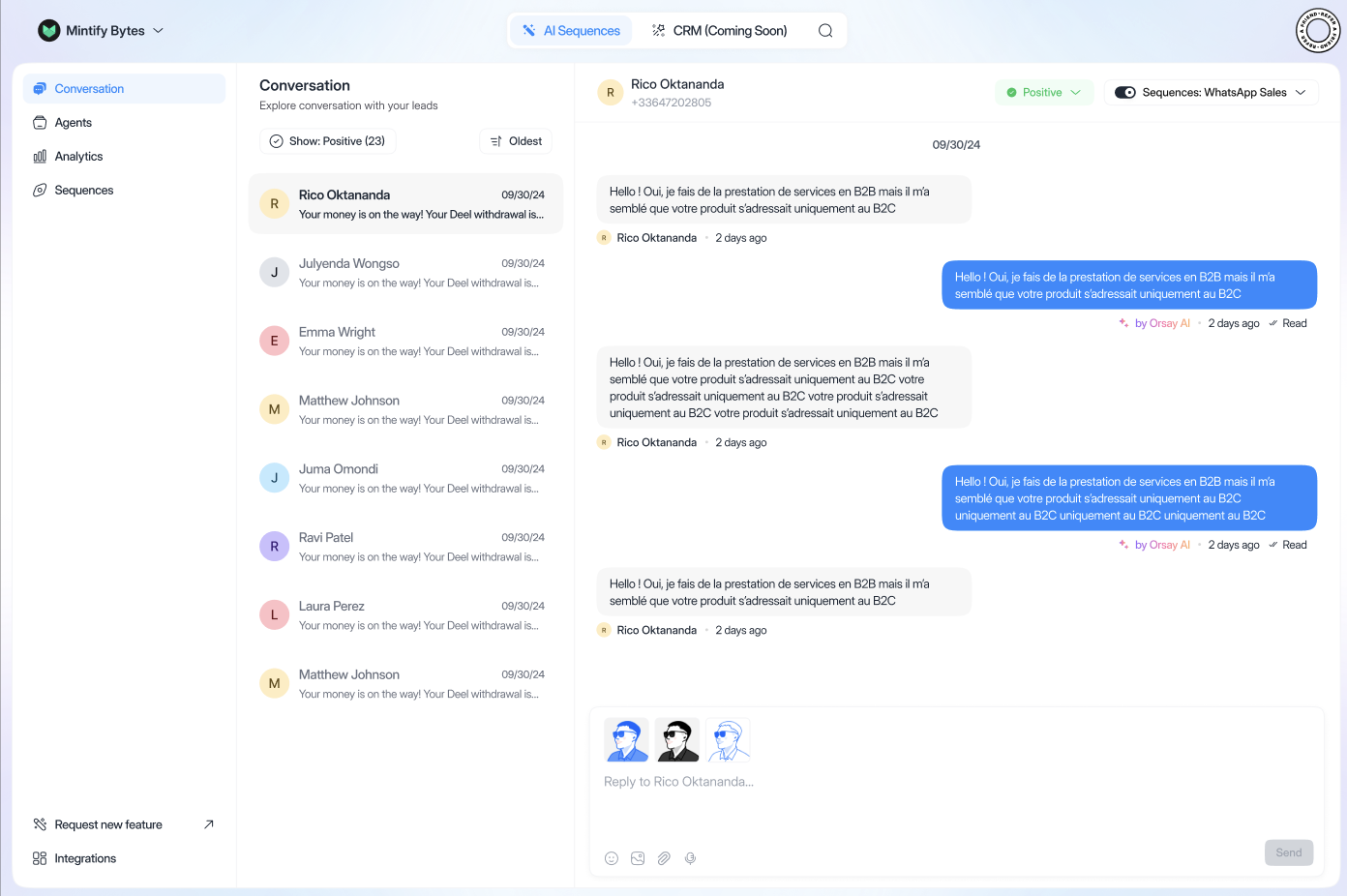
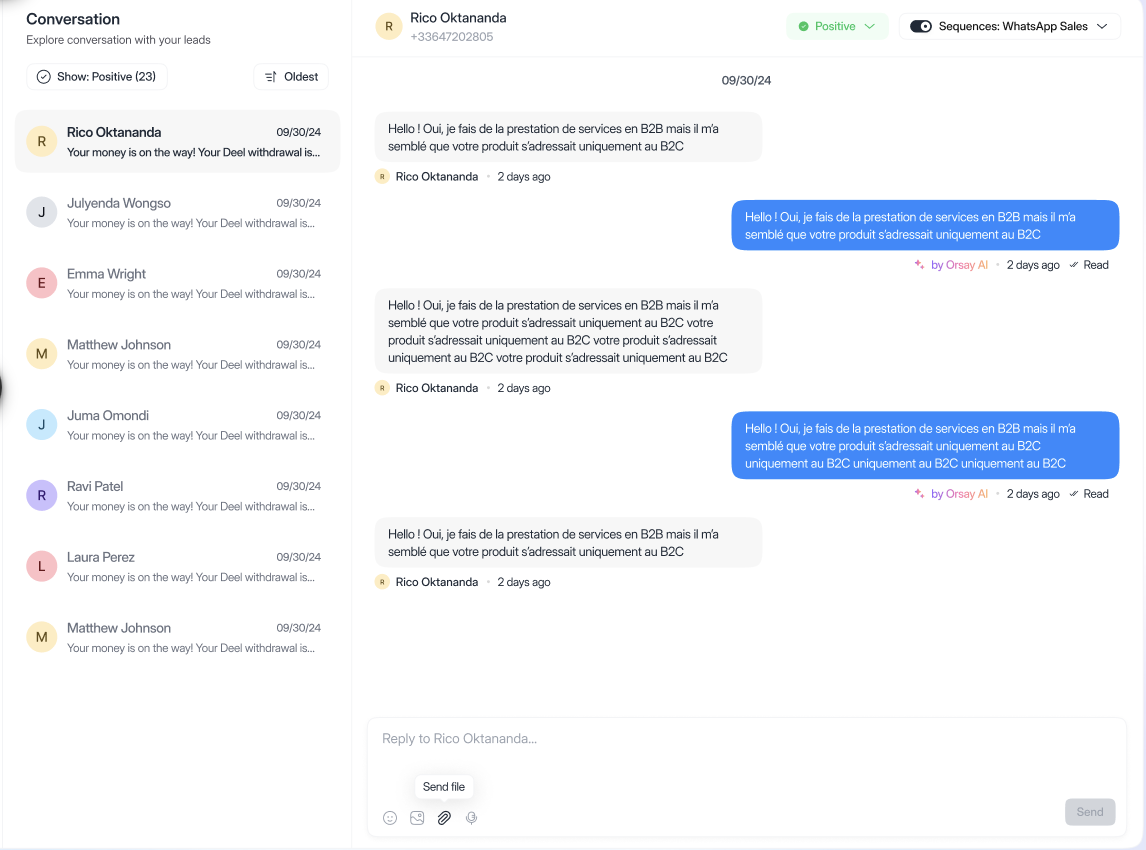
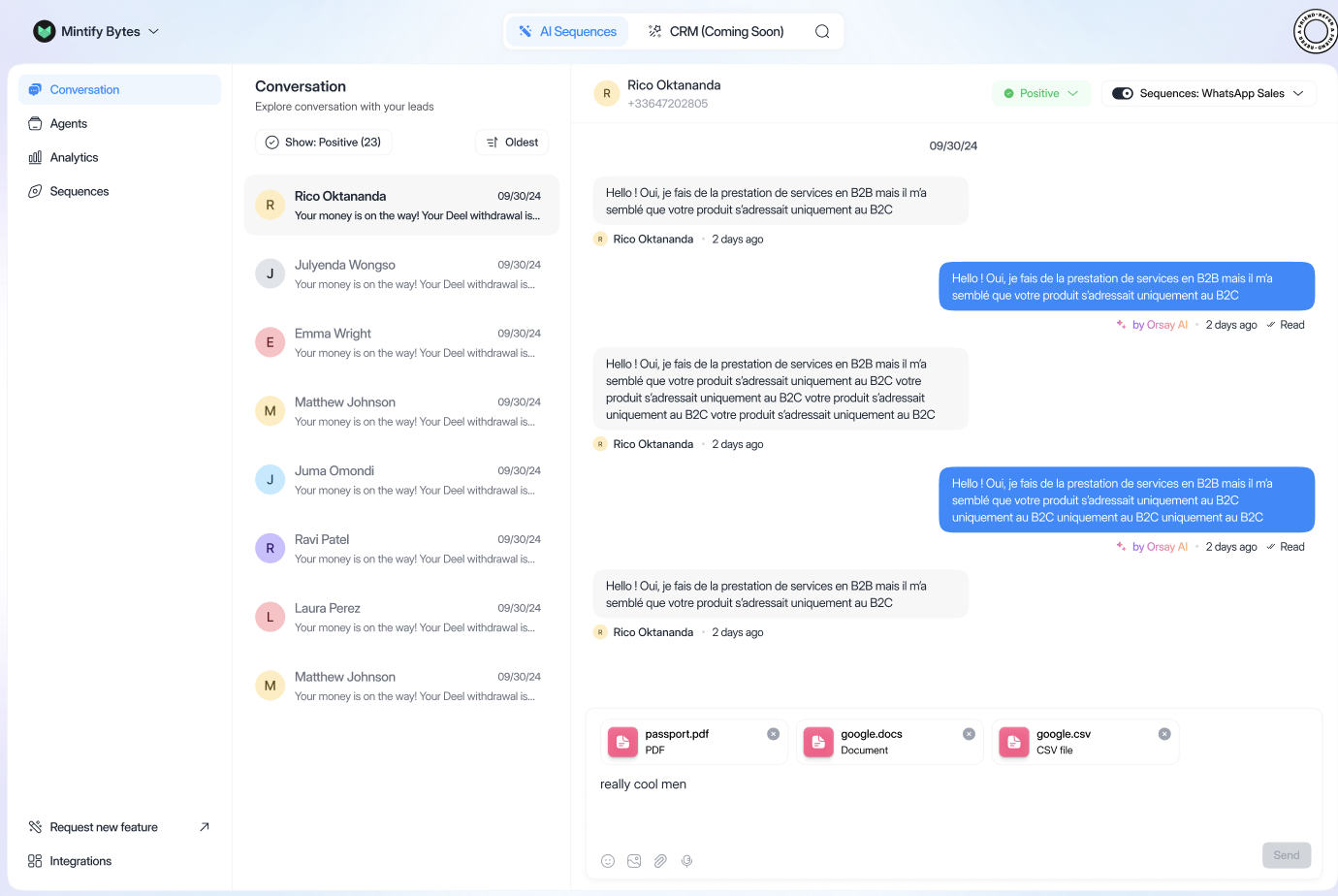
Send Voice Notes
Voice Notes
Voice Notes
You can also send voice notes. Simply: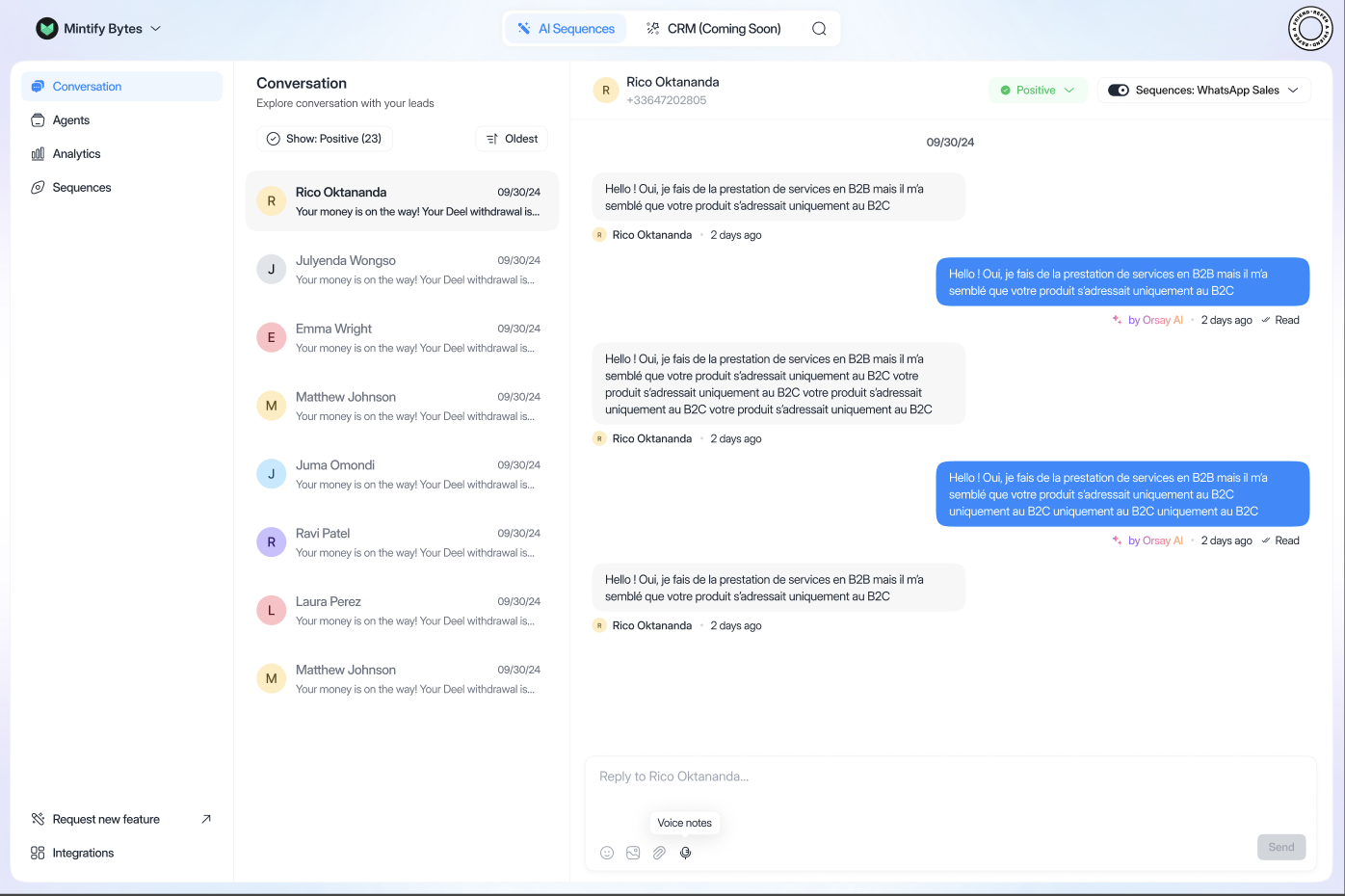
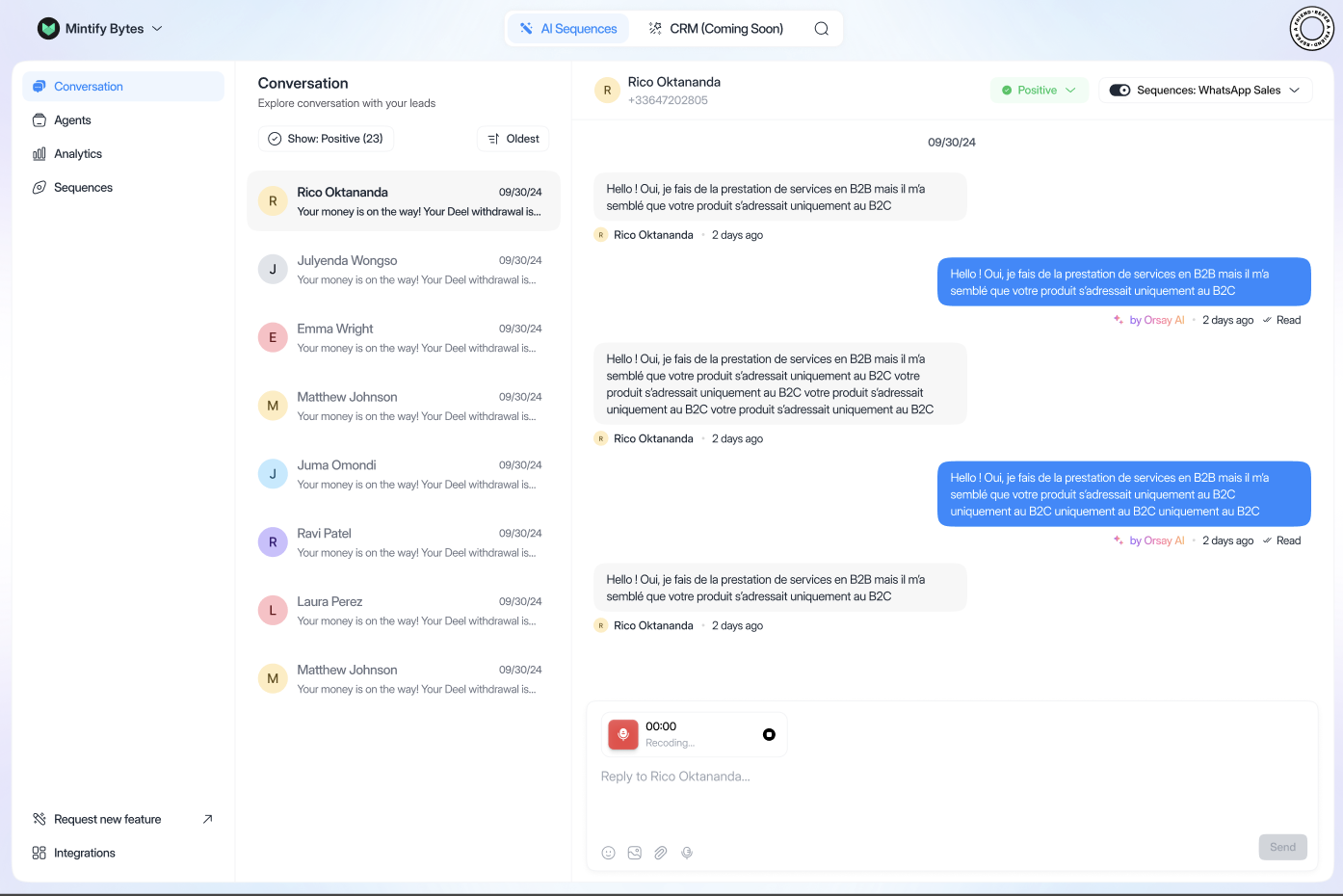
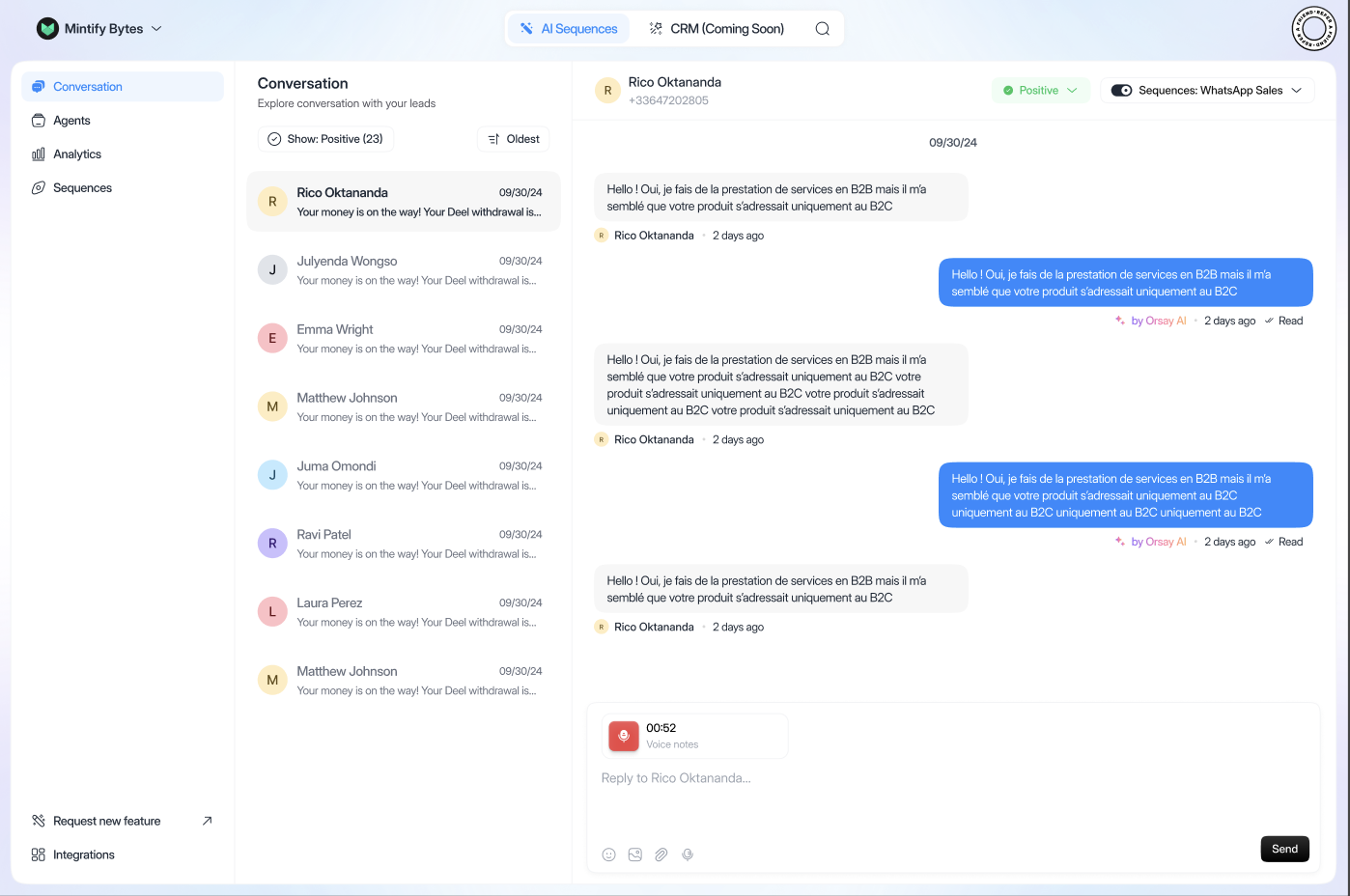
- Click on the microphone “voice notes”
- Speak
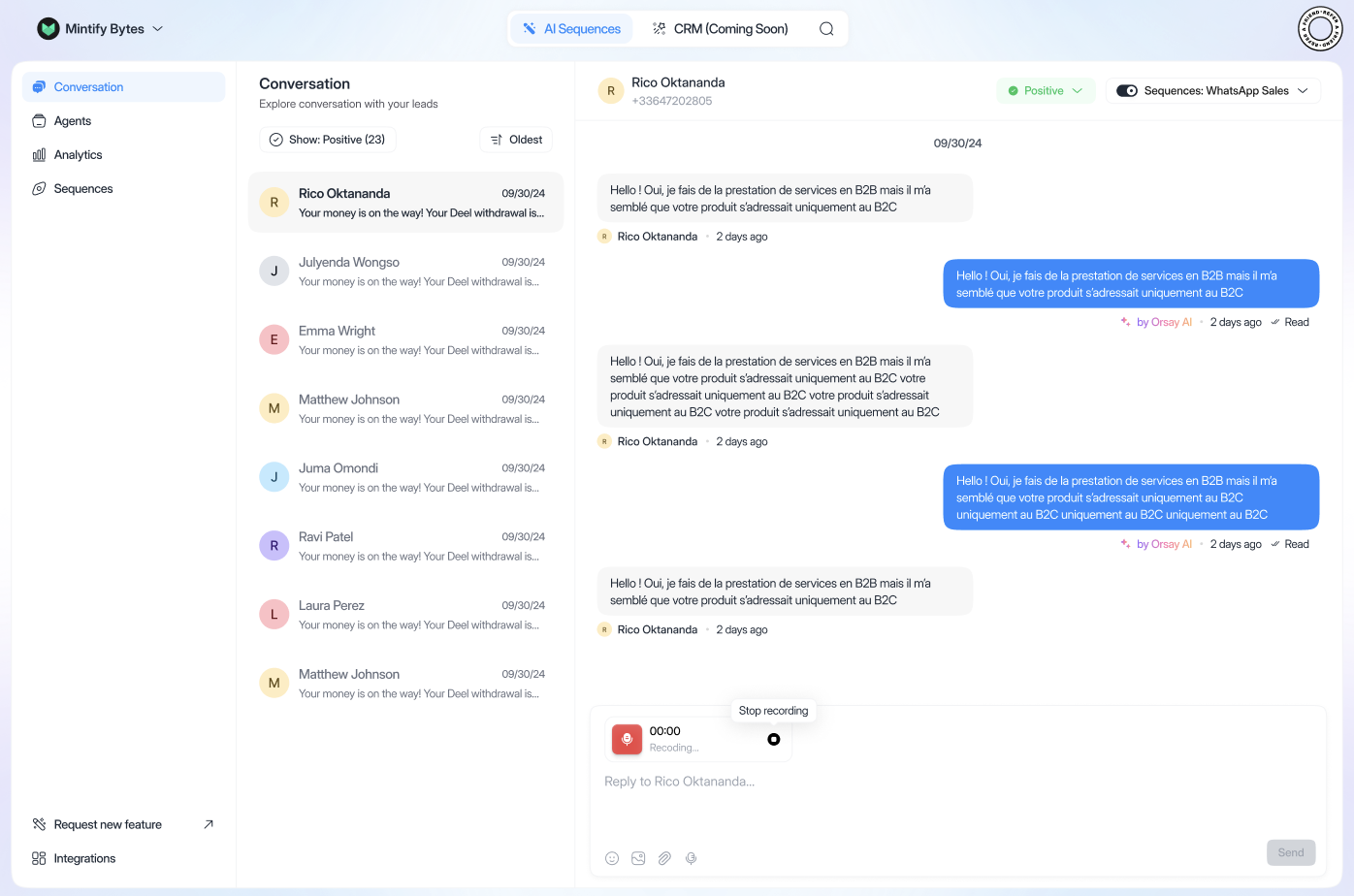
- Click on “Stop recording”
- Then click on “Send”