
-
Click on Agents
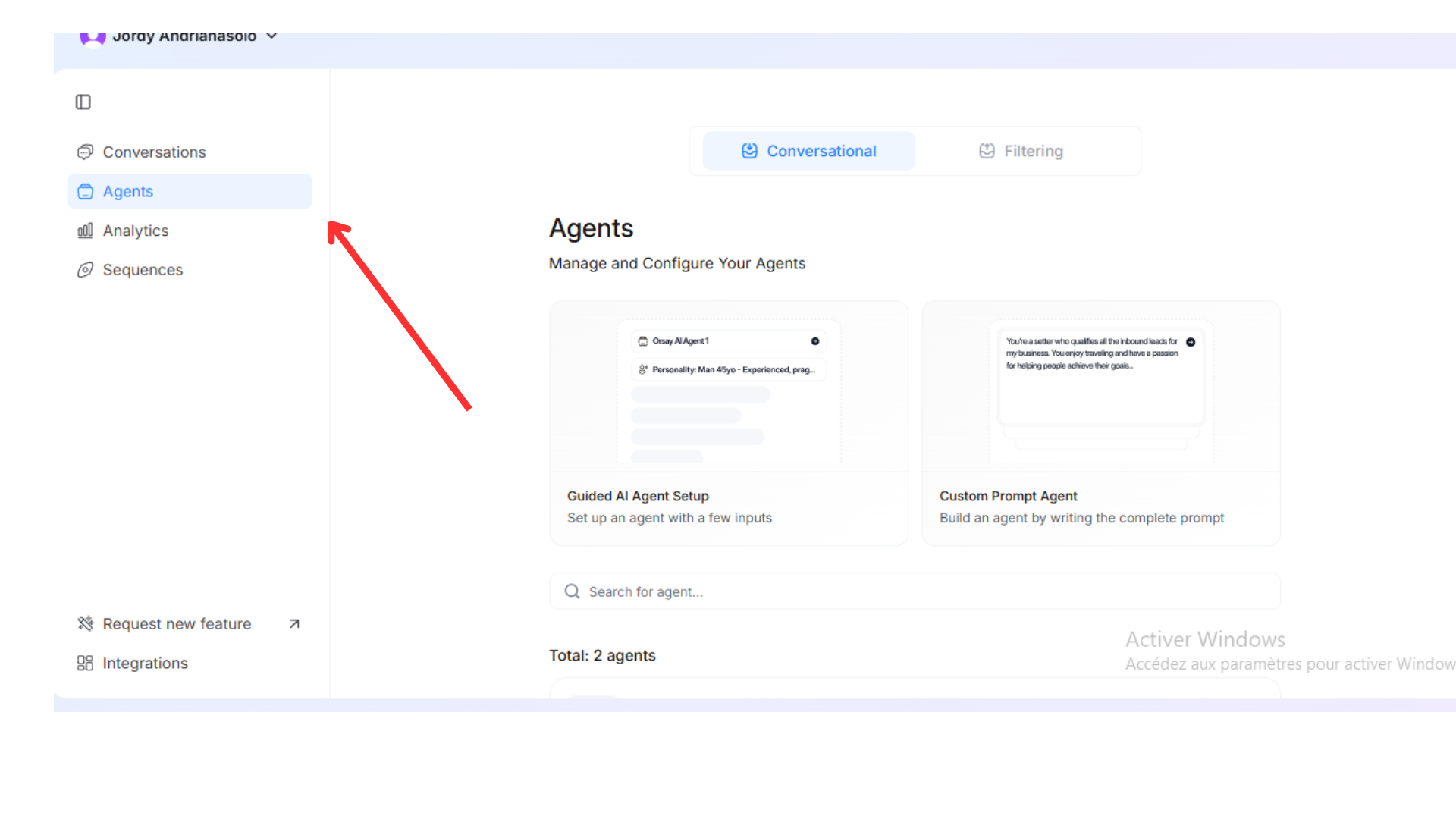
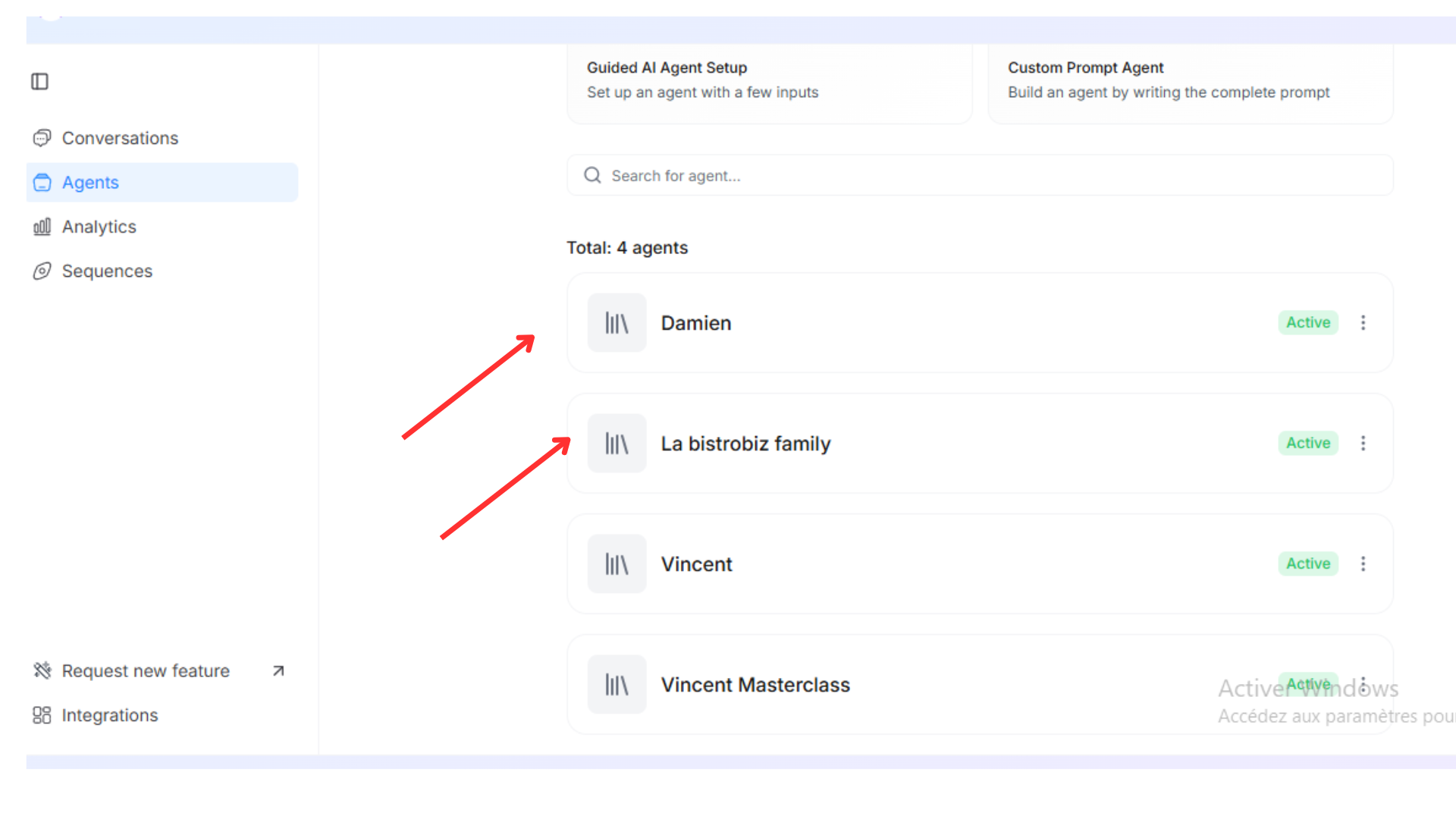
- A list of existing agents (if any have already been created)
- Agent names, statuses (Active/Inactive), and the primary Goal of each agent
Create Agents
When you start building your AI agent on Orsay.ai, you’ll see two options. Think of them like two different paths:1 - Custom Prompt Agent:
The Custom Prompt Agent, where you write detailed instructions to shape the agent’s behavior. This gives you more control, but it’s better suited for advanced users.2 - Guided AI Agent Setup:
The Guided AI Setup is quick and beginner-friendly. You just answer a few questions and your agent is ready. For most users, the guided option is the easiest and recommended.- Click on “GUIDED AI AGENT SETUP”
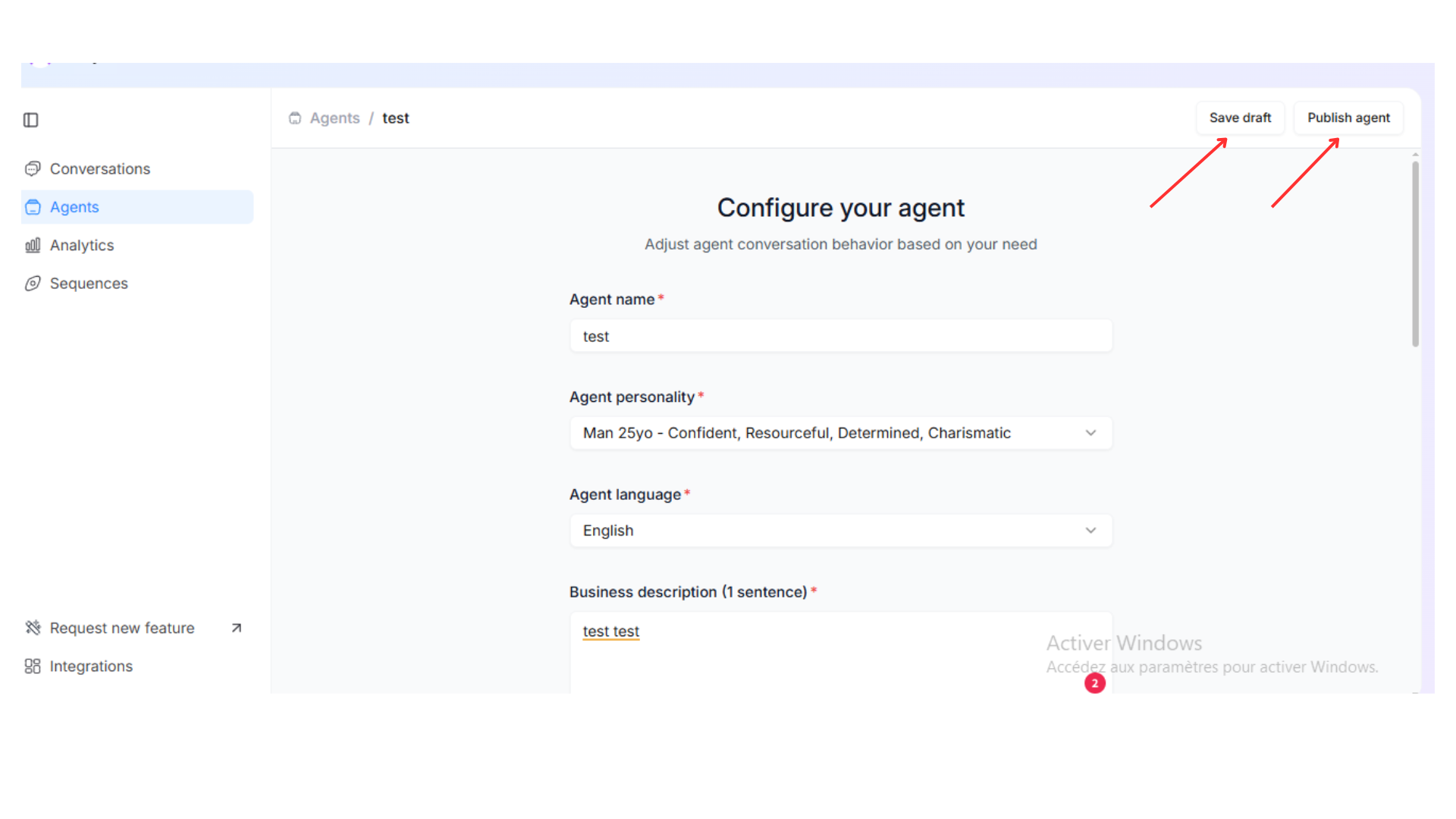
- Fill in the agent details:
- Agent name: Give your agent a recognizable name (e.g., “Rico Coolz”)
- Agent personality: Lets you choose a preset personality for your agent. For example, “Man 25yo – Confident, Resourceful, Determined, Charismatic”
- Agent language: Choose the main language for the agent’s responses
- Business description (1 sentence): Provide a brief description of your business so the agent can reference it when interacting with leads
- Your business offer: Describe what you’d like the AI to pitch or highlight (e.g., product, service, special promotion) and share everything you want the AI to know about your offer
- Qualification questions: List questions your agent should ask the leads for qualification (e.g., current situation, budget, interest). Click on + if you want to add multiple questions
- Call strategy: Specify whether the agent should check if the lead agrees to a callback or invite them to book a call directly (Booking call link is required). It’s about choosing between passive follow-up or active scheduling
- Emoji frequency: Control how often the agent uses emojis (we recommend 25%)
- Emoji list (optional): You can choose the emojis your agent will use in its responses
- Directness: Determine whether the agent’s tone is more empathetic or more direct (0 = empathetic, 10 = highly direct for more calls, we recommend 2)
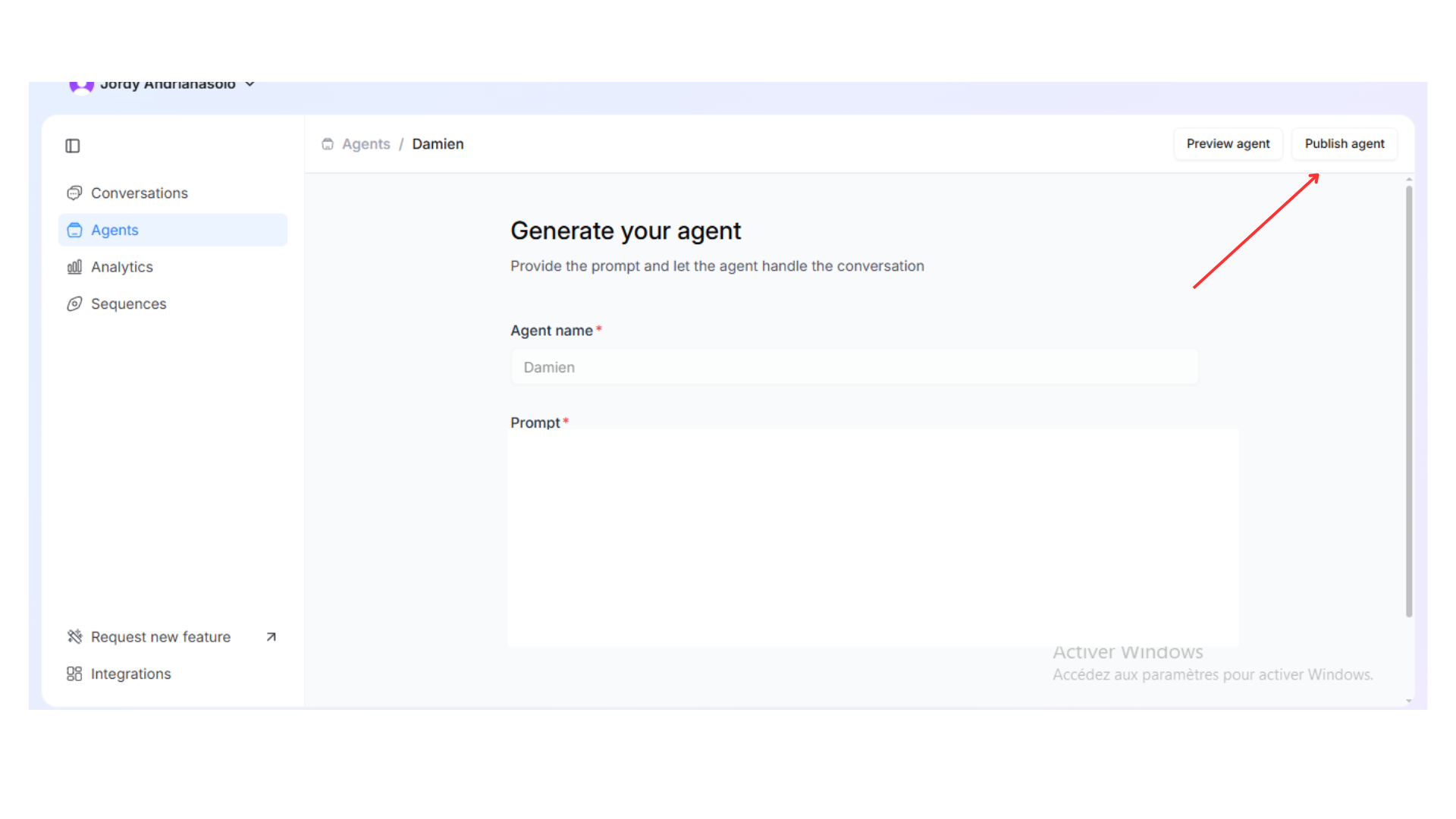
- Click on “Save draft” and “Publish agent” (top right) to finalize and add it to your list
Editing Agents
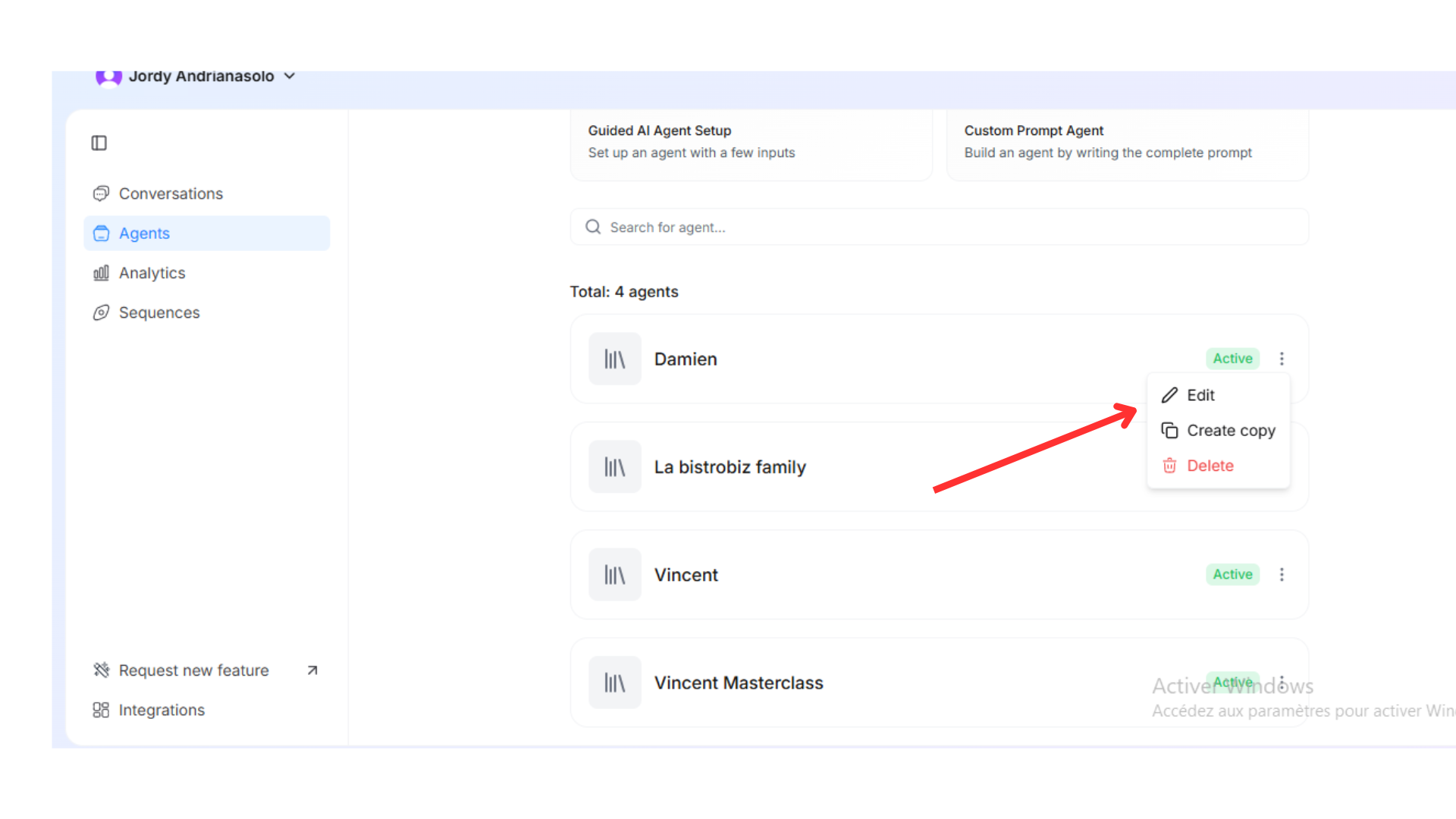
You can modify an agent’s details at any time to better suit your needs:- Locate the agent in the list on the Agents page
- Click the ellipsis (three dots) next to the agent’s name
- Select “Edit”: You’ll be taken to the same form used to create the agent
- Make your changes: Adjust any fields, such as agent name, personality, language, or strategy
- Click “Publish agent”: The agent’s configuration will update accordingly
Resources & external links
Give your agent a library of links — landing pages, case studies, testimonials, videos — and the AI will share the right one at the right moment in a conversation.1
Open your agent
Go to Agents, pick the agent, and open the Resources section.
2
Add a resource
For each link, provide:
- A name (what it is)
- A URL
- A short description (when the AI should share it)
3
Save the agent
The agent will reference these resources contextually — e.g. drop a booking link when a lead asks for a call, or share a testimonial when a lead is hesitant.
If you need help configuring your AI agent, Orsay’s support team is here for
you! Reach out to us on WhatsApp for quick and
personalized assistance.