> ## Documentation Index
> Fetch the complete documentation index at: https://docs.orsay.ai/llms.txt
> Use this file to discover all available pages before exploring further.
# 1. Connect WhatsApp Business API
> Set up an official WhatsApp Business Account (WABA) with Orsay — verified, scaleable, with approved templates.
The WhatsApp Business API is Meta's official channel for businesses. It requires a **verified WhatsApp Business Account (WABA)** and **approved templates** for sending the first message — but in exchange, you get a green-tick checkmark, no daily message caps, and full Meta support.
You have **two options**: create a brand-new WhatsApp Business account from scratch, or connect an existing WhatsApp Business app you already use.
## Option A — Create a new WhatsApp Business account
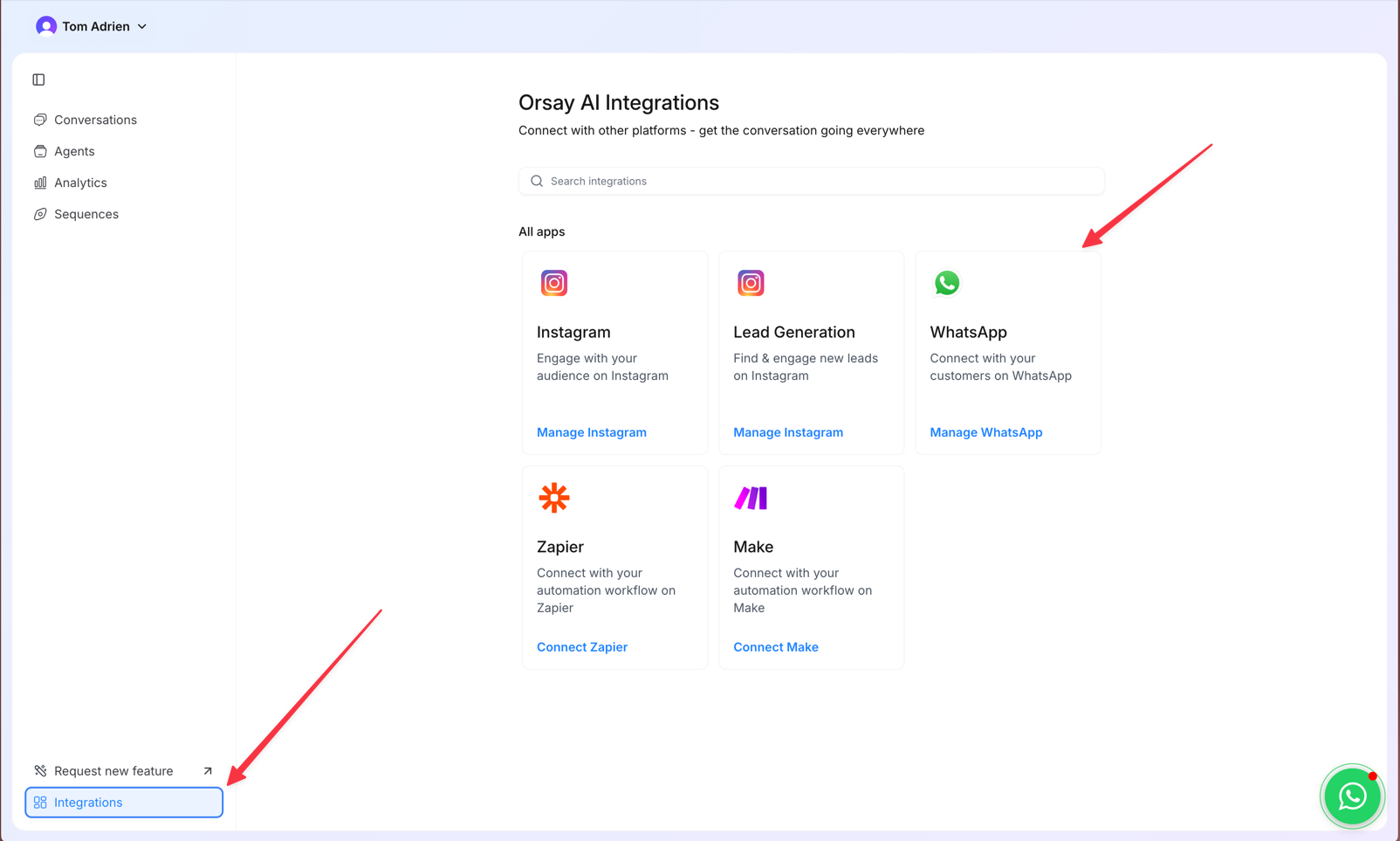
In the sidebar, click **[Integrations](https://app.orsay.ai/integrations)** → **[WhatsApp](https://app.orsay.ai/integrations/whatsapp)**.
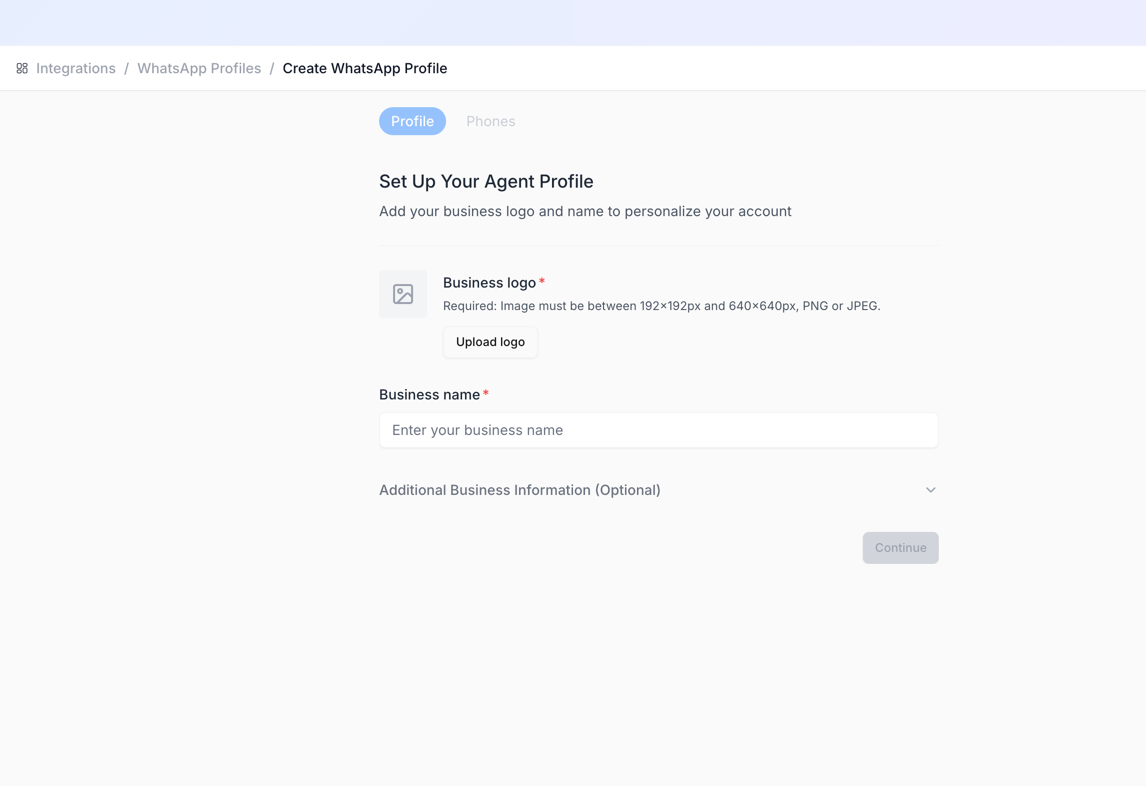
 Add a name and profile picture, then click **Connect a new WhatsApp number**.
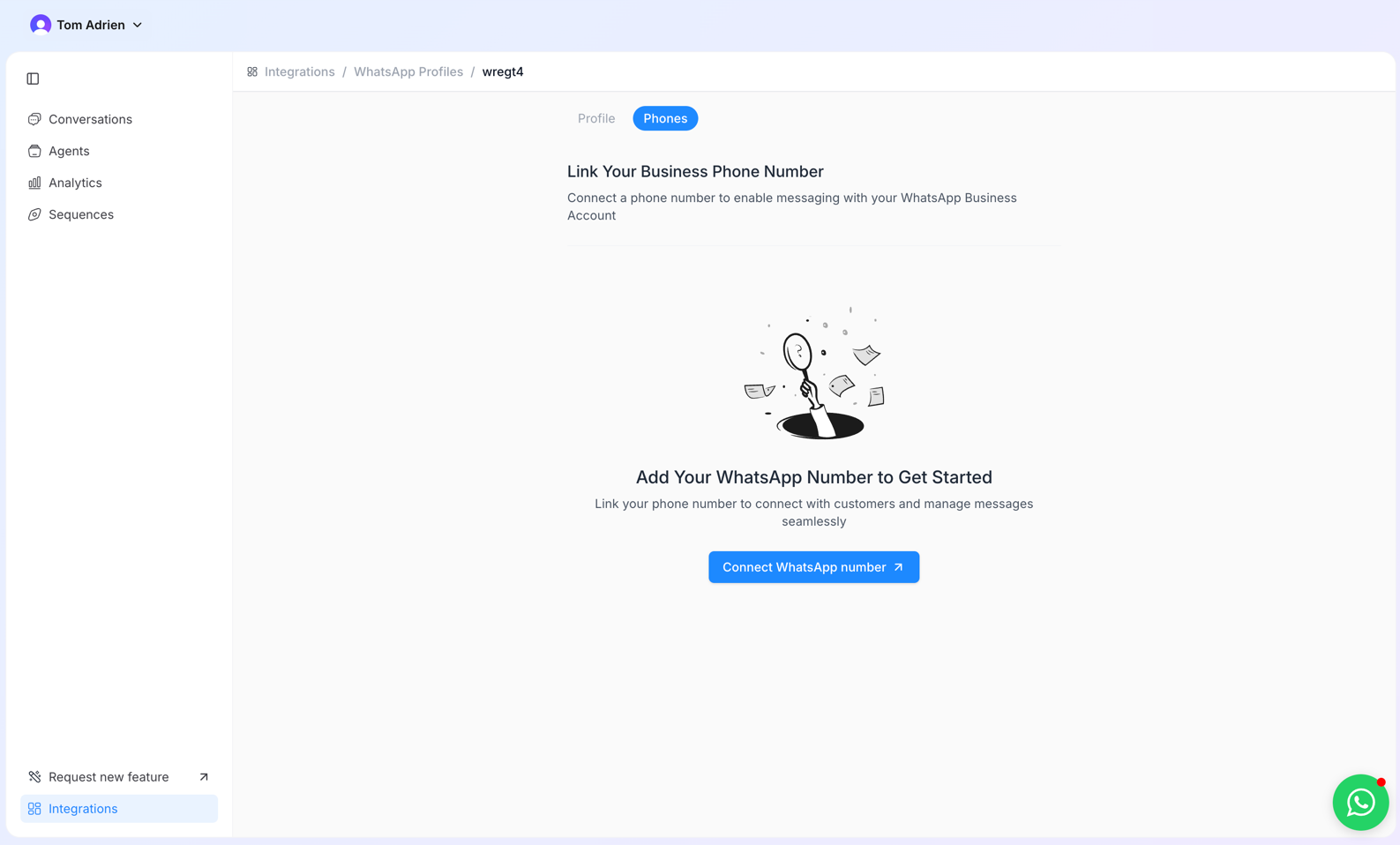 You're redirected to Facebook. Approve the initial dialogs, then select your **Business Manager**.
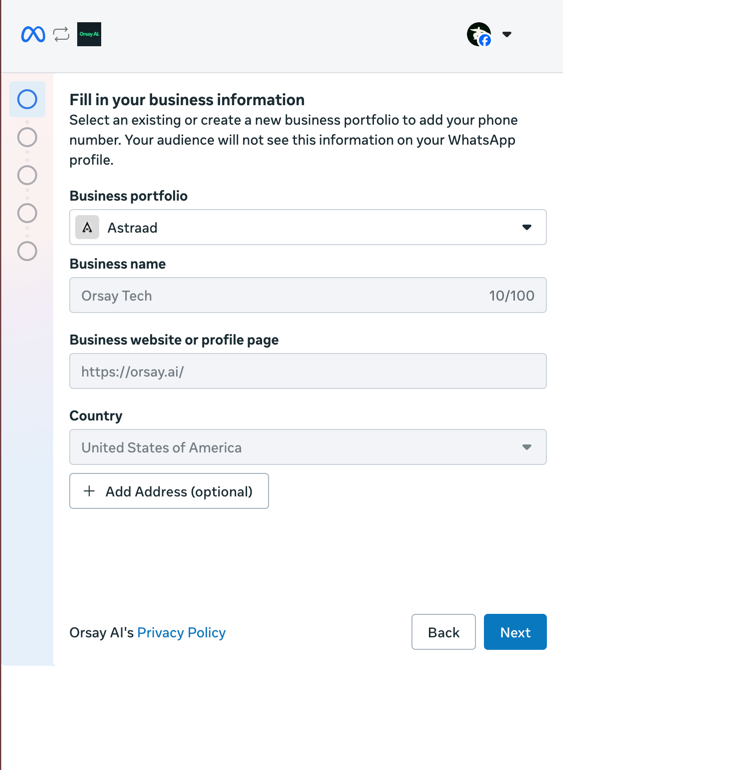 Click **Create a new WhatsApp Business Account**. Use a name in the format **"Name - Your Company"** (Meta requires this for approval).
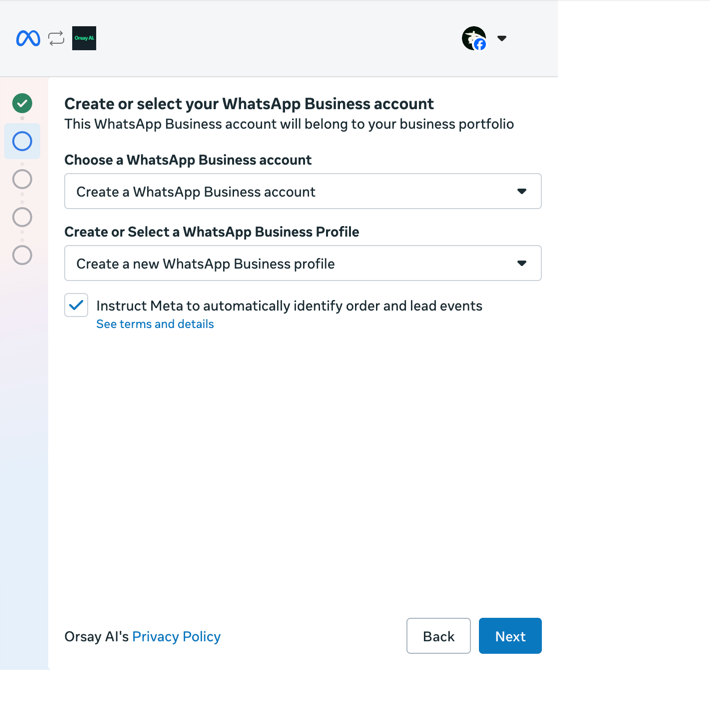
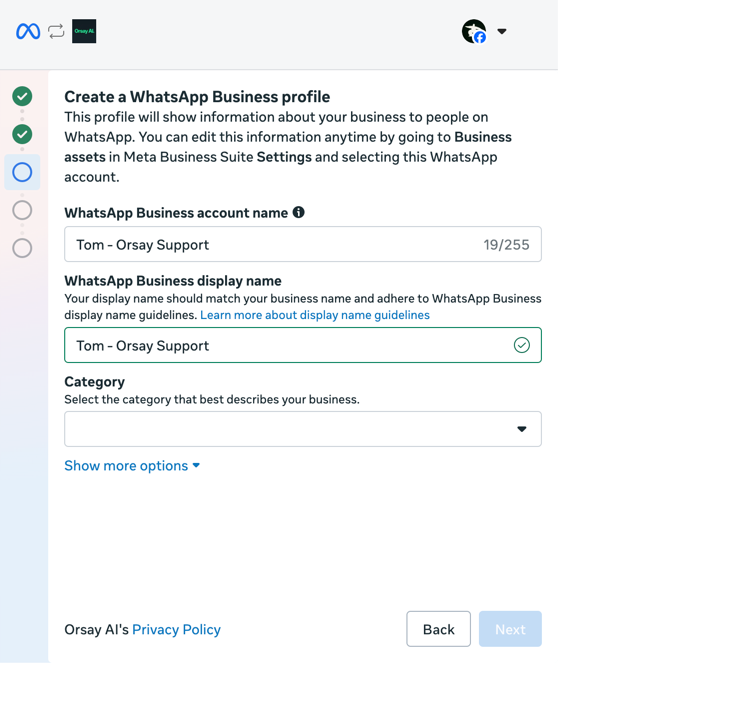 Add a phone number that is **not currently linked to any WhatsApp account**. We recommend [On Off Business](https://onoffbusiness.com) to get a clean number quickly. Validate with the 2FA code sent to that number.
## Option B — Connect an existing WhatsApp Business
This option only works if your phone uses the **WhatsApp Business** app — not a personal WhatsApp account. (For personal WhatsApp, use the [Personal WhatsApp channel](/en/personal-whatsapp/1-connect) instead.)
Go to **[Integrations](https://app.orsay.ai/integrations)** → **[WhatsApp](https://app.orsay.ai/integrations/whatsapp)** → create a profile and click **Connect WhatsApp number**.
In the Facebook flow, choose **Connect with existing WhatsApp Business App**.
Add a phone number that is **not currently linked to any WhatsApp account**. We recommend [On Off Business](https://onoffbusiness.com) to get a clean number quickly. Validate with the 2FA code sent to that number.
## Option B — Connect an existing WhatsApp Business
This option only works if your phone uses the **WhatsApp Business** app — not a personal WhatsApp account. (For personal WhatsApp, use the [Personal WhatsApp channel](/en/personal-whatsapp/1-connect) instead.)
Go to **[Integrations](https://app.orsay.ai/integrations)** → **[WhatsApp](https://app.orsay.ai/integrations/whatsapp)** → create a profile and click **Connect WhatsApp number**.
In the Facebook flow, choose **Connect with existing WhatsApp Business App**.
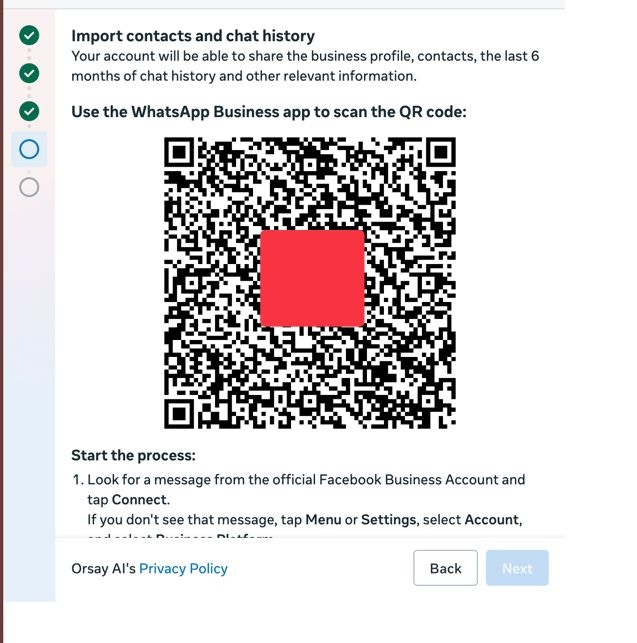
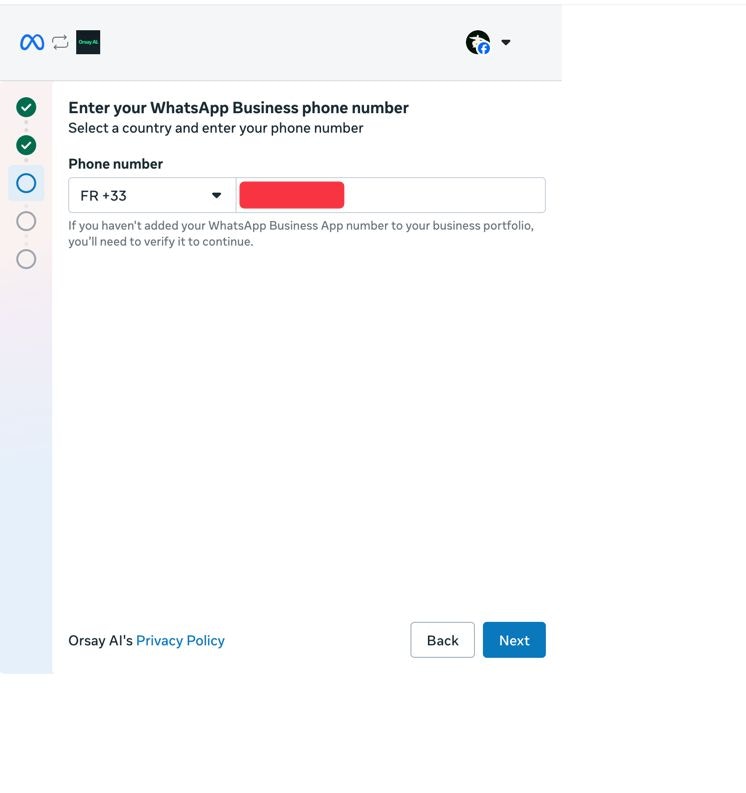 Enter your phone number, scan the QR code, and validate with the 2FA code.
 ## Validate the phone number for sending
Before you can send messages, Meta requires a payment method on the WhatsApp Business Account.
Go to [business.facebook.com/billing\_hub](https://business.facebook.com/billing_hub), select the right business, open **WhatsApp**, and add a card.
## Validate the phone number for sending
Before you can send messages, Meta requires a payment method on the WhatsApp Business Account.
Go to [business.facebook.com/billing\_hub](https://business.facebook.com/billing_hub), select the right business, open **WhatsApp**, and add a card.
 Click the **TEST** button, input your personal WhatsApp, and click **SEND**. If you receive the message, your account is fully ready.
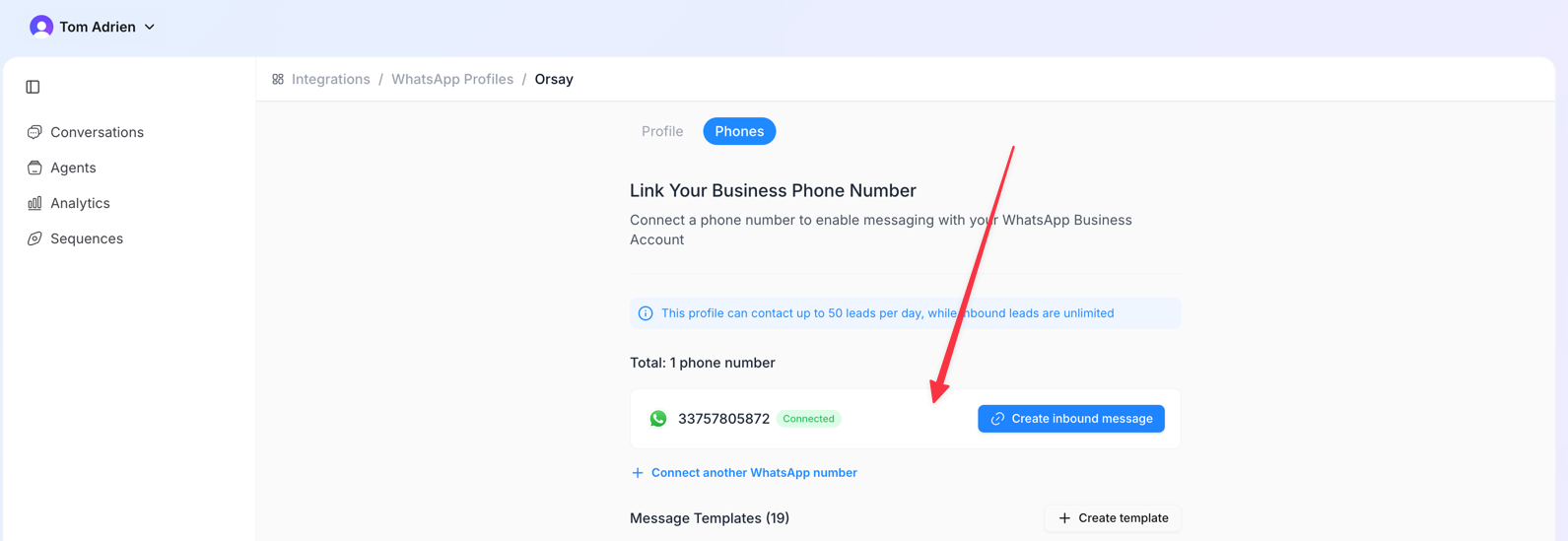 ## Create your template messages
Templates are the **only** way to start a conversation on the WhatsApp Business API (Meta's rule). Once a lead has replied, the agent can write freely for 24 hours.
→ Create templates in **[Integrations](https://app.orsay.ai/integrations) → [WhatsApp](https://app.orsay.ai/integrations/whatsapp) → Templates**, submit for Meta approval (usually a few hours), then use them in your sequence.
## Next step
→ [2. Create an agent](/en/whatsapp-api/2-agent)
## Create your template messages
Templates are the **only** way to start a conversation on the WhatsApp Business API (Meta's rule). Once a lead has replied, the agent can write freely for 24 hours.
→ Create templates in **[Integrations](https://app.orsay.ai/integrations) → [WhatsApp](https://app.orsay.ai/integrations/whatsapp) → Templates**, submit for Meta approval (usually a few hours), then use them in your sequence.
## Next step
→ [2. Create an agent](/en/whatsapp-api/2-agent)