> ## Documentation Index
> Fetch the complete documentation index at: https://docs.orsay.ai/llms.txt
> Use this file to discover all available pages before exploring further.
# 📊 Analytics
> Track your conversation performance metrics
A metrics dashboard for conversation performance.
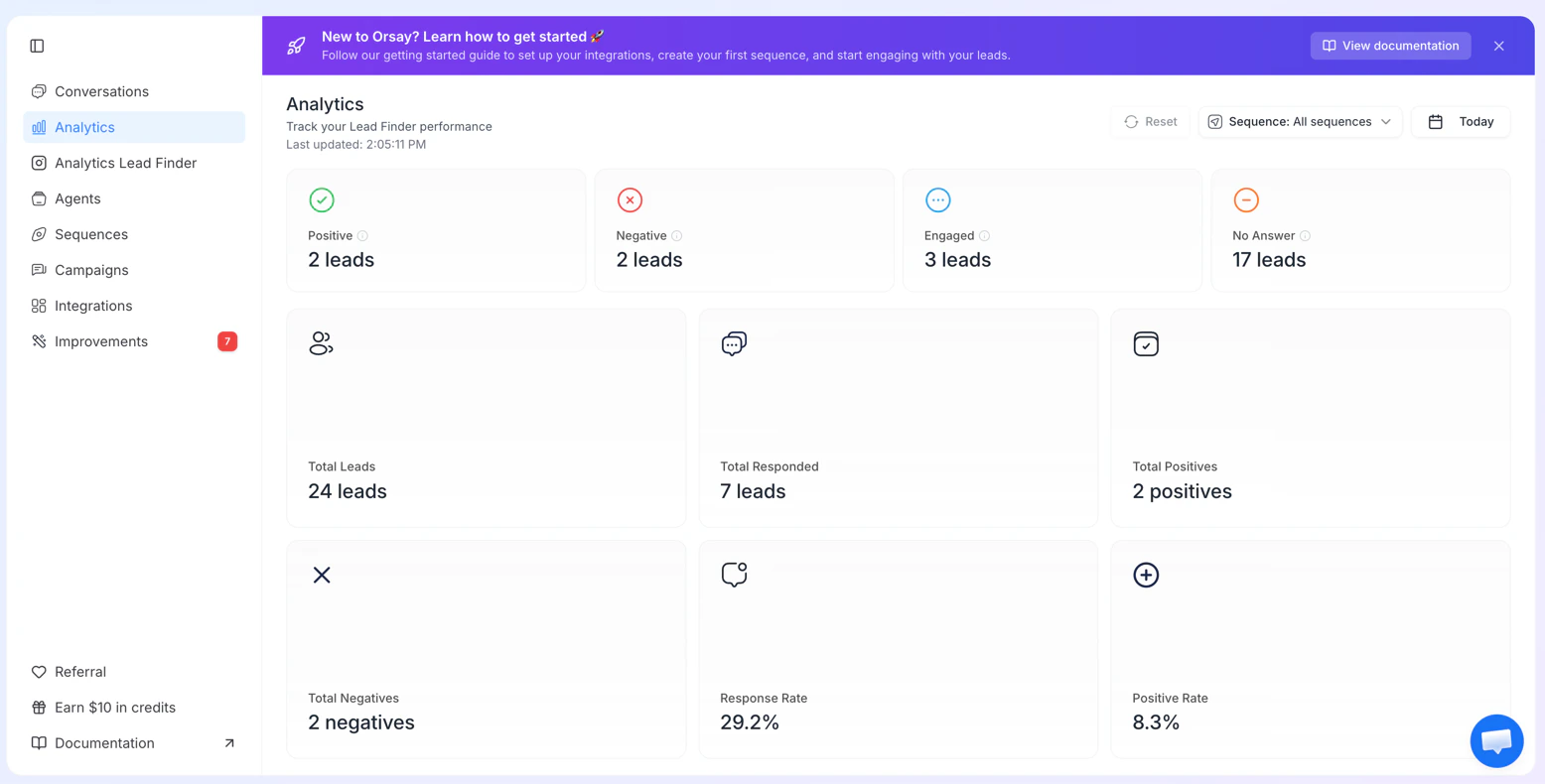 * Date range picker (defaults to today)
* Sequence filter to drill into specific campaigns
* Auto-refreshes every 30 seconds
* Metrics cards: Total Leads, Total Responded, Positive / Negative / Engaged / No Answer counts and percentages, Response Rate, Positive Rate
## Export your analytics \[#export]
You can export everything visible on the Analytics dashboard with a single click.
Go to **[Analytics](https://app.orsay.ai/analytics)** and apply any filters you want (date range, sequence).
Click the **Export** button at the top right of the page.
A CSV containing all metrics for the current filter range is downloaded to your computer.
* Date range picker (defaults to today)
* Sequence filter to drill into specific campaigns
* Auto-refreshes every 30 seconds
* Metrics cards: Total Leads, Total Responded, Positive / Negative / Engaged / No Answer counts and percentages, Response Rate, Positive Rate
## Export your analytics \[#export]
You can export everything visible on the Analytics dashboard with a single click.
Go to **[Analytics](https://app.orsay.ai/analytics)** and apply any filters you want (date range, sequence).
Click the **Export** button at the top right of the page.
A CSV containing all metrics for the current filter range is downloaded to your computer.