> ## Documentation Index
> Fetch the complete documentation index at: https://docs.orsay.ai/llms.txt
> Use this file to discover all available pages before exploring further.
# 📸 Agents
> Set up your AI agent on Orsay
On the **[Agents](https://app.orsay.ai/agents)** page, you can view, create, and manage your AI Agents. Each agent is designed to automate lead engagement and manage conversations for your workspace.
* **Click on Agents**
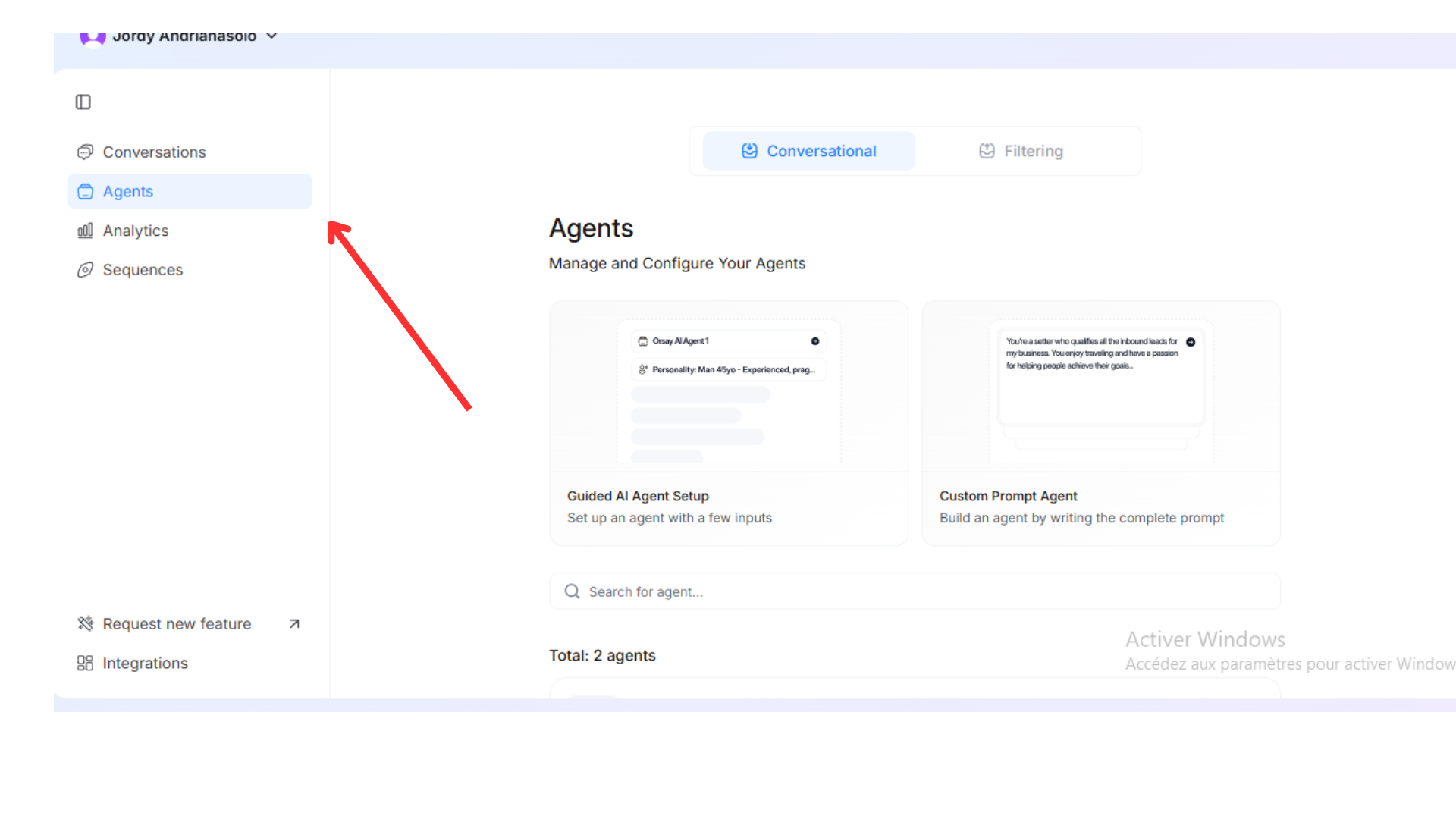 When you first access the **[Agents](https://app.orsay.ai/agents)** page, you may see:
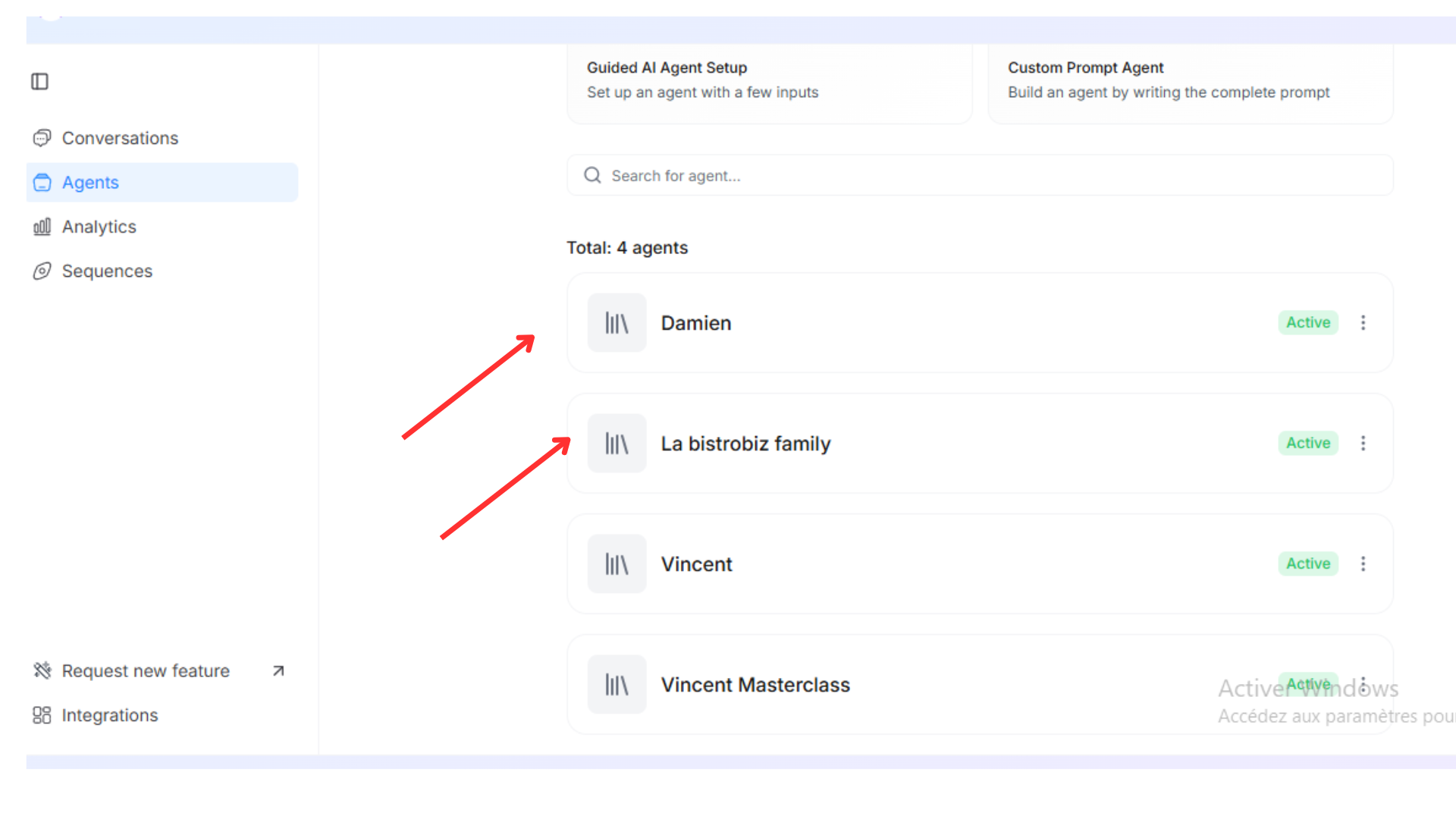
* A list of existing agents (if any have already been created)
* Agent names, statuses (Active/Inactive), and the primary **Goal** of each agent
When you first access the **[Agents](https://app.orsay.ai/agents)** page, you may see:
* A list of existing agents (if any have already been created)
* Agent names, statuses (Active/Inactive), and the primary **Goal** of each agent
 ## Create Agents
**When you start building your AI agent on Orsay.ai, you’ll see two options. Think of them like two different paths:**
### 1 - Custom Prompt Agent:
The **Custom Prompt Agent**, where you write detailed instructions to shape the agent’s behavior. This gives you more control, but it’s better suited for advanced users.
### 2 - Guided AI Agent Setup:
The **Guided AI Setup** is quick and beginner-friendly. You just answer a few questions and your agent is ready. For most users, the guided option is the easiest and recommended.
1. **Click on “GUIDED AI AGENT SETUP”**
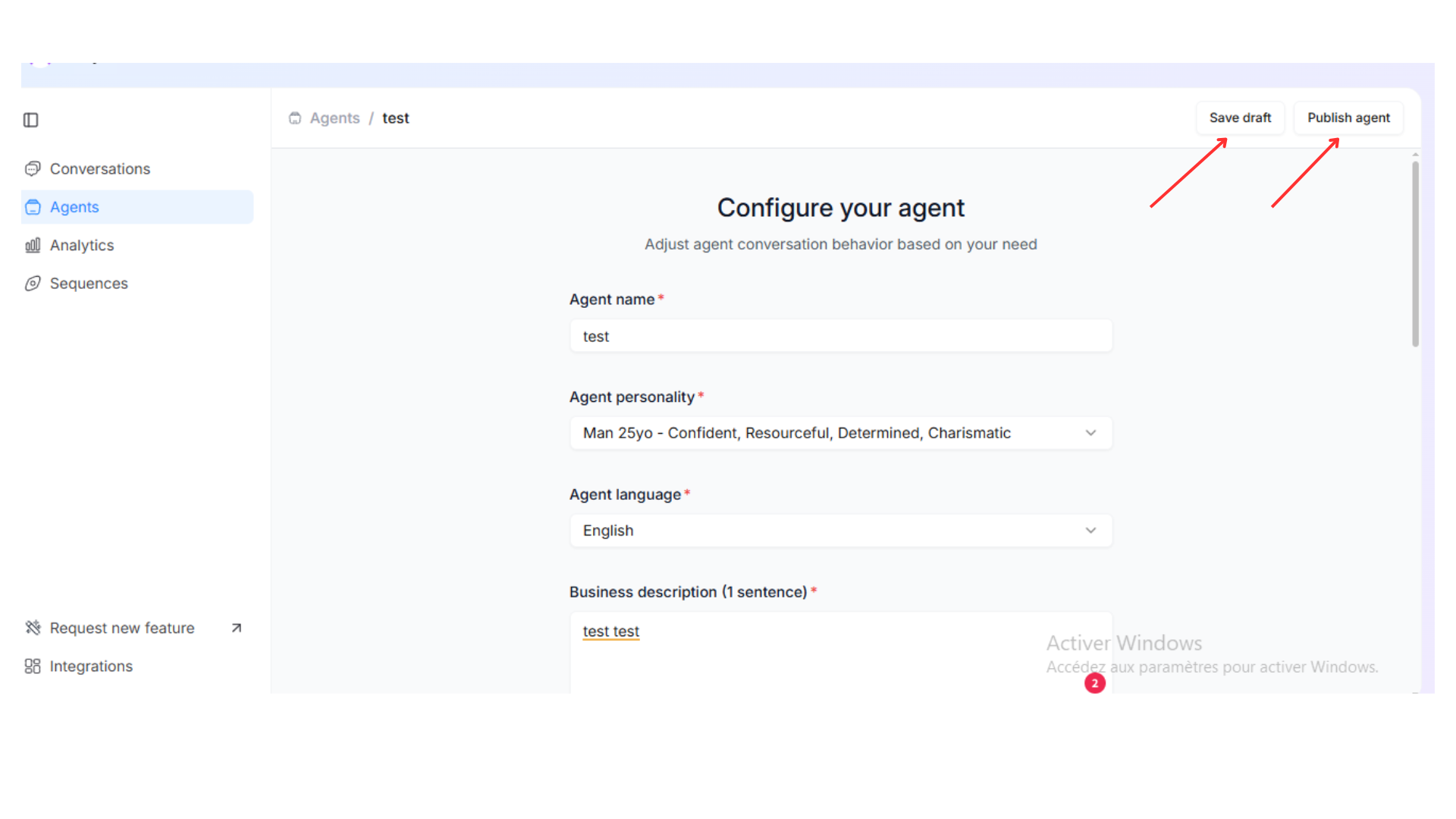
2. **Fill in the agent details**:
* **Agent name**: Give your agent a recognizable name (e.g., “Rico Coolz”)
* **Agent personality**: Lets you choose a preset personality for your agent. For example, “Man 25yo – Confident, Resourceful, Determined, Charismatic”
* **Agent language**: Choose the main language for the agent’s responses
* **Business description (1 sentence)**: Provide a brief description of your business so the agent can reference it when interacting with leads
* **Your business offer**: Describe what you’d like the AI to pitch or highlight (e.g., product, service, special promotion) and share everything you want the AI to know about your offer
* **Qualification questions**: List questions your agent should ask the leads for qualification (e.g., current situation, budget, interest). Click on + if you want to add multiple questions
* **Call strategy**: Specify whether the agent should check if the lead agrees to a callback or invite them to book a call directly (**Booking call link is required**). It's about choosing between passive follow-up or active scheduling
* **Emoji frequency**: Control how often the agent uses emojis (we recommend 25%)
* **Emoji list (optional)**: You can choose the emojis your agent will use in its responses
* **Directness**: Determine whether the agent’s tone is more empathetic or more direct (**0 = empathetic, 10 = highly direct for more calls**, we recommend 2)
3. **Click on “Save draft”** and **“Publish agent” (top right)** to finalize and add it to your list
## Create Agents
**When you start building your AI agent on Orsay.ai, you’ll see two options. Think of them like two different paths:**
### 1 - Custom Prompt Agent:
The **Custom Prompt Agent**, where you write detailed instructions to shape the agent’s behavior. This gives you more control, but it’s better suited for advanced users.
### 2 - Guided AI Agent Setup:
The **Guided AI Setup** is quick and beginner-friendly. You just answer a few questions and your agent is ready. For most users, the guided option is the easiest and recommended.
1. **Click on “GUIDED AI AGENT SETUP”**
2. **Fill in the agent details**:
* **Agent name**: Give your agent a recognizable name (e.g., “Rico Coolz”)
* **Agent personality**: Lets you choose a preset personality for your agent. For example, “Man 25yo – Confident, Resourceful, Determined, Charismatic”
* **Agent language**: Choose the main language for the agent’s responses
* **Business description (1 sentence)**: Provide a brief description of your business so the agent can reference it when interacting with leads
* **Your business offer**: Describe what you’d like the AI to pitch or highlight (e.g., product, service, special promotion) and share everything you want the AI to know about your offer
* **Qualification questions**: List questions your agent should ask the leads for qualification (e.g., current situation, budget, interest). Click on + if you want to add multiple questions
* **Call strategy**: Specify whether the agent should check if the lead agrees to a callback or invite them to book a call directly (**Booking call link is required**). It's about choosing between passive follow-up or active scheduling
* **Emoji frequency**: Control how often the agent uses emojis (we recommend 25%)
* **Emoji list (optional)**: You can choose the emojis your agent will use in its responses
* **Directness**: Determine whether the agent’s tone is more empathetic or more direct (**0 = empathetic, 10 = highly direct for more calls**, we recommend 2)
3. **Click on “Save draft”** and **“Publish agent” (top right)** to finalize and add it to your list
 ### Editing Agents
You can modify an agent’s details at any time to better suit your needs:
1. **Locate the agent** in the list on the **[Agents](https://app.orsay.ai/agents)** page
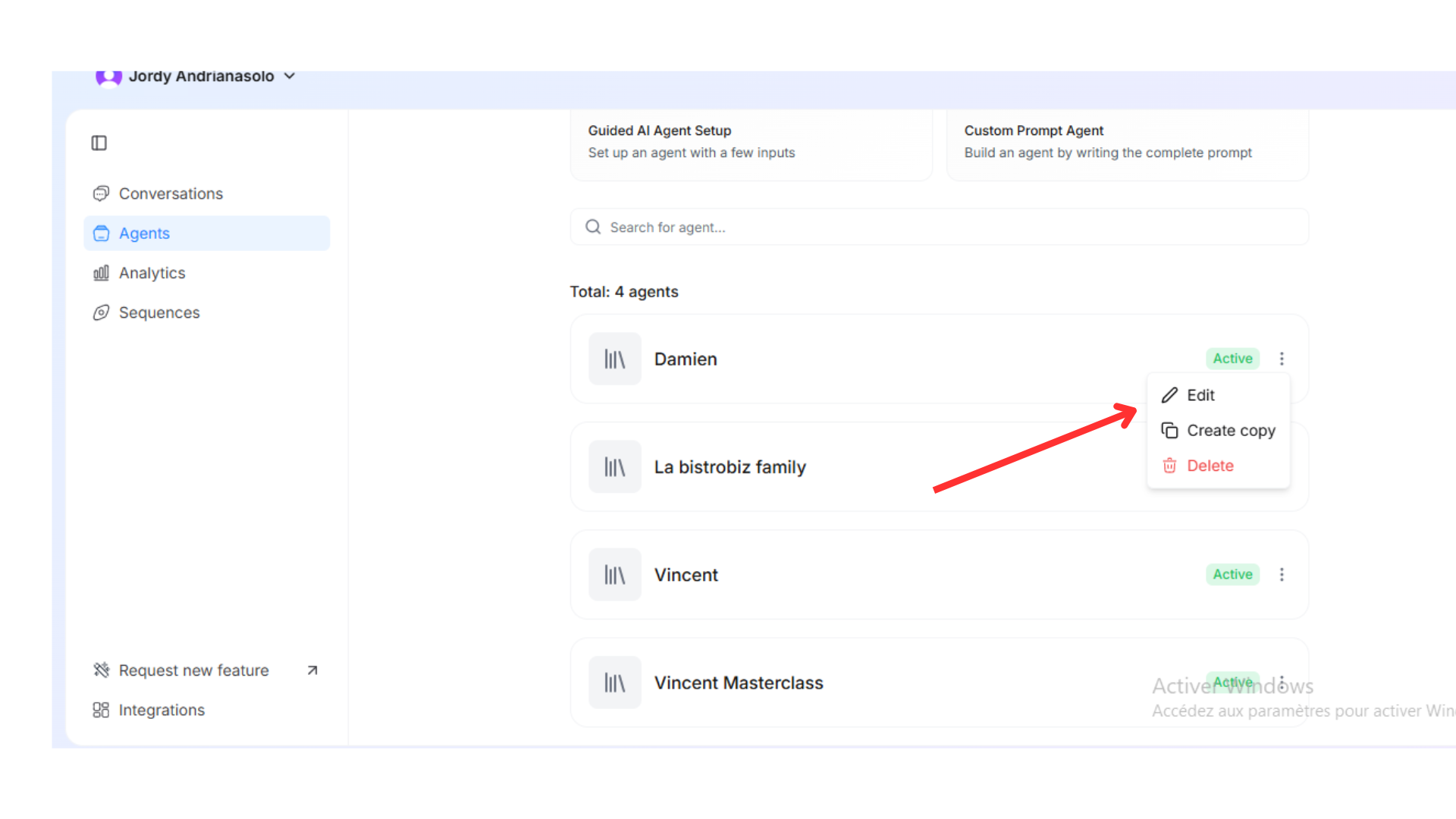
2. **Click the ellipsis (three dots)** next to the agent’s name
3. **Select “Edit”**: You’ll be taken to the same form used to create the agent
### Editing Agents
You can modify an agent’s details at any time to better suit your needs:
1. **Locate the agent** in the list on the **[Agents](https://app.orsay.ai/agents)** page
2. **Click the ellipsis (three dots)** next to the agent’s name
3. **Select “Edit”**: You’ll be taken to the same form used to create the agent
 4. **Make your changes**: Adjust any fields, such as agent name, personality, language, or strategy
5. **Click “Publish agent”**: The agent’s configuration will update accordingly
4. **Make your changes**: Adjust any fields, such as agent name, personality, language, or strategy
5. **Click “Publish agent”**: The agent’s configuration will update accordingly
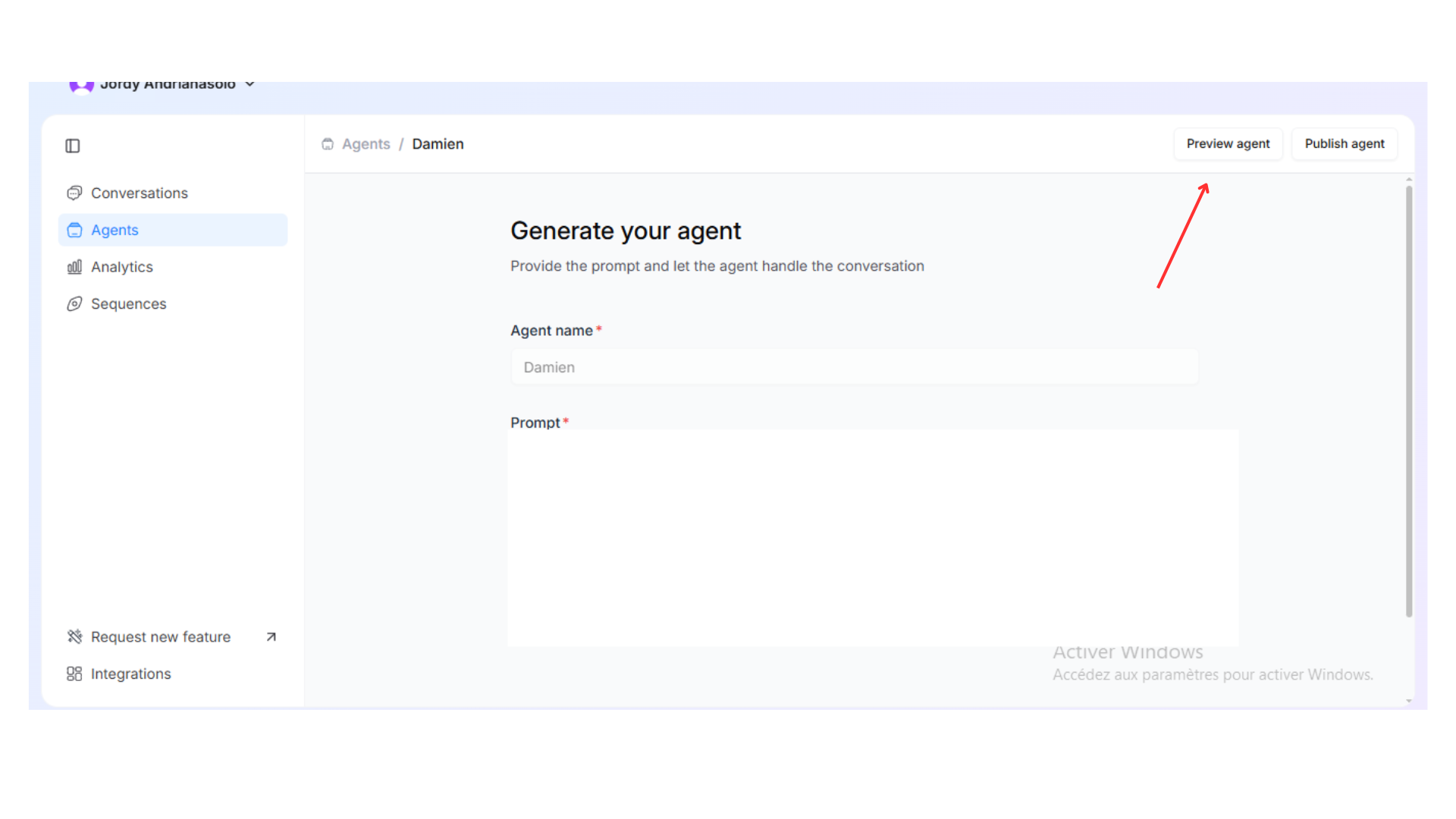
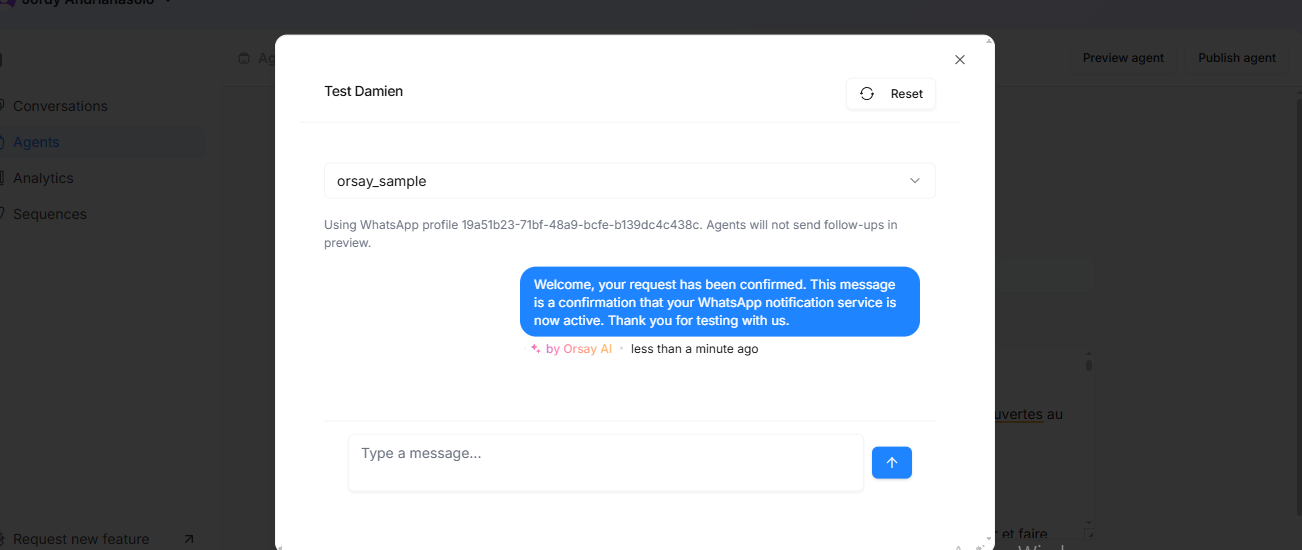
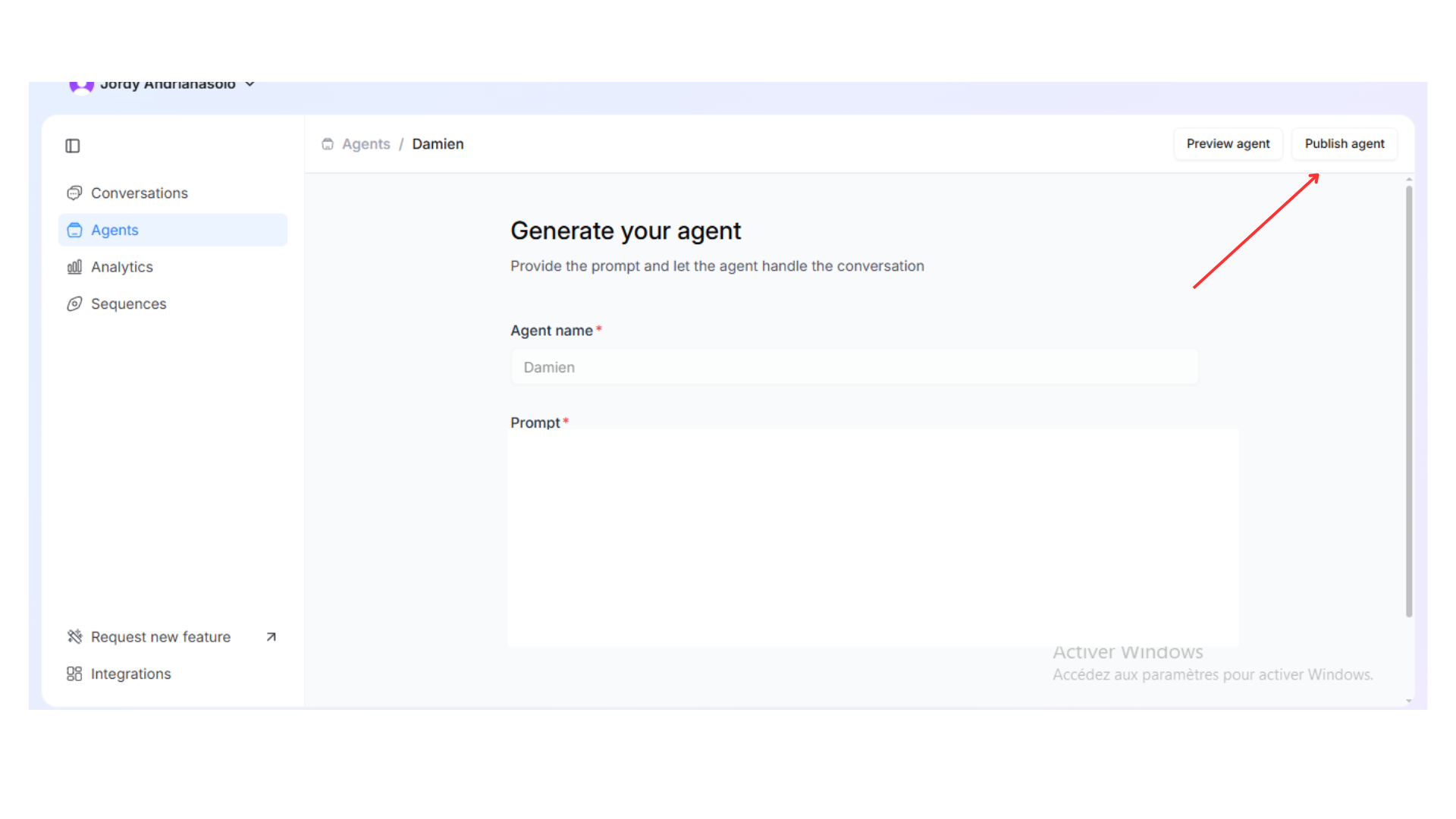 **While editing, you can also preview the agent to verify the conversation flow (Conversation test).**
{" "}
**While editing, you can also preview the agent to verify the conversation flow (Conversation test).**
{" "}
 ## Resources & external links \[#resources]
Give your agent a library of links — landing pages, case studies, testimonials, videos — and the AI will share the right one at the right moment in a conversation.
Go to **[Agents](https://app.orsay.ai/agents)**, pick the agent, and open the **Resources** section.
For each link, provide:
* A **name** (what it is)
* A **URL**
* A short **description** (when the AI should share it)
The agent will reference these resources contextually — e.g. drop a booking link when a lead asks for a call, or share a testimonial when a lead is hesitant.
Resources work best when descriptions are written from the AI's perspective: *"Send this link when the lead asks about pricing."*
If you need help configuring your AI agent, Orsay's support team is here for
you! Reach out to us on [WhatsApp](https://wa.me/33780905889) for quick and
personalized assistance.
## Resources & external links \[#resources]
Give your agent a library of links — landing pages, case studies, testimonials, videos — and the AI will share the right one at the right moment in a conversation.
Go to **[Agents](https://app.orsay.ai/agents)**, pick the agent, and open the **Resources** section.
For each link, provide:
* A **name** (what it is)
* A **URL**
* A short **description** (when the AI should share it)
The agent will reference these resources contextually — e.g. drop a booking link when a lead asks for a call, or share a testimonial when a lead is hesitant.
Resources work best when descriptions are written from the AI's perspective: *"Send this link when the lead asks about pricing."*
If you need help configuring your AI agent, Orsay's support team is here for
you! Reach out to us on [WhatsApp](https://wa.me/33780905889) for quick and
personalized assistance.